

How Turn Client Feedback Into Tasks Without Losing Context


Brinova Digital, a small WordPress agency, logged a client’s feedback the moment it came in: “Fix the pricing table, the numbers are wrong.” The task got created, assigned, and closed out within the week.
Here’s the thing: three weeks later, a similar request came in for a different page. Nobody could tell if it was the same issue or a new one, because the original task never said which numbers, which table, or what “wrong” actually meant.
So after that mix-up, the team made one change: every piece of client feedback gets logged with the full context attached, not just a task title.
That’s the system, and here’s how to build it in FluentBoards.
Note: In this article, we use “Brinova Digital” as a fictional example to walk through the feedback-to-task workflow.
Why Feedback Loses Context on the Way to a Task
Feedback loses context on the way to a task because of the way it gets logged. The fastest method, typing a short title and moving on, is also the method that strips out everything that made the feedback specific.
A task called “Fix pricing table” could mean five different things. By the time someone picks it up, even the person who created it may not remember which one.
This is not a discipline problem. It is what happens when the tool used to capture feedback and the tool used to track work get treated as the same step.
A project management challenge shows up here as a translation loss. Feedback arrives as a full sentence with reasoning attached, a client explaining what is wrong and why it matters. It gets converted into a task title with none of that reasoning preserved.
Left alone, this compounds. A month into a project, the backlog fills with terse task titles nobody can fully reconstruct. The team starts re-contacting clients to ask what a task meant, which is exactly the kind of miscommunication between project members a logging system was supposed to prevent.
Summarizing instead of preserving
The instinct when logging feedback quickly is to compress it: a client’s three-sentence explanation becomes a five-word task title. That compression feels efficient in the moment and expensive later, because the title is all that survives.
Anyone working the task afterward has to either guess at the missing reasoning or go back to the client to ask again, which is the exact follow-up loop the team was trying to avoid by logging the feedback in the first place.
Bundling multiple changes into one task
The second pattern runs the opposite direction: instead of losing detail, the task keeps too much of it, undifferentiated. A client sends one message covering three unrelated changes, a color adjustment, a broken link, and a request for a new section, and all three land in a single task.
Nobody can mark it done until every piece is finished, so a two-minute fix sits blocked behind a much bigger piece of work, and progress on the parts that are actually complete stays invisible to the rest of the team.
Two Ways to Turn Feedback Into Tasks
Two approaches solve the context problem from opposite directions: logging feedback manually with the full context preserved in comments, and automating intake through a Fluent Forms feedback form that carries structured detail into the task automatically.
Neither replaces the other. A solid project management workflow usually ends up using both, depending on how a given piece of feedback arrives and where it lands on the kanban board.
The manual approach: full context in the comments
When feedback arrives by phone, in a meeting, or as a loose collection of Slack messages, manual logging is still the most reliable method. Create the task first, then open it and write out the feedback in full before doing anything else.
Keep the task title short and searchable. Let the comment carry the reasoning, what the client said, why it matters, and any screenshot or file they sent along. Anyone opening the task six weeks later reads that comment first and gets the same context the person who logged it had on day one.
The automated approach: Fluent Forms feedback intake
When a client submits feedback through a structured form instead of an email or a call, Fluent Forms can create the task automatically, with every form field mapped into the task description or a Custom Field.
A feedback form with fields for what needs to change, why, which page or feature is affected, and how urgent it is turns a client submission into a fully detailed task the moment it’s submitted, no manual re-typing, no compression. This works especially well for agencies fielding recurring feedback from the same clients throughout a project, where a consistent form beats parsing a new email format every time.
Both approaches solve how feedback gets captured in the first place. What happens when one piece of feedback covers more than one change at once is a separate question, and that’s next.
Read: How Fluent Forms complements FluentBoards for the full integration walkthrough
When to use subtasks instead of one task
When a single piece of feedback bundles more than one distinct change, split it at the point of creation rather than after the fact. FluentBoards Pro subtasks let one parent task, named after the original feedback, hold multiple subtasks, one per distinct change, each trackable and closeable on its own.
The parent task stays open until every subtask is done, but the team can see exactly which of the requested changes is finished and which is still open, instead of a single task sitting in limbo until all of it is complete.
How to Set Up Both Approaches in FluentBoards
Setting this up takes three steps: establish the comment convention for manually logged feedback, build a Fluent Forms feedback intake that maps to task fields automatically, and know the trigger point for splitting a task into subtasks.
None of the three depend on each other, so they can be adopted in any order that fits how feedback actually arrives at your agency.
Step 1: Log feedback manually with context intact
Create the task with a short, searchable title, something like “Homepage hero copy feedback” rather than a summary of the fix itself.
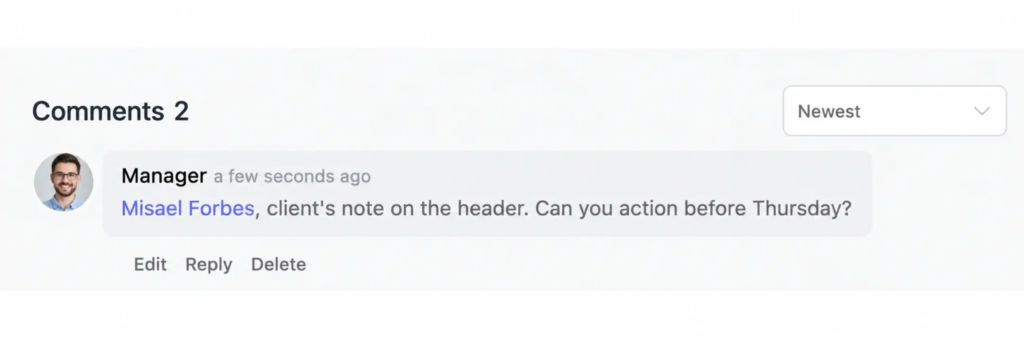
Before doing anything else, open the task and add a comment with the feedback in the client’s own words: what they said, the page or feature it refers to, and any file or screenshot they sent along. If the feedback arrived verbally, write it out as close to what was said as possible while it is still fresh.
This one habit, comment before you build, is what keeps the task usable for whoever picks it up next, even if that is a different person than the one who logged it.
Step 2: Build a Fluent Forms feedback intake
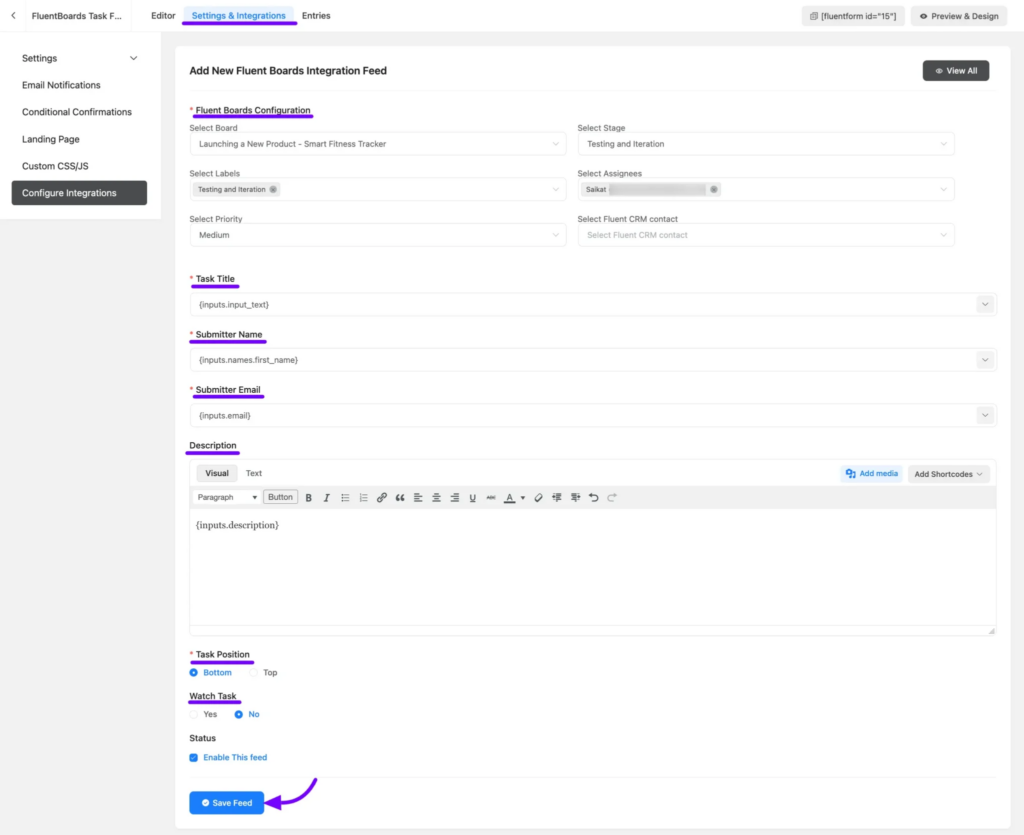
In Fluent Forms, build a short feedback form with fields for what needs to change, why it matters, which page or feature it affects, and how urgent it is.
Go to the form’s Integrations tab, connect FluentBoards, and map each field to its task equivalent:
- “What” field → task title
- “Why” field → task description
- “Page” field → task description or Custom Field
- “Urgency” field → task description or Custom Field
Set the destination board and a starting stage, something like “New Feedback,” so submissions land somewhere visible before anyone triages them.
Note: Submit a test entry yourself before sharing the form with clients, so you can confirm every field lands where you expect it to on the task.
Share the form link with clients directly, or embed it on a client-facing page, and every submission becomes a fully detailed task with zero manual re-typing.
Step 3: Split bundled feedback into subtasks
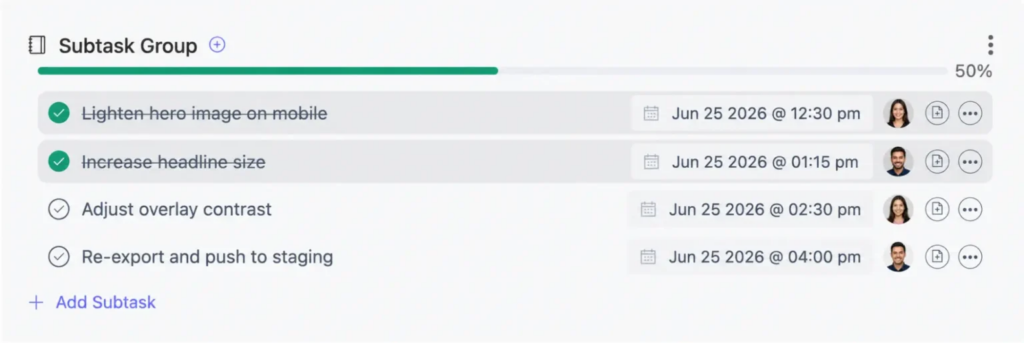
When a task turns out to bundle more than one distinct change, and this shows up most often when a client’s message uses the word “also” more than once, open the task and add a subtask for each distinct piece: one for the color adjustment, one for the broken link, one for the new section, in the earlier example.
Keep the original feedback comment on the parent task so the full context stays attached, and let each subtask carry only what one person needs to complete that single piece. The parent task closes once every subtask is marked done, which gives the project manager an accurate read on real progress instead of one task that looks stuck for a week and then finishes all at once.
Pro Tip: Standardize the first line of every feedback comment, something like “Client said:” followed by the quote. It sounds small, but it makes six-month-old tasks scannable in seconds instead of requiring a full re-read.
Frequently Asked Questions About Turning Client Feedback Into Tasks
A couple of questions come up every time an agency sets this up for the first time.
Do I need Fluent Forms, or can I log feedback manually?
No. Fluent Forms automates intake for feedback that arrives through a form. Manual logging in comments needs zero setup and works better for verbal or ad hoc feedback.
What’s the difference between a comment and a subtask for feedback?
A comment preserves context on one task without changing its scope. A subtask splits a bundled request into separately trackable pieces of work.
What a Feedback Task Looks Like Six Months Later
At Brinova Digital, the “Fix pricing table” task got rewritten with a comment attached: the client’s exact words, a screenshot, and the reason, an out-of-date annual price.
Six months later, a similar request came in for a different page. The project manager searched the old task, found the context in seconds, and fixed it without a single follow-up email.
That’s the real test of a feedback system: not whether the task exists, but whether it still makes sense to someone who wasn’t there when it was created.
For the full picture of the client relationship, see how FluentBoards helps agencies manage projects. That’s where this workflow fits into the bigger picture of running client work end to end.
Thanks for reading. Your next piece of client feedback can stay just as clear six months from now as it was the day it landed.
Let’s redefine project management with FluentBoards!

Follow:


Get Tips, Tricks, & Updates
We won’t send you spam.






Add your first comment to this post