

How to Use the My Tasks Dashboard in FluentBoards to Run Your Workday


You have three active boards with twelve tasks assigned to you across all of them, and you genuinely don’t know what to work on first this morning.
This is not a planning failure. It’s a visibility problem. When tasks live across multiple boards, the board view stops being useful for individuals, so you end up clicking between projects and scanning card after card, trying to reconstruct a picture of your own workload in your head.
My Tasks fixes that. It pulls every task assigned to you into a single dashboard across every board and every project, sorted, filtered, and ready to act on.
Here’s how to use it.
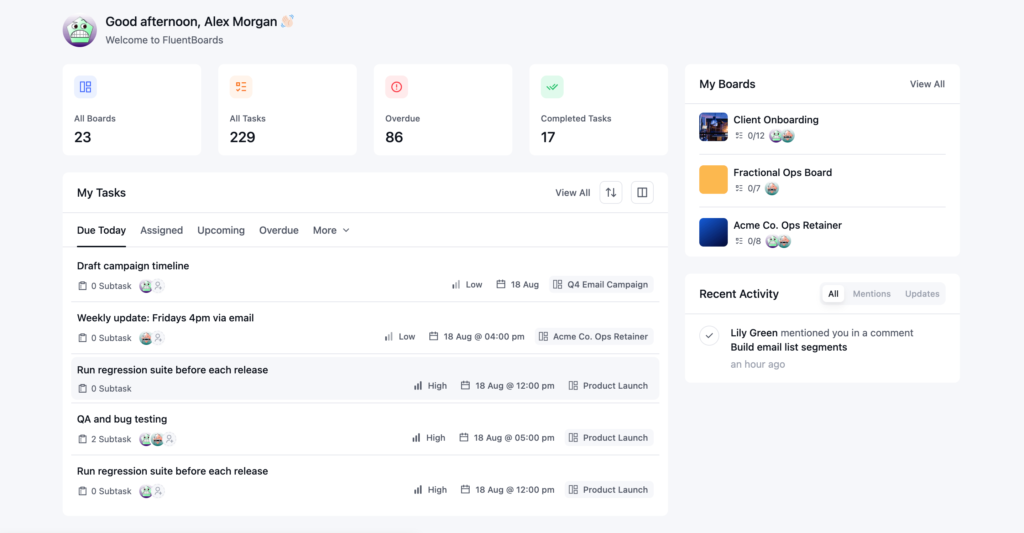
What My Tasks Shows You
My Tasks sits on your FluentBoards dashboard alongside your recently opened boards, and it gives you a personal view of your work rather than the team’s or the board’s. If you’re managing multiple projects in WordPress, this view is how you stay on top of your piece without losing the bigger picture.
The dashboard is organized into tabs, and each one answers a different version of the same question: what do I do with these tasks right now? That makes them less like filters and more like decisions.
The Seven Tabs, and What to Do With Each One
Here’s what each one is for, and when to actually check it.
Overdue
Start here. Every morning.
These are tasks past their due date that you haven’t closed. The instinct is to feel bad about this list. Skip that. Treat it as a triage queue: decide which tasks you’re completing today, which need a new due date, and which are no longer relevant and should be closed. Clear this tab first, and the rest of the day has a cleaner foundation.
Due Today
These are your commitments for today. If you came in with a plan, this tab confirms it. If you didn’t, this tab becomes your plan. Work through these before pulling anything from Upcoming.
Don’t let this list grow past what’s actually possible in a workday. If it has nine items on it, three of them probably belong in Upcoming.
Upcoming
Tasks due in the next few days. This is the planning tab, not the execution tab.
Check it at the end of your workday, not the beginning. “Upcoming” lets you see what’s arriving tomorrow before today ends, so you can set up your next morning before you close the laptop. It’s the tab that turns reactive days into planned ones, and most slipped deadlines were visible days ahead of time, which is a large part of why projects miss deadlines in the first place.
Assigned
Every task currently assigned to you, regardless of due date. Some have deadlines. Some don’t. This tab gives you the full scope of your workload. Not just what’s urgent.
Use it when you need to answer: “Am I actually overcommitted right now?” Check it before you say yes to a new task. Knowing your real workload is the difference between a productive commitment and a missed deadline two weeks later. For managers, this tab also shows you where to look when you manage a project team: who’s at capacity and who has room.
Completed
Your finished work. Useful for your own sense of progress when a week feels less productive than it was, and for a quick audit before writing a status update or weekly report.
Others
Every task assigned to you with no deadline attached.
This tab is worth a weekly review, not a daily one. Some of these are genuinely low-priority and can stay undated. Others have quietly become urgent without anyone updating the record. Review on Fridays. Add due dates to anything that’s moved up in priority since it was created.
Mentioned
Tasks where someone tagged you in a comment, without necessarily handing you ownership.
Someone pulled you into these for input, feedback, or a decision, and good stakeholder collaboration runs on fast responses at exactly those moments. They aren’t your primary work, but sitting on them blocks other people, so check this tab once mid-day, respond to what’s waiting, and move on.
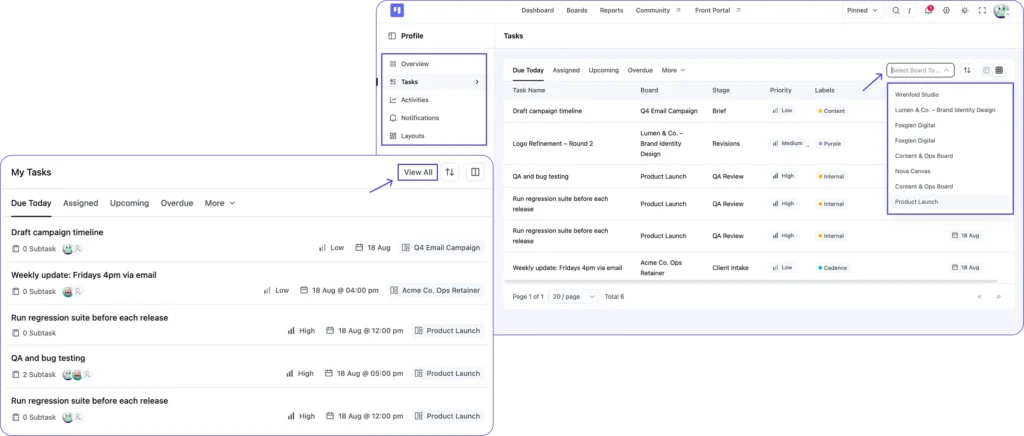
Bonus: Click “View All” to open the full page, which adds a table view and a board filter if you want to narrow things down.
Configure the Dashboard to Match How You Actually Work
The default tab order is a starting point, not a prescription.
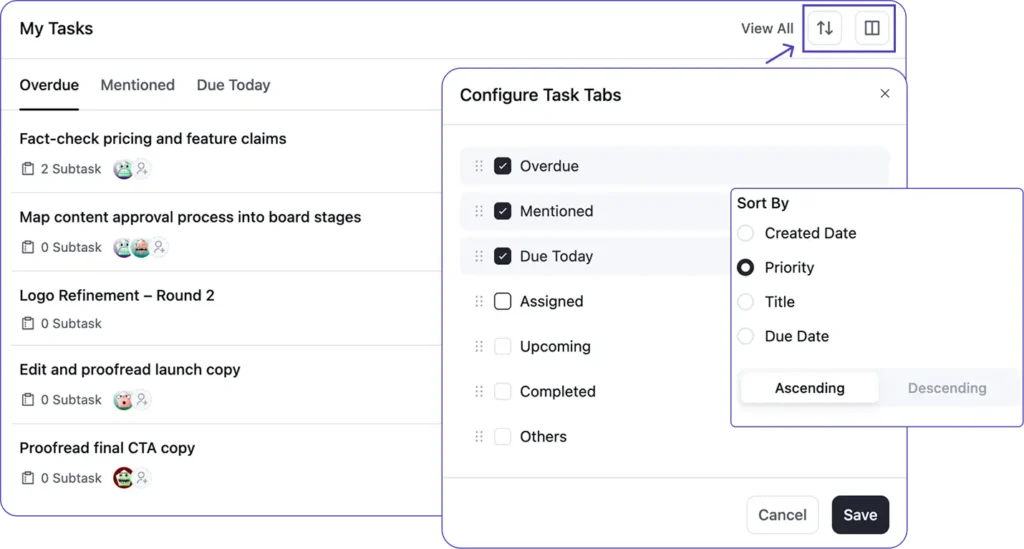
Click Configure Task Tabs (My Tasks widget → the layout icon next to Sort.) from the My Tasks dashboard to open the configuration modal, where you can toggle off the tabs you never use and reorder the rest. If you always start with Overdue, move it to the top, and if Mentioned matters more to you than Upcoming, put it above. After setup, the dashboard opens with your priorities already in front of you.
Tab order arranges the view from the outside. Sort By works on the inside, ranking tasks within each tab by Created Date, Priority, Title, or Due Date, in either direction. For most people, sorting Overdue and Upcoming by Priority from high to low is the most useful setup, since it puts your most critical work at the top of the list you check first.
Profile Overview: The Full Personal Audit
There is a second personal task view most users never find.
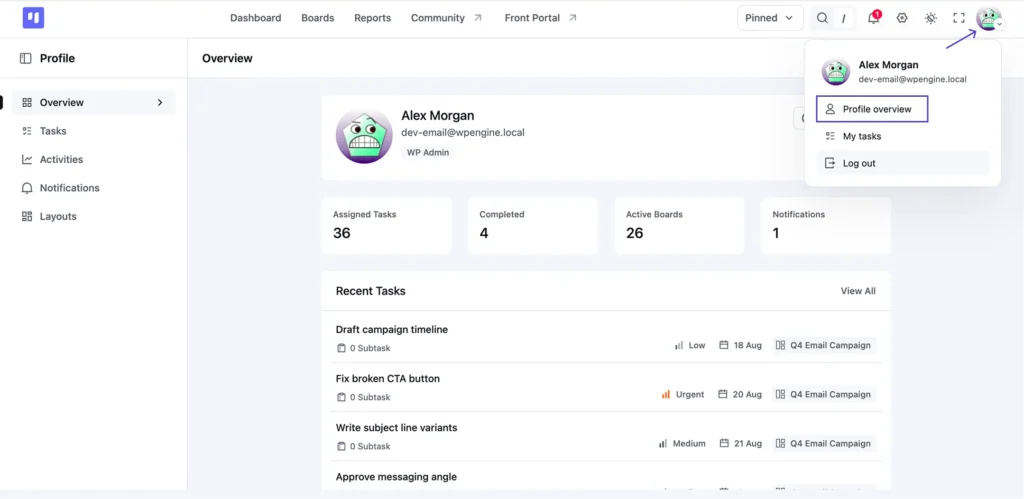
Click your avatar and select Profile overview. This opens a dedicated page showing your complete picture across the whole account. At the top: counts for Assigned Tasks, Completed, Active Boards, and Notifications. Below that: a Recent Tasks preview, not filtered by date, with a View All link back to the full task list, the same one covered earlier, for a board-by-board look at your work.
The My Tasks dashboard is your morning check. Profile Overview is where you go when you need the full audit: what is literally everything assigned to me across this entire account? Use it before a team check-in, after a few days away, or any time the daily view isn’t enough.
The same sidebar holds three more tabs worth knowing.
Activities. Logs your own actions across every board, useful for retracing what you did and when.
Notifications. Controls which events email you: new comments, being assigned, stage changes, and more.
Layouts. Controls which fields show on your task cards, labels, priority, assignees, due dates, and more, across Kanban, Table, and List views.
All three are worth two minutes to configure once. Noisy notifications train you to ignore them. Configured ones actually mean something.
Most People Start in Email, Daily Reminder Meets You There
My Tasks shows you this picture when you open WordPress. That’s useful. But it assumes you open WordPress first.
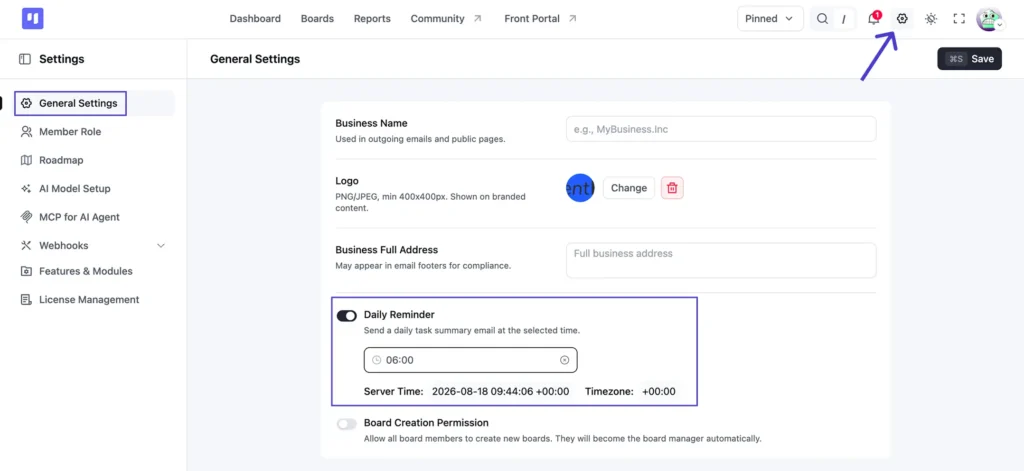
Daily Reminder solves for that reality. Turn it on from Settings → General Settings, and FluentBoards sends a daily task summary email at whatever time you set. The same tasks you’d see in My Tasks, delivered before you’ve even opened a browser tab.
If your team keeps missing tasks because “I didn’t see it in the board,” Daily Reminder closes that gap.
My Tasks: Free vs. Pro
| Capability | Free | Pro |
|---|---|---|
| My Tasks dashboard | Included | Included |
| All seven task tabs | Included | Included |
| Configure Task Tabs (reorder, toggle) | Included | Included |
| Sort By controls | Included | Included |
| Profile Overview | Included | Included |
| Card layout preferences | Included | Included |
| Notification preferences | Included | Included |
| Daily email reminders | No | Included |
For the complete tier-by-tier breakdown, check FluentBoards Free vs. Pro
From Your Tasks to Your Team’s Performance
My Tasks answers one question well: what do I need to do today? It doesn’t tell you how the work is going for everyone else, and sooner or later you’ll need that too.
That’s what Reports is for. It sits in the top navigation next to Boards, and it covers the team-level picture that My Tasks deliberately leaves out. Like My Tasks, it’s available on the free plan, so there’s nothing stopping you from opening both this week.
Start with My Tasks this morning though. The Overdue tab is waiting.
Let’s redefine project management with FluentBoards!

Follow:


Get Tips, Tricks, & Updates
We won’t send you spam.



Add your first comment to this post