

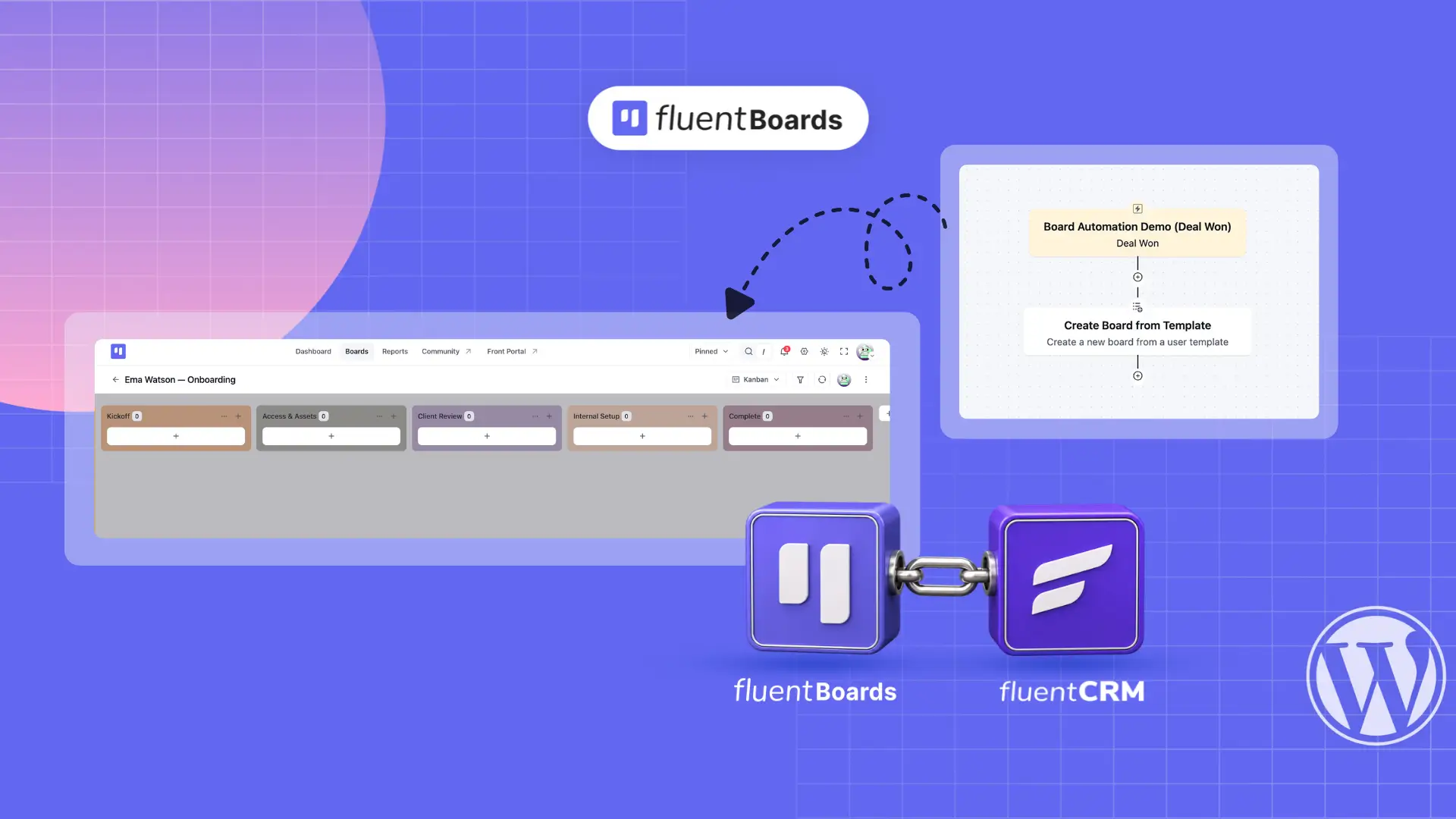
How to Automatically Create Project Boards in FluentBoards with FluentCRM


Imagine this.
A client books a service. A customer completes an order. Someone submits your project intake form. Or a student enrolls in your course.
And before anyone on your team even thinks about creating a project board, FluentBoards has already done it.
That is exactly what you can do when FluentBoards and FluentCRM work together.
You do not need to configure every trigger inside FluentBoards. FluentCRM handles the event detection. When something happens in a connected tool, FluentCRM can automatically tell FluentBoards to create a complete project board from a saved template.
No manual board creation. No repetitive setup. And, most importantly, no one needs to remember to do it.
Requires: FluentBoards Pro + FluentCRM
Setup time: Around 10 to 15 minutes per automation
Who can configure it: WordPress Admin or FluentBoards Admin
In this guide, we will walk through five practical ways you can automatically create project boards using tools from the Fluent ecosystem. And once you understand the logic, you can extend the same setup to many of the other tools FluentCRM connects with.
What Happens When FluentBoards and FluentCRM Work Together
FluentBoards already gives you everything you need to manage projects. You can create boards, organize tasks, assign team members, set deadlines, and move work through different stages.
But there is still one thing that usually needs to happen first: someone has to create the board!
And this is where FluentCRM changes the workflow.
FluentCRM can watch what is happening across your connected tools. A form gets submitted. A booking gets confirmed. Someone enrolls in a course. An order gets paid. A new user signs up.
When one of those events happens, FluentCRM can automatically trigger FluentBoards to create a project board from a template. So instead of your project management system waiting for someone to start the work, the system starts it for you.
This blog focuses only on automated project creation. To explore everything else the FluentCRM and FluentBoards integration can do, we recommend reading our complete guide on FluentCRM × FluentBoards.
Why FluentCRM Becomes the Trigger Layer
One important thing to understand before we start building the automation:
The automation does not live inside every individual tool. It lives inside FluentCRM. That means you get one automation builder where events from different tools can become triggers.
For example:
- A FluentBooking appointment can start an automation
- A Fluent Forms submission can start another
- A FluentCart purchase can start one
- A FluentCommunity enrollment can start another
But the FluentBoards action at the end can remain almost exactly the same.
Before building anything, make sure the integration is available.
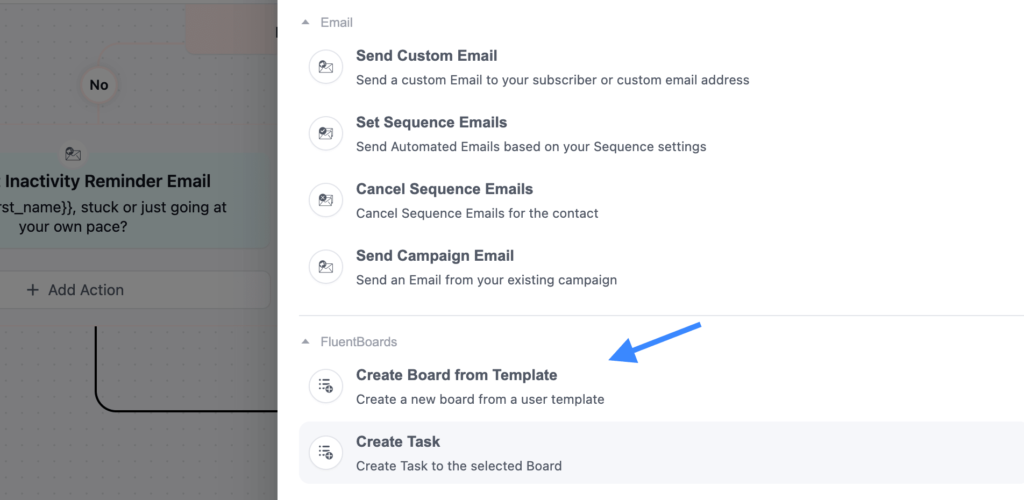
Go to: FluentCRM → Automations
Create a test automation and check whether FluentBoards appears in the available actions. If it does, you are good to go.
FluentCRM connects with 40+ tools, including WooCommerce, LearnDash, MemberPress, BuddyBoss, Zapier, Pabbly, and more. Through tools like Zapier and Pabbly, that reach can extend even further.
The Setup Is Almost the Same Every Time
Here is the nice part. All five automations follow almost the same structure. The trigger changes. The rest stays mostly the same.
Step 1: Create and Save Your Board Template
First, create the board you want FluentBoards to reuse automatically. Think of it as your master project structure. You can include things like:
- Project stages
- Default tasks
- Labels
- Existing workflow structure
Once the board is ready, open the board menu and select Save as Template.
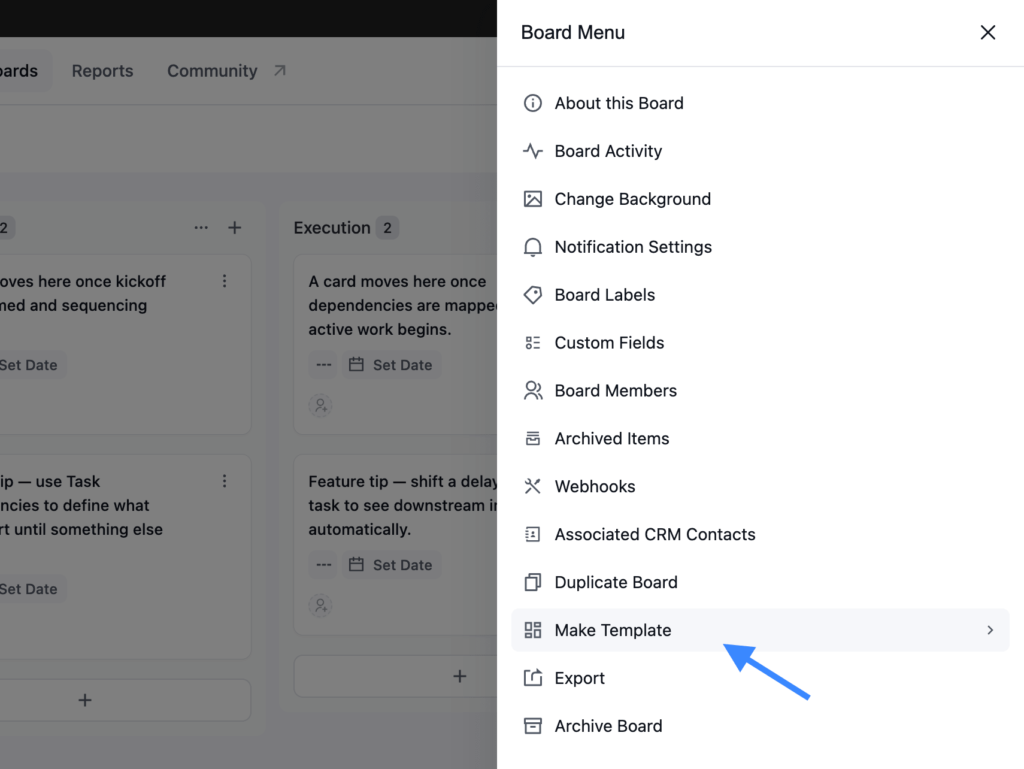
Give the template a clear name so it is easy to recognize later inside FluentCRM. For example: Client Onboarding Template, Website Project Template, Course Student Onboarding, Order Fulfillment Workflow, etc.
You will select this template later when configuring your automation.
If you need help creating reusable templates, check out our FluentBoards Templates guide
Step 2: Create a New Automation in FluentCRM
Now head over to: FluentCRM → Automations → New Automation
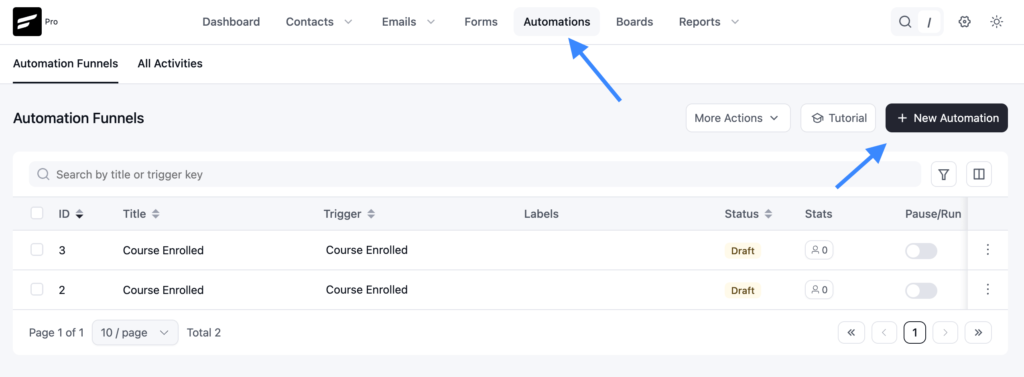
Give your automation a descriptive name. For example: FluentCart Order → Project Board. This might feel like a small thing, but good automation names become incredibly useful once you have several workflows running. Future you will be thankful.
Step 3: Choose the Trigger
Next, choose the event that should create the project board. This is where each use case becomes different.
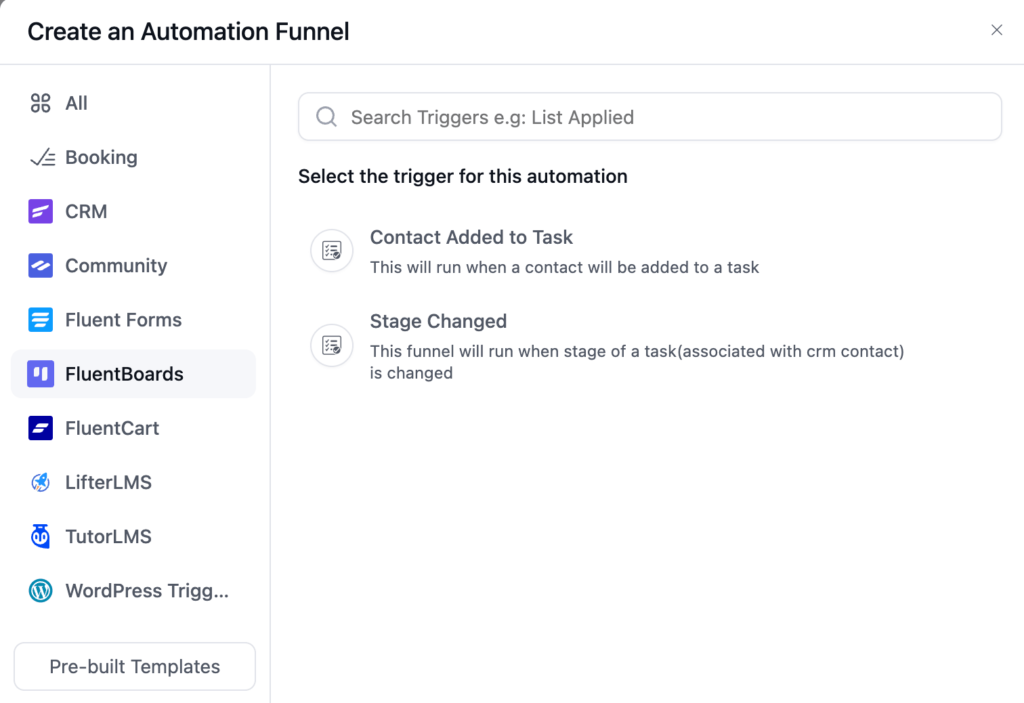
For example, your trigger could be:
- A new booking
- A form submission
- An order payment
- A course enrollment
- A new WordPress user registration
We will look at the exact trigger for each scenario in a moment.
Step 4: Add the Create Board from Template Action
Once the trigger is ready, click Add Action.
Find the FluentBoards section and select: Create Board from Template
Now configure the two important fields.
- Select Template: Choose the board template you created earlier.
- Board Title: You can leave this empty if you want to keep the original template title.
Or, even better, personalize it using FluentCRM smartcodes. For example: {{contact.full_name}} Project.
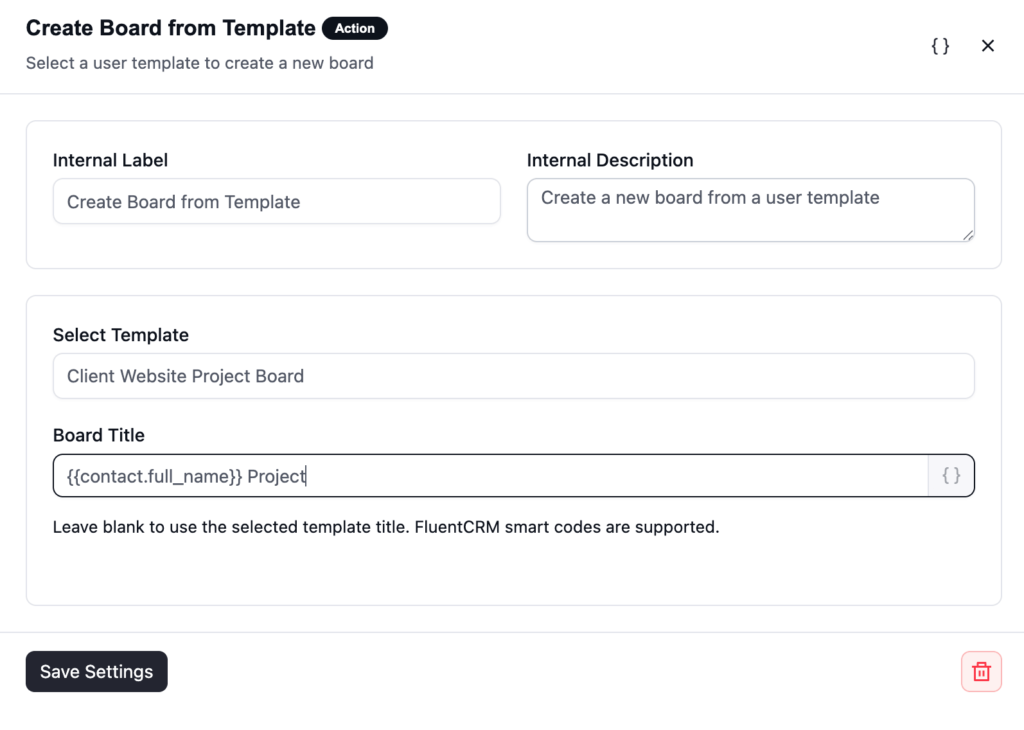
Now every new board can automatically include the customer’s or client’s name.
Click Save Settings when you are done. And that is basically the board creation part handled.
Your template controls the actual project structure. The automation simply decides which template to use and what the new board should be called.
Step 5: Let Someone Know the Board Is Ready
Creating the board is great. But your team still needs to know that new work has arrived.
So after the Create Board from Template action, we would recommend adding a Send Custom Email action.
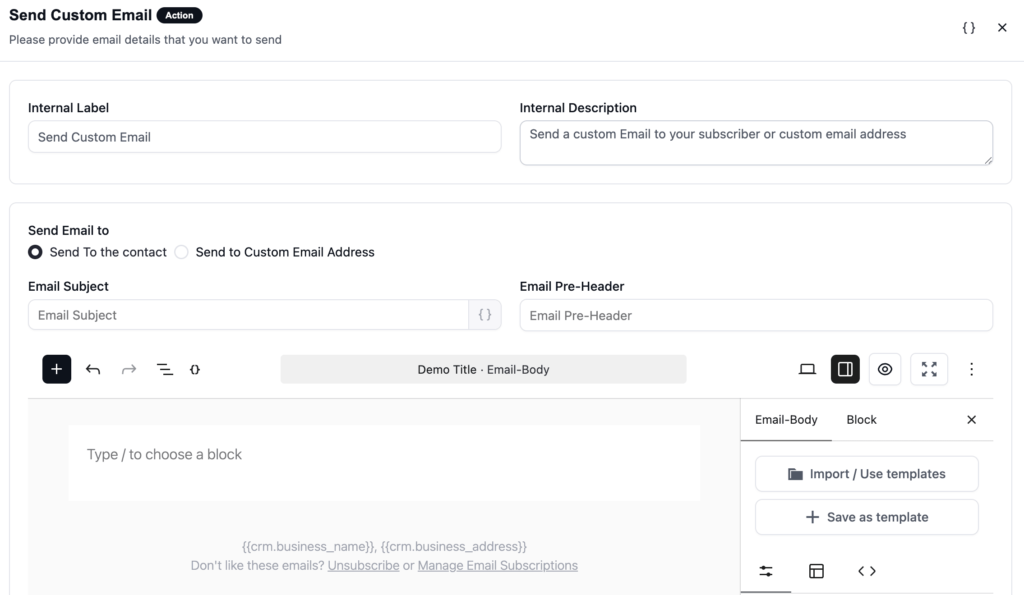
Here, you have two useful options;
- Send an Email to the Contact: This email goes to the person who triggered the automation. That could be your customer, client, student, or new user. You can use it to confirm that their project has started, their order is being processed, or their enrollment is complete.
- Send an Email to Your Team: You can also choose Send to Custom Email Address and send the notification internally. Your subject line could be something like: New board ready: {{contact.full_name}}. Your team will know exactly when a new project board has been created and can jump straight into it.
In many cases, using both emails makes sense. One email reassures the customer. The other tells your team it is time to get to work.
5 Ways to Automatically Create FluentBoards Project Boards
Now that the basic setup is clear, let us look at some actual use cases. The FluentBoards part remains almost identical in every scenario. The only major difference is what starts the automation.
Scenario 1: Create a Board When Someone Books Through FluentBooking
Trigger: FluentBooking → New Booking
Suppose you are selling a consultation, strategy session, creative service, or project kickoff through FluentBooking and someone books a session.
Normally, your team might then need to create a project board manually, assign someone, and prepare everything before the meeting.
But why wait?
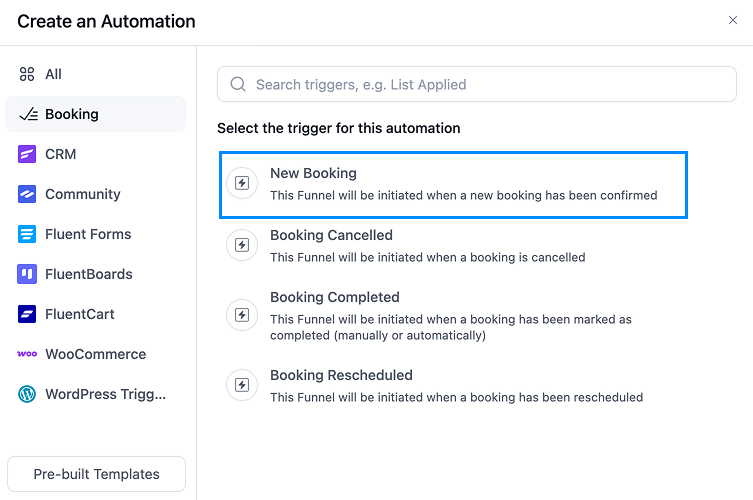
The moment FluentBooking confirms the booking, FluentCRM can trigger your automation. FluentBoards then creates a new project board from your Service Delivery template.
Your team gets notified. And the entire project structure is ready before the first meeting even begins.
Perfect for: Coaches, consultants, agencies, freelancers, and service businesses using FluentBooking.
Scenario 2: Create a Board from a Fluent Forms Submission
Trigger: Fluent Forms → New Form Submission (Fluent Forms)
For many agencies and service businesses, the project actually starts with a form. Maybe it is a client intake form, a discovery form, or a website brief.
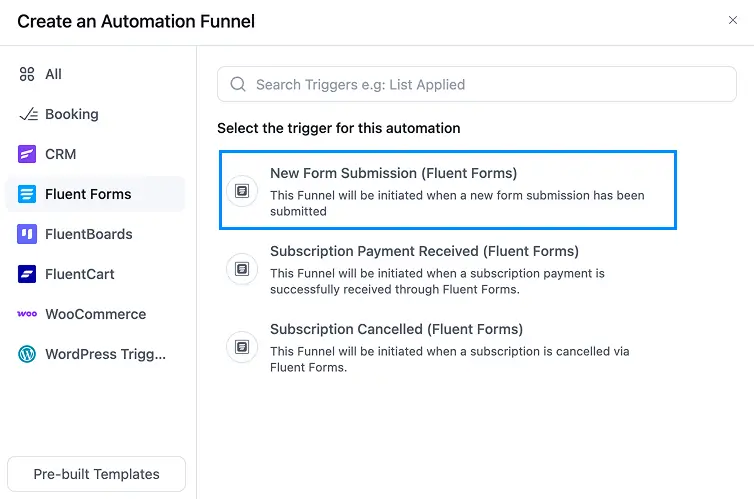
Whatever it is, once that form arrives, there is usually work to do. With this automation, submitting the form can immediately create the project board.
FluentCRM detects the submission, and FluentBoards creates a new board from your onboarding template. You can also use contact information collected through the form to personalize the workflow.
For example, the client’s name can become part of the board title. And this use case can become even more powerful when you use different forms for different services.
For more ideas on using these two plugins together, check out our Fluent Forms + FluentBoards guide.
Perfect for: Agencies, freelancers, consultants, and teams where a project begins with an intake or discovery form.
Scenario 3: Create a Project Board After a FluentCart Order Is Paid
Trigger: FluentCart → Order Paid (Payment/Subscription)
A customer has just paid you. Now something needs to happen.
Maybe you need to fulfill an order or maybe you need to onboard the customer.
Maybe someone needs to prepare files, create an account, schedule a call, or start delivering a service.
Whatever comes next, that work needs somewhere to live. The Order Paid trigger can automatically create that workspace for you.
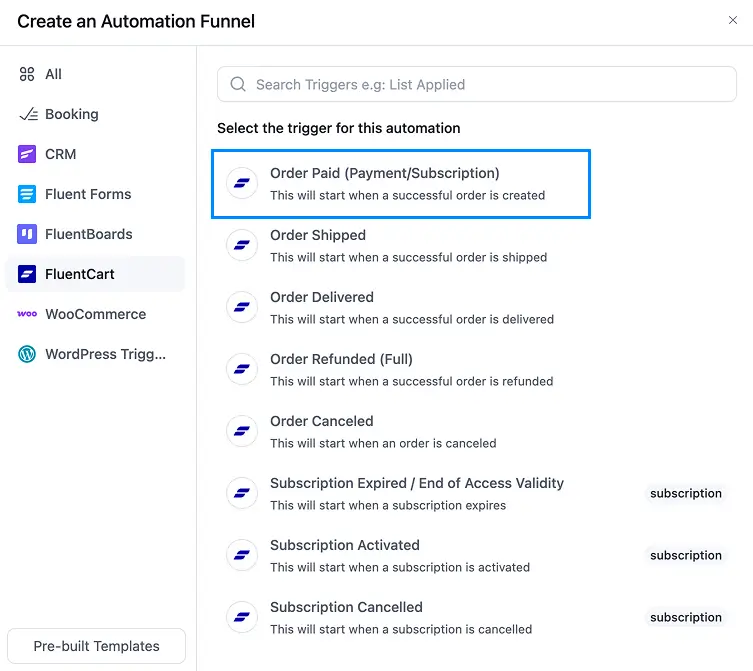
Once FluentCart confirms the payment, FluentCRM fires the automation. FluentBoards creates a board from your fulfillment or onboarding template.
So instead of this:
Customer pays → someone notices → someone creates a board → someone remembers what needs to happen
You get this:
Customer pays → board is ready.
Much cleaner.
FluentCart also offers triggers such as:
- Order Shipped
- Order Delivered
- Subscription Activated
- Subscription Cancelled
So you can build different FluentBoards workflows around different moments in the customer journey.
Perfect for: E-commerce businesses, SaaS companies, subscription businesses, and anyone who has work to complete after receiving a payment.
Scenario 4: Create a Student Onboarding Board from FluentCommunity
Trigger: Community → Enrolled in a course
A student enrolls in your course.
From the student’s side, that might look simple.
They get access and start learning.
But behind the scenes, your team may have several things to take care of.
Maybe you need to:
- Set up access
- Send onboarding information
- Track milestones
- Schedule a check-in
- Review progress
- Follow up after the first week
Those internal tasks can become their own FluentBoards workflow.
As soon as FluentCommunity confirms the enrollment, FluentCRM triggers the automation.
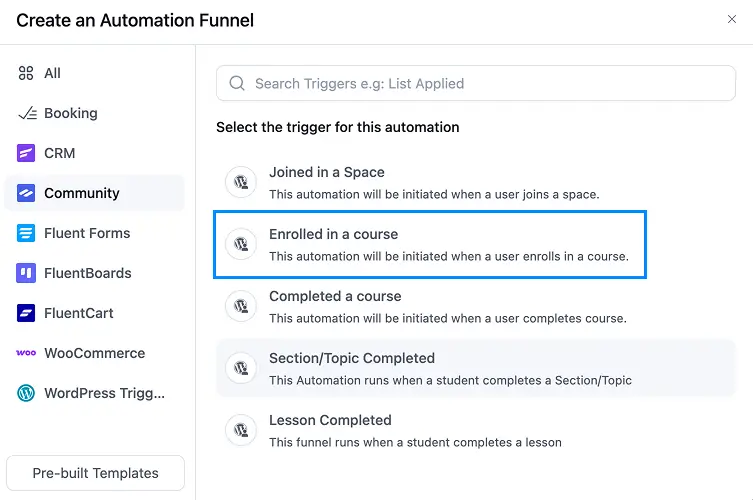
FluentBoards creates a student onboarding board from your saved template.
Your team gets the complete checklist and can start working through it immediately.
The student never needs to see the board.
It simply keeps your internal delivery process organized.
FluentCommunity also includes triggers for:
- Joined in a Space
- Completed a Course
- Section/Topic Completed
- Lesson Completed
So you could even trigger different project workflows as students move through different stages of their learning journey.
Perfect for: Course creators, coaches, online educators, and membership businesses with internal tasks connected to student progress.
Scenario 5: Create a Board When a New WordPress User Signs Up
Trigger: WordPress Triggers → New User Sign Up
Sometimes you do not need a fancy external trigger.
A simple WordPress registration is enough.
Someone creates an account on your site.
And that registration might mean a new workflow needs to begin.
For a membership site, that could mean onboarding.
For a SaaS product, it could mean trial activation.
For an agency, it could mean setting up client access and preparing onboarding materials.
Using the New User Sign Up trigger, FluentCRM can automatically create the corresponding FluentBoards project board.
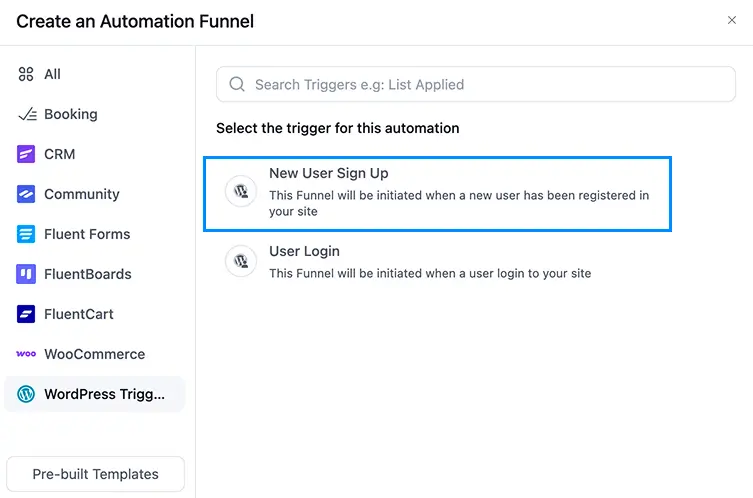
This is probably the most general trigger in the list.
Because it fires whenever a new WordPress user registers, you can use it as a starting point for many different workflows.
You can also combine it with conditions inside FluentCRM, such as checking the user’s role, and then route different users toward different automations or board templates.
Perfect for: Membership sites, SaaS products, client portals, agencies, and any WordPress site with a structured onboarding workflow.
So, What Are You Actually Automating Here?
At first glance, these might look like five completely different automations.
They are not.
They are really one automation pattern.
Something happens in your business → work needs to begin → FluentBoards creates the workspace for that work.
That is the real value here. You are removing the manual handoff between the business event and the project management system.
No internal message saying: “Can someone create a board for this client?”
No reminder.
No waiting.
No wondering whether somebody already did it.
The event happens.
The board exists.
Your team opens it and gets to work.
Simple.
Automated Board Creation: FluentBoards Free vs Pro
There is one important thing to know before you try this.
The FluentCRM and FluentBoards integration itself is available in both Free and Pro.
But automatically creating a complete board from a template requires FluentBoards Pro.
The easiest way to remember it is this:
Creating a task through FluentCRM is available in FluentBoards Free.
Creating an entire board from a template through FluentCRM requires FluentBoards Pro.
That is what turns a simple task automation into a complete project setup automation.
FAQ and Troubleshooting
The setup is pretty straightforward, but there are still a few things that can trip you up.
Here are some of the most common ones.
“Create Board from Template” Is Not Showing in FluentCRM
If you can see Create Task but cannot find Create Board from Template, first check whether FluentBoards Pro is active. The Create Board from Template action is a Pro feature. Make sure FluentBoards Pro is installed and activated, then reload the automation builder.
The Board Is Created, but No Team Members Are Assigned
The automation can only assign people who already exist as FluentBoards users.
So if the WordPress user you are trying to assign has not been added to FluentBoards yet, the assignment may fail.
Add the user to FluentBoards first, then save the automation again.
Can I Use the Same Board Template with Multiple Triggers?
In that case, create two separate FluentCRM automations.
Each automation gets its own trigger, but both can use the same FluentBoards template.
They will run independently.
Can I Use This with Tools Outside the Fluent Ecosystem?
Potentially, yes.
FluentCRM can receive information from external tools through incoming webhooks.
So if an external event creates or updates a FluentCRM contact and that event can enter your automation flow, you can continue the workflow from there.
For more information about external webhook workflows, check out our FluentBoards Outgoing Webhooks guide.
One Automation Pattern, Plenty of Possibilities
Once you understand the setup, everything becomes much easier.
Build your board template.
Create the FluentCRM automation.
Choose the trigger.
Add Create Board from Template.
And you are done.
The five scenarios we covered are some of the most obvious starting points, but they are far from the only ones.
You can use the same idea with CRM events too.
A tag gets applied.
Someone is added to a list.
A customer reaches a certain stage.
The important question is simply:
What event in your business means, “Okay, now the work needs to begin”?
Find that event.
Turn it into a trigger.
Let FluentBoards take care of creating the workspace.
My suggestion would be to start with one automation that solves a real repetitive handoff in your workflow. Get it running. Let your team get used to it. Then automate the next one.
And once automatic board creation is running smoothly, you can take things even further with the FluentBoards MCP integration or built-in AI.
That’s all for today.
Now go automate the boring part and let your team focus on the actual work.
Let’s redefine project management with FluentBoards!

Follow:


Get Tips, Tricks, & Updates
We won’t send you spam.


Add your first comment to this post