

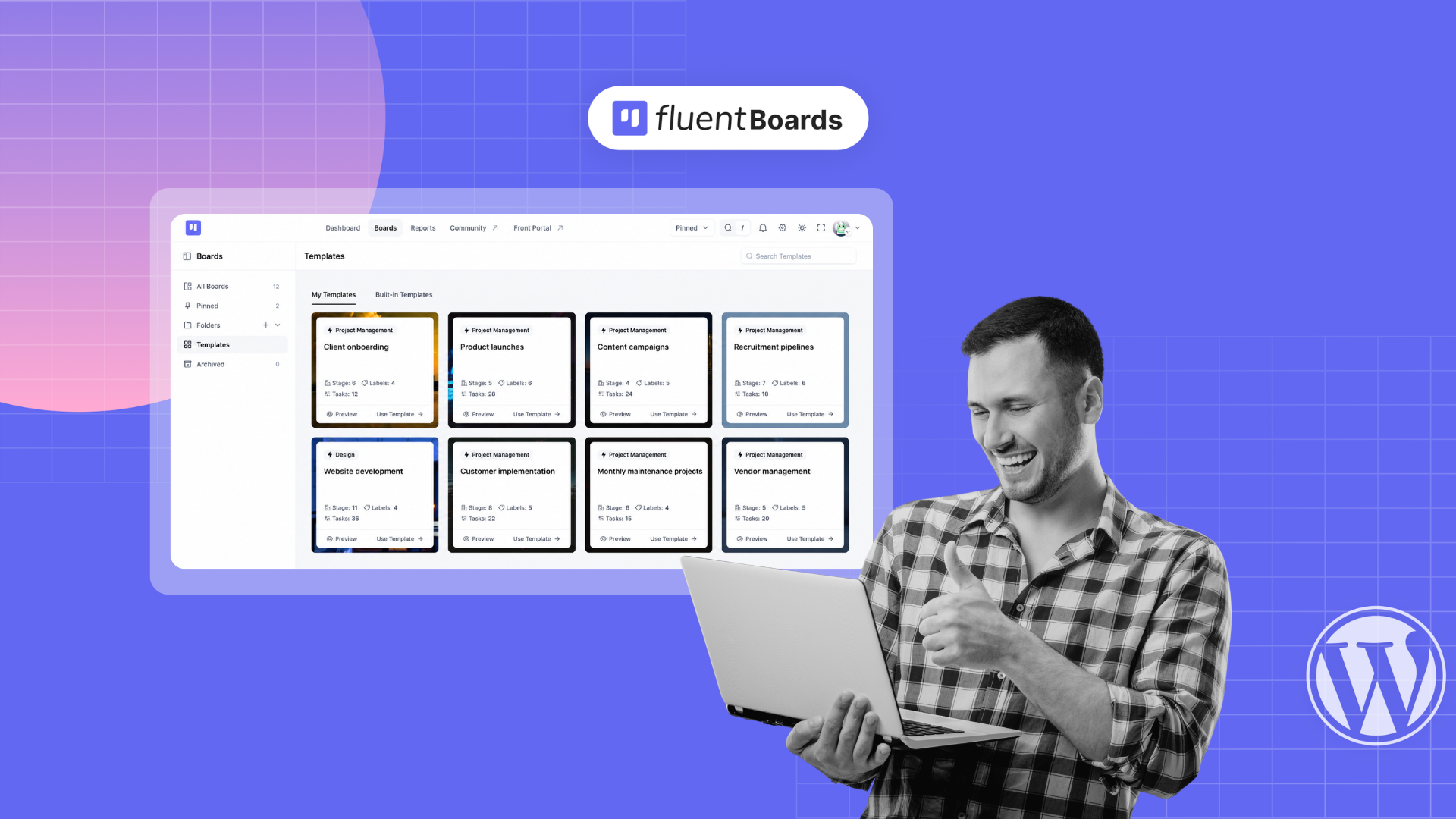
FluentBoards Templates: From a Single Task to a Fully Automated Project Pipeline


Every project your team runs more than once starts the same way: a blank board, the same stages typed out again, the same subtasks rebuilt from memory, the same labels created from scratch.
By the third or fourth time, you already know exactly how it should be set up. That knowledge just shows up too late to help, and it shows up again with the next project.
Templates are how that stops. Save the structure once, and every project after it starts from something that already worked.
In FluentBoards, that isn’t limited to whole boards. You can save and reuse work at three levels: a single task, one stage, or an entire project board.
Let’s get into how each one works.
What Can You Save as a Template in FluentBoards?
FluentBoards does not treat templates as one isolated feature. Instead, reusable structures can exist across three different layers of your workflow.
The right one depends on how much of the process you want to repeat.
Task Templates
A task template lets you turn a single task into a reusable starting point.
This is useful when the same type of work appears across different boards or projects; instead of recreating the task, description, and subtasks each time, you save it once and create new copies from it.
To save one, go to the task, click the three dots, and select the template option from there.
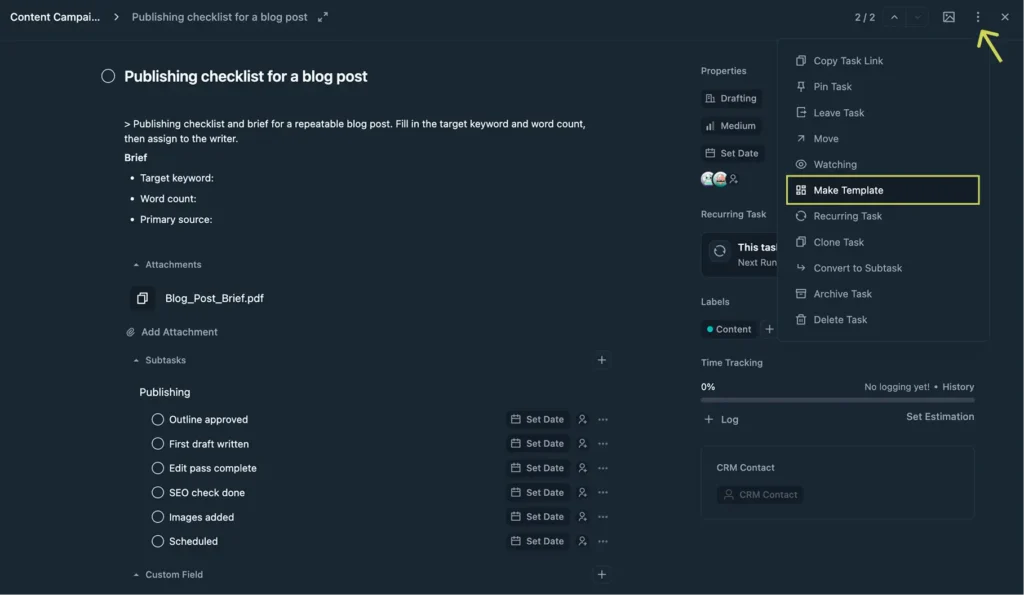
A task template can carry forward:
- Subtasks
- Labels
- Assignees
- Attachments
From the stage where you need the template, click Start From Template, select the task template, and choose what to keep.
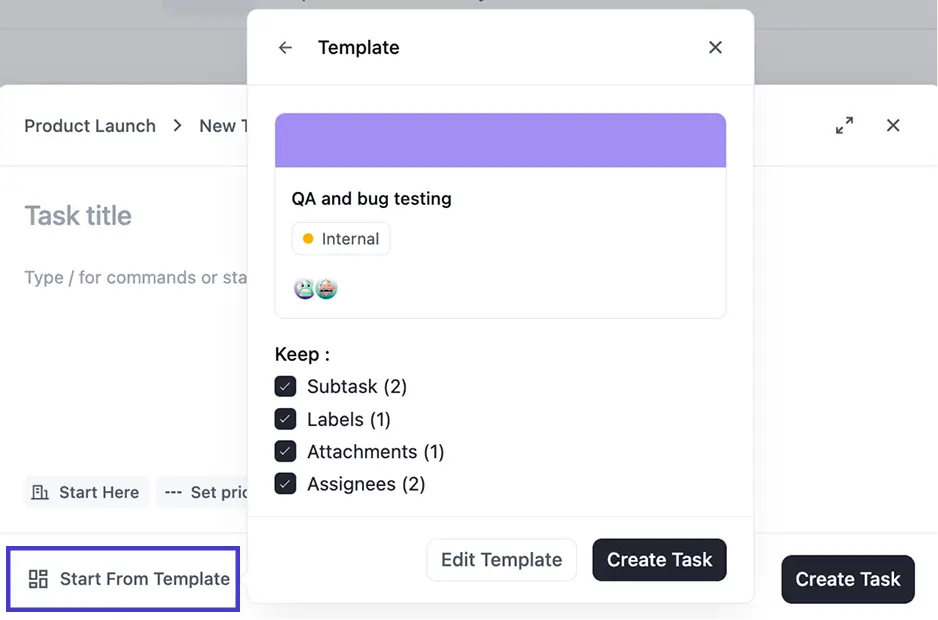
Plus, the template is not tied to the board it was saved on either. Bring it into any board where the work comes up, and it creates a new task there with everything already set up.
Pro Tip: Write the template’s description for the person who did not build it. One line on what the job is, one line on what to change before assigning it.
Stage Templates
Sometimes you do not need to reuse an entire board, you only need one part of the workflow.
A stage template lets you save a complete stage and reuse it inside another board, instead of rebuilding the same column, tasks, and structure repeatedly.
For example, you can template a QA Review stage once and drop it into every board that needs the same review process going forward.
To save one, go to the stage, click the three dots, and select the template option from there.
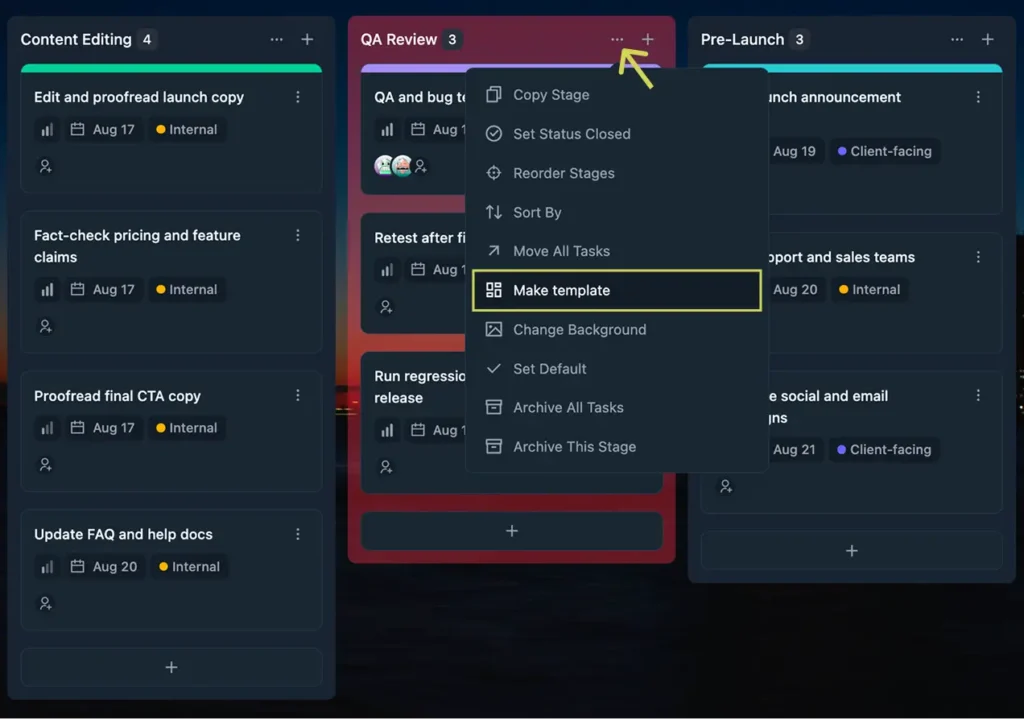
A saved stage template carries the whole stage, its name, color, description, and every task inside it, including each task’s subtasks, priority, and attachments.
From the board where you need it, click Start From Template and select the stage template.
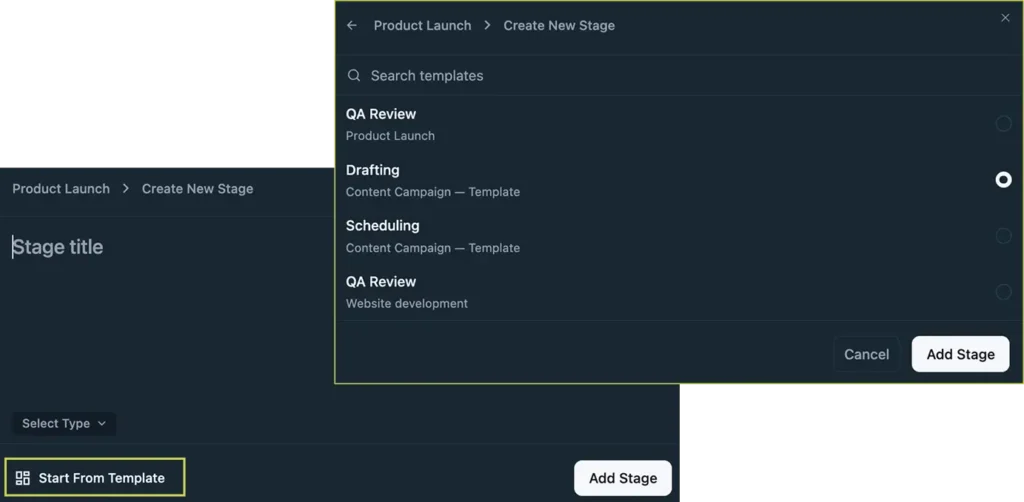
It works across any board, so once a stage like review or approval is templated, every board follows the same standard without rebuilding it by hand.
Board Templates
Board templates let you save the structure of an entire project.
This includes every stage, every label, every custom field, and every task inside each stage, including that task’s subtasks, priority, and attachments. When the same type of project comes up again, you can create a new board from that template instead of rebuilding everything manually.
This is the level most teams think of when they hear the word “template.”
For example, you can template a Product Launch board once and use it every time a new product ships- no rebuilding stages, labels, or checklists from scratch.
To save one, go to the board, click the three dots, and select the template option from there.
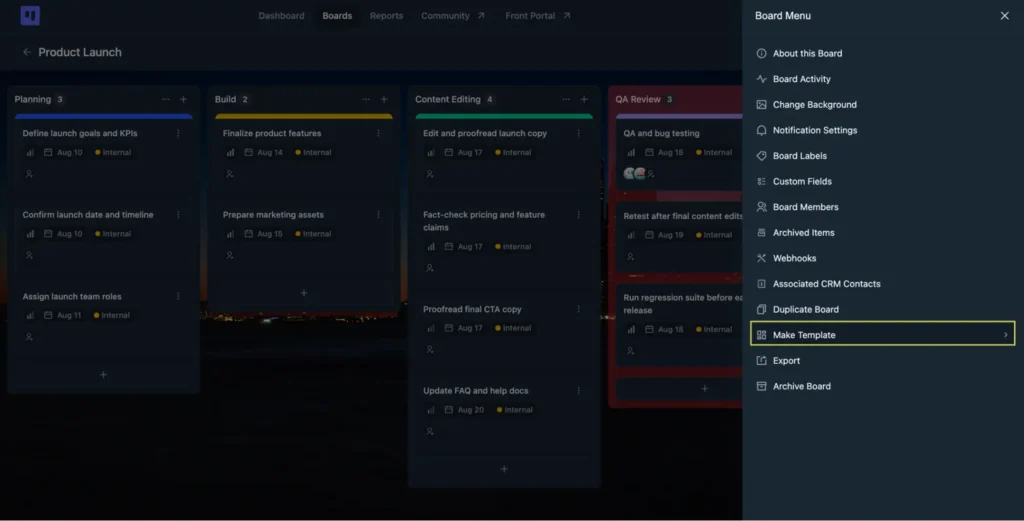
A saved board template carries over from wherever you need it, click Start From Template and select the saved board template.
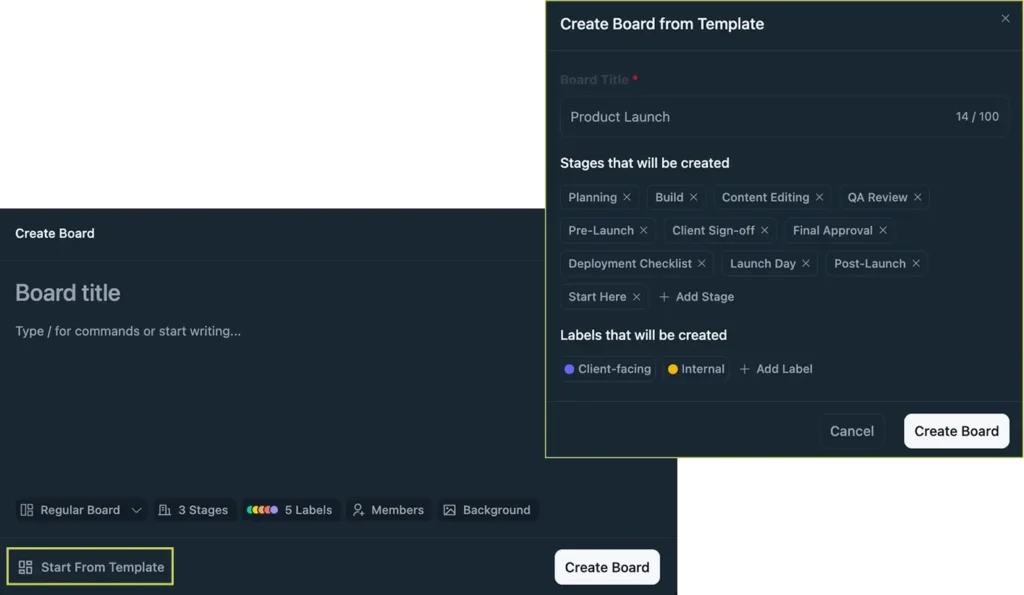
Each board created from the template is its own independent board. Changing one later does not touch the template or any other board built from it, so the same template can sit behind ten separate boards at once, each one free to diverge from there.
Pro Tip: Setting up that first board takes the most effort. With MCP support, you can describe the structure you want and have an AI agent build the board, stages, tasks, and labels for you. Save the result as a template, and it is done for good.
Choosing the Right Template Level
The instinct is to save the board you just finished. That usually produces a template full of one project’s specifics: a client name, a date-bound task, a stage that existed only because that project went sideways.
A better starting point is two or three finished projects of the same type, opened side by side. What repeated across all of them belongs in the template. What appeared once does not.
From there, the level you save at depends on how much of the process repeats.
| What repeats | Save it as |
| A single piece of work that turns up across different boards | A task template |
| One section of a workflow, while the rest of the board changes | A stage template |
| The whole project structure | A board template |
Built-in Templates and My Templates
When you open the FluentBoards Template Gallery, you will find two different template sources: Built-in Templates and My Templates.
They solve two slightly different problems.
Built-in Templates help answer:
- What is a good structure for this type of project?
My Templates help answer:
- What structure has already worked for our team?
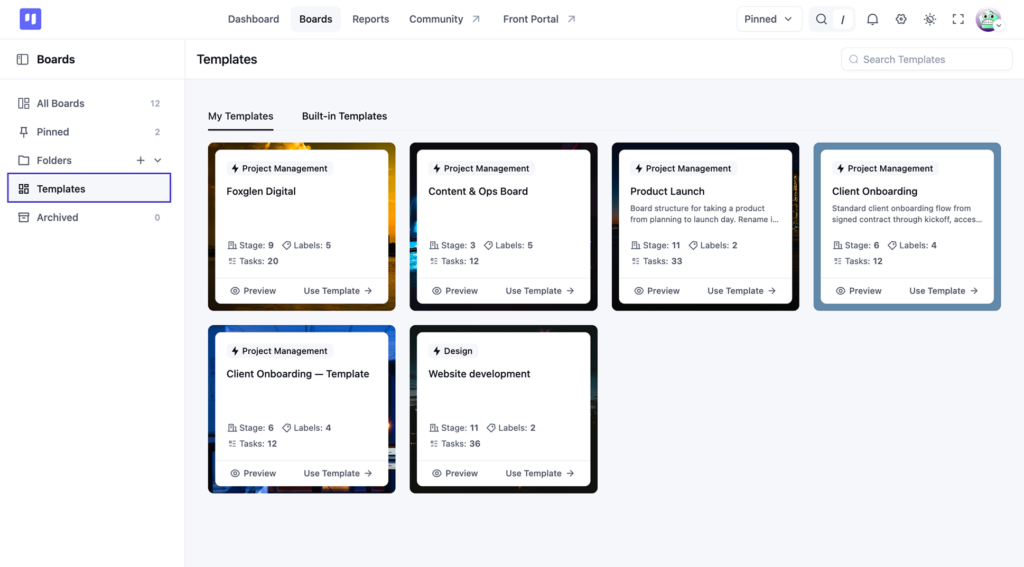
Built-in Templates
Built-in Templates are curated project structures provided by FluentBoards.
They are organised into categories such as Marketing, Project Management, Sales, Support, Development, and more.
These templates are useful when you are setting up a workflow your team has not run before. Instead of designing the entire process from scratch, you can start with a proven structure and adjust it to match your needs.
To find them, go to Boards → Templates and open the Built-in Templates tab. Each card shows the template’s category, a short description, and how many stages, labels, and tasks it comes with.
Right now, the gallery includes:
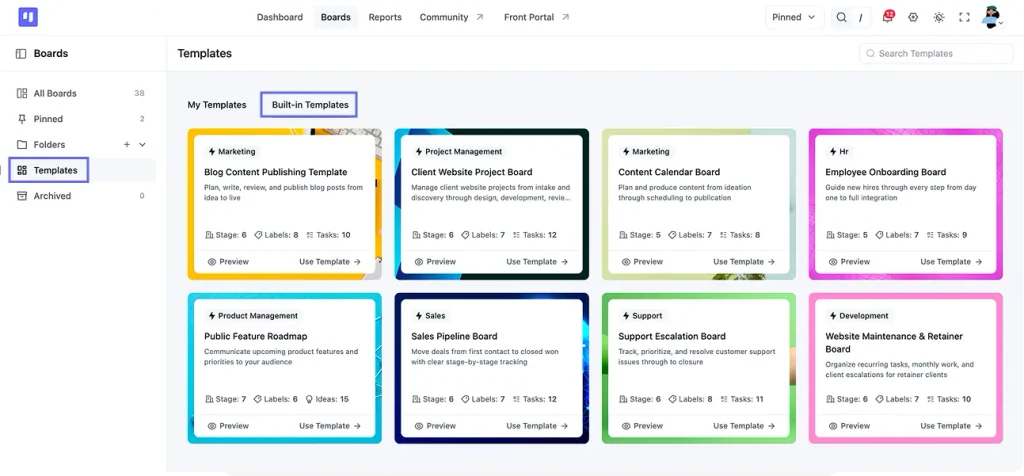
| Template | Category | Best for |
| Blog Content Publishing Template | Marketing | Planning, writing, reviewing, and publishing blog posts |
| Content Calendar Board | Marketing | Taking content from idea to scheduled post |
| Client Website Project Board | Project Management | Running client websites from intake to launch |
| Website Maintenance & Retainer Board | Development | Recurring work and escalations for retainer clients |
| Sales Pipeline Board | Sales | Moving deals from first contact to closed won |
| Support Escalation Board | Support | Tracking customer issues through to closure |
| Employee Onboarding Board | HR | Guiding new hires from day one to full integration |
| Public Feature Roadmap | Product Management | Sharing upcoming features and priorities with your audience |
More templates are on the way, so the gallery will keep growing.
Using the free version? You can still download any of these templates from our project templates page and import it straight into FluentBoards
Before creating a board, you can preview the included stages, labels, and sample tasks to understand how the workflow is organized.
Built-in Templates are especially helpful when you need direction, inspiration, or a faster starting point.
My Templates
My Templates are created from boards on your own FluentBoards site.
These are not generic workflows. They reflect the way your team actually works.
Open My Templates and click Use Template on the one you need, or Preview it first to check the contents. This creates a new board and leaves the template untouched for next time.
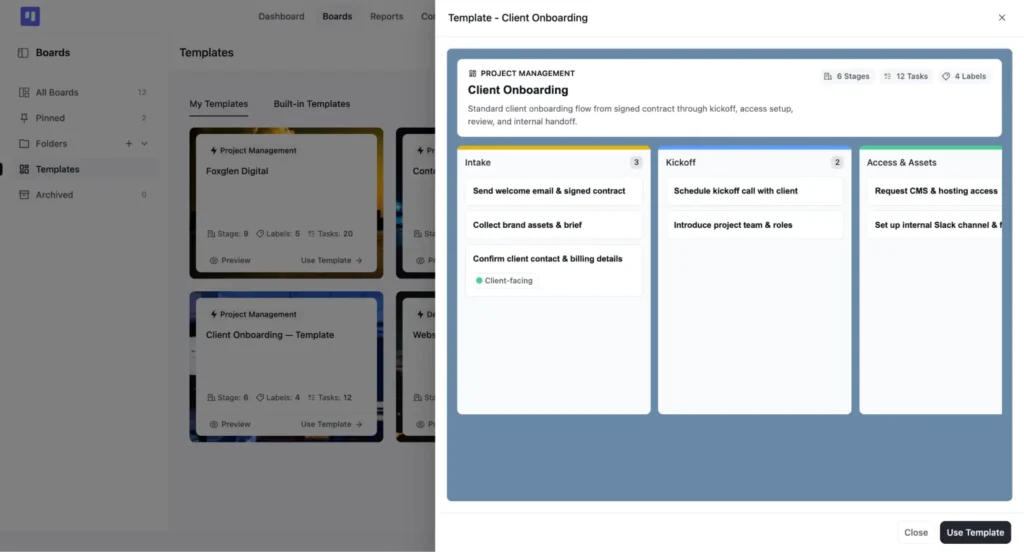
Each template also has its own menu:
- Edit template
- Template settings
- Convert to board
- Delete template
Convert to board turns the template itself into a live board, different from Use Template, which keeps the template in place.
That is what makes My Templates ideal for workflows your team already understands and repeats regularly, and they are also the templates used when you automate board creation through FluentCRM.
How to Automate Board and Task Creation
Creating a board from a template already removes a large amount of repetitive setup.
But the process can go further.
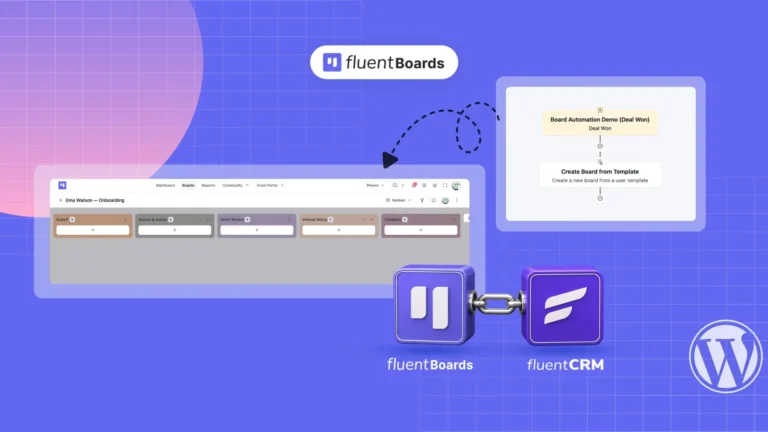
With FluentCRM and FluentBoards Pro, you can automatically create a new board or a single standardized task on an existing project when a CRM event occurs.
Create Board from Template
- Start with any FluentCRM trigger, a contact created, a tag applied, a form submitted, a deal marked as won.
- Add the Create Board from Template action and select your saved template.
- The board title can include FluentCRM smart codes, like the contact’s name or company.
The board appears with stages, labels, and tasks already in place, and stays connected to the contact that triggered it.
Create Task
- Same trigger, any CRM event.
- Add the Create Task action.
- Choose Create from template, or build the task from scratch.
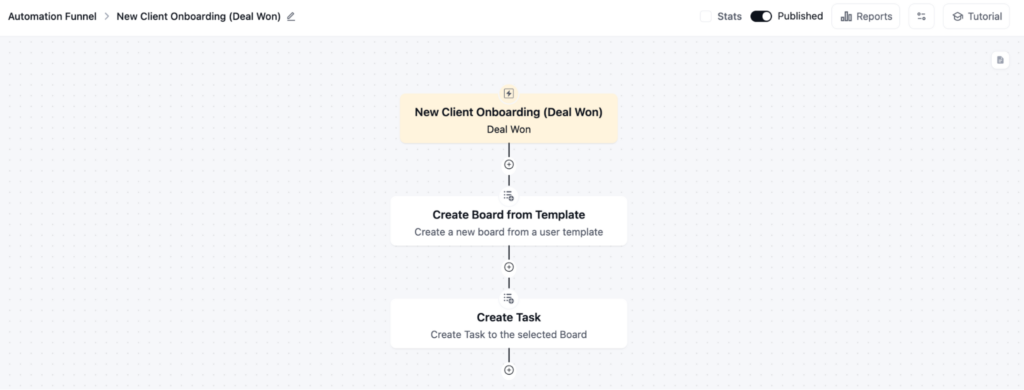
Use both in the same automation, and a single Deal Won trigger can create the client’s onboarding board and drop a standard task, like a publishing checklist, straight onto it. No manual step in between.
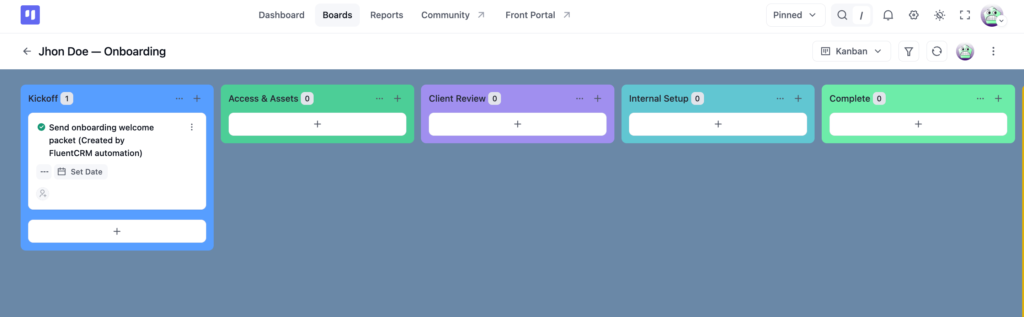
For the full setup and a detailed walkthrough, see FluentBoards X FluentCRM
Building Templates Your Team Will Actually Use
A template is only useful if it matches how the work really happens. A few things worth keeping in mind before the library grows.
Keep templates thin: The instinct is to include every task that might apply. A template with forty tasks where twelve are relevant teaches everyone to ignore tasks. Include what happens every time, and let the exceptions get added by hand.
Name tasks as actions: “Invoice” is a noun and tells nobody what state it is in. “Send kickoff invoice” is something a person can finish.
Be careful with assignees: Baking specific people into a template works until someone changes roles or leaves. Stage default assignees are usually the better place for that logic, because the update happens in one spot instead of across every template that mentions them.
Give automated boards a title pattern: When a CRM automation is creating boards for you, ten boards named “New Project” help nobody. Make sure the title carries the detail that identifies which client or order the board belongs to, so it stays findable weeks later.
Review the library on a schedule: Templates drift out of sync with how a team actually works, and the right moment to fix that is just after a project finishes, while the gaps are still obvious. A stale template is worse than no template, because people trust it.
A Few Things to Know
Task, stage, and board template flags exist within the FluentBoards data structure. However, creating, managing, and converting these templates is available as part of FluentBoards Pro. Free users can still use the built-in templates by downloading them from our project templates page and importing the file.
Automated board creation also requires FluentCRM to be installed, since FluentCRM manages the automation trigger and funnel logic.
Creating a board or task from a template through FluentCRM automation also requires Pro, since the template itself only exists on Pro.
See Free vs Pro for the full comparison
Frequently Asked Questions About FluentBoards Templates
Short answers to the questions that come up most-
Can I edit a template after I save it?
Yes. Templates stay editable, so you can change the contents, description, and category at any point without rebuilding the template from scratch.
What is the difference between duplicating a board and saving it as a template?
Duplicating a board gives you one working copy immediately, which is useful for a single repeat. Saving a board as a template keeps the structure in your template collection so you can spin up new boards from it repeatedly, and so teammates can find and reuse it later.
Can I use the same template on more than one site?
Not directly. Templates belong to the site they were created on. To move one, export the board as JSON from the board menu, import it into the second site, and save it as a template there.
Do I need FluentCRM to use templates?
No. Templates work on their own. FluentCRM is only required if you want a board or task to be created automatically when a CRM event happens.
Are templates free or Pro?
Creating and managing task, stage, and board templates is part of FluentBoards Pro. Free users can still use the built-in templates by downloading them from our project templates page and importing them. Since templates only exist on Pro, both automation actions, Create Board from Template and Create Task from template, require Pro as well.
Build Once, Reuse What Works
Repetitive work is not always avoidable. Repetitive setup usually is.
Templates help your team keep the parts of a workflow that already work, whether that means a single task, a standardized project stage, or an entire board.
And when you connect board templates with FluentCRM automation, that reusable structure becomes a complete project pipeline.
The next client, campaign, hire, or product launch does not have to begin with an empty board. It can begin with everything your team has already learned.
Thanks for reading. Open the project your team runs most often, save it as a template, and give your next one a head start.
Let’s redefine project management with FluentBoards!

Follow:


Get Tips, Tricks, & Updates
We won’t send you spam.



Add your first comment to this post