

FluentBoards X FluentCRM: The Killer Combo Your Business Was Desperately Searching For!


FluentCRM is a marketing automation plugin trusted by over 80,000 businesses to automate their email marketing campaigns right from their WordPress dashboards!
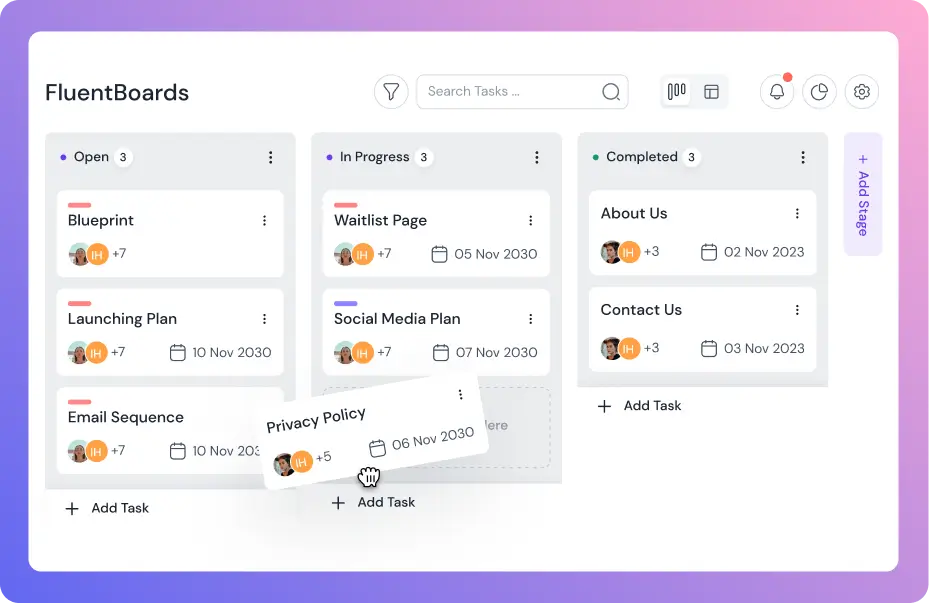
On the other hand, FluentBoards is the simplest project management plugin built to revolutionize the way WordPress users manage their projects!
Now imagine the magic they can bring if they both work together!
Curious to learn more?
Well, with this blog, we aim to answer all of your queries!
TL;DR
- Link a CRM contact to any task, so anyone opening it knows exactly who it’s for
- Check a contact’s boards and tasks straight from FluentCRM, no need to open FluentBoards
- Tag a deal “won” (or use any CRM trigger), and FluentBoards builds a full board from a template automatically
- Tag a returning client, and a standardized task drops onto their existing board, no new board needed
- Trigger the same board-building chain from a form submission instead of a manual tag
- Let board activity, like a task’s stage changing, fire a FluentCRM automation instead of the other way around
What is FluentBoards?
FluentBoards is a project management plugin for WordPress. This dynamic plugin is designed to address every project management need of WordPress users and facilitate them with a specialized solution within their WordPress dashboard.
Here’s a glimpse of what FluentBoards offers:
- Seamless project management within WordPress
- No speed bump on the way to scalability
- Enhanced visual navigation for improved task tracking
- Great collaboration with clear & effective communication
- Efficient goal management to keep you on track at all times
- Better organization leads to reduced administrative work
- Robust security measures to safeguard your data
- Opportunities to leverage the WordPress plugin ecosystem for extended functionalities
- Built-in AI writing assistant for faster task descriptions
- Native MCP support to connect your boards with AI agents
Step into the Future of Project Management!
What is FluentCRM?
FluentCRM is a Self Hosted Email Marketing Automation Plugin specifically built for WordPress. It offers a wide range of features aimed at streamlining customer management and enhancing overall business efficiency.
Here’s a glimpse of what FluentCRM offers:
- Advanced contact management capabilities
- Dynamic contact segmentation options
- Advanced email campaign management tools
- Intuitive drag-and-drop visual email builder
- Recurring campaign functionality for automated newsletters and emails
- Visual automation builder offering advanced triggers, actions, and conditional logic
- Comprehensive data and insights for informed decision-making
- SMS marketing alongside your email campaigns and automations
- AI-assisted email writing and contact summaries
- Native MCP support to connect your CRM data with AI agents
Discover: How to integrate FluentCRM with FluentBoards
What Magic Happens When FluentBoards and FluentCRM Work Together?
If you’re managing client work, what do you actually need to know at any given moment?
Just two things: who this is for, and where it actually stands.
When FluentCRM and FluentBoards live apart, somebody has to carry that answer back and forth by hand, every single time. Connect them, and nobody has to carry anything anymore! The client’s context and the project’s status both live right there on the board.
This connection actually runs two ways. You can link a CRM contact straight onto a board, so your team always knows whose work it is. Or you can let FluentCRM events build the board, and its first tasks, for you automatically.
Let’s look at both, in full!
How Does FluentCRM Complement FluentBoards?
When you integrate FluentCRM with FluentBoards, a new dimension of communication comes to life.
Here’s a real-life example. You’re a project manager or agency owner, you’ve just closed a deal, assigned the project to a team member, and written detailed instructions in the task description.
Halfway through, they hit a question only the client can answer. Traditionally, that means coming to you, you reach out to the client, wait for a reply, then relay it back, a slow, error-prone chain for something that should take one lookup.
That’s exactly what this connection fixes. Link a FluentCRM contact record directly to the task, and that back-and-forth disappears, anyone on the task sees exactly who it’s for, right there, contact info and context included, no asking around.
Here’s how it can help:
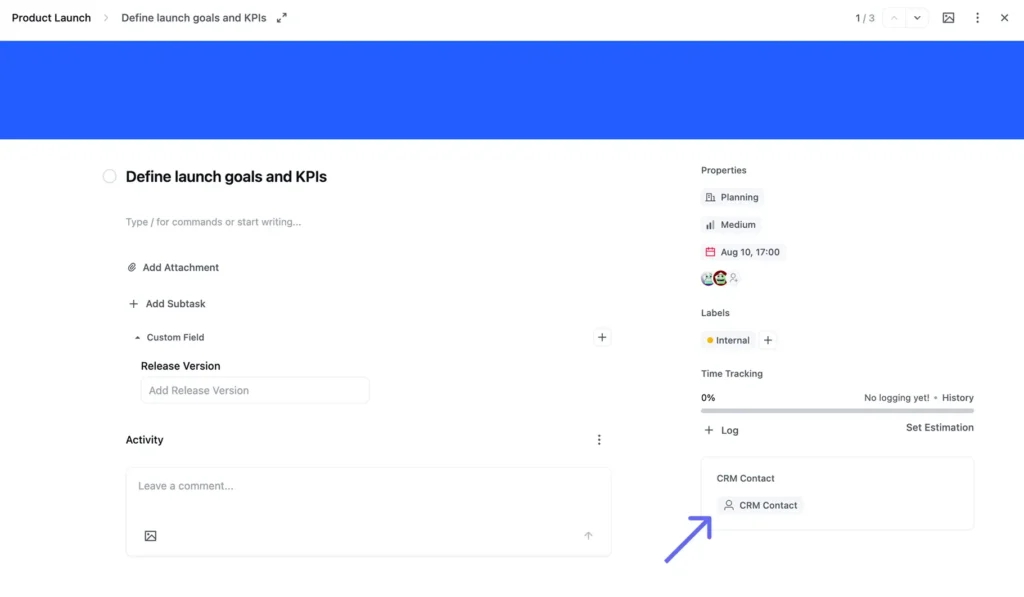
Step 1: Open any task on the board. In the side panel, find the CRM Contact field.
Step 2: Click into it, search for the contact by name or email, and select their record from the list.
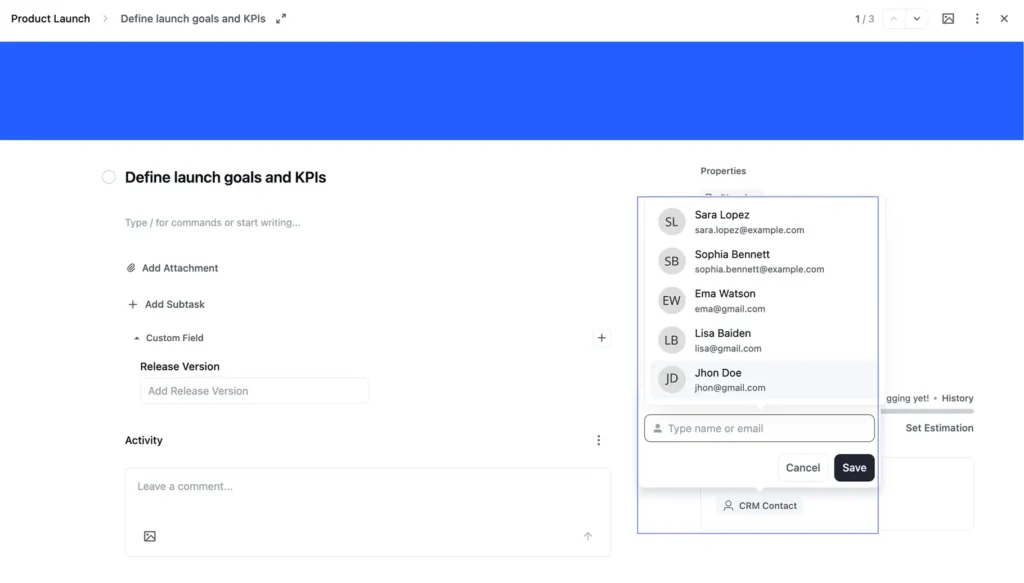
The contact list isn’t something you build inside FluentBoards, it’s pulled live from your FluentCRM contacts. Selecting one is what actually connects that contact to this task.
That’s it, the task is linked. Anyone opening it can see exactly who it’s for, no separate lookup required.
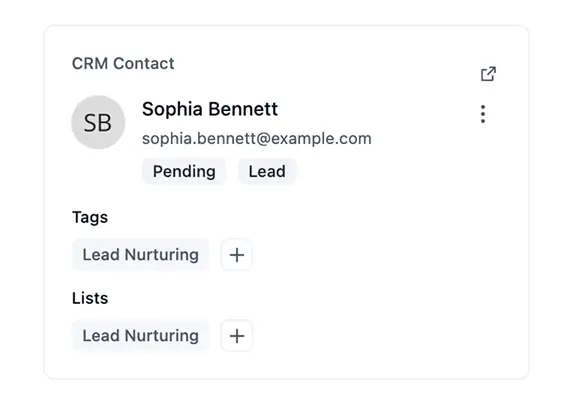
Once linked, the CRM Contact card on the task expands to show that contact’s Tags and Lists, with a “+” next to each to add more, right from the task. Click it, and a Manage Tags popup opens, letting you tag the contact without leaving FluentBoards.
Pro Tip: The real payoff shows up when a manager needs the full picture fast. Instead of opening every task individually, they can go to the board’s Menu → Associated CRM Contacts and see every CRM contact linked anywhere on that board at once, with a search box to find a specific one if the list gets long.
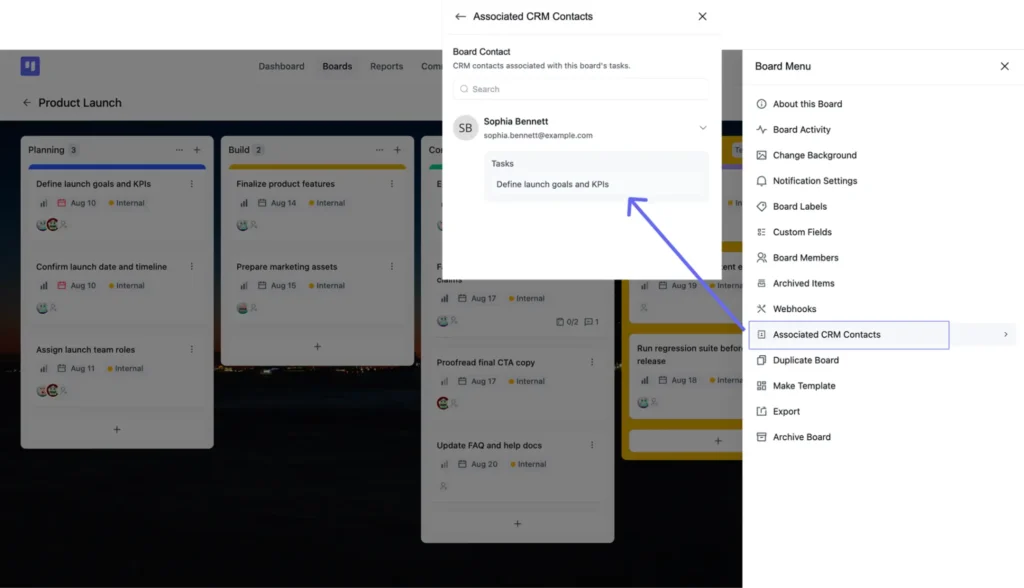
From there, click the arrow next to a contact’s name to expand their Tasks section and see exactly which task, or tasks, they’re linked to, then click through to jump straight there.
Note: It’s just one example for your understanding, and there’s a world of possibilities out there! You can play with the demo for better understanding!
How Does FluentBoards Complete FluentCRM?
The connection runs the other way too.
A manager sitting inside FluentCRM shouldn’t have to jump over to FluentBoards just to check on a project.
Or rebuild the same board from scratch every time a new deal closes.
So let’s flip the direction and see what FluentBoards actually gives back to FluentCRM, and how each piece really works.
Use Case One: Check a Contact’s Boards and Tasks From FluentCRM
A client emails asking for a status update. Instead of opening FluentBoards and hunting for the right task, a manager can pull up the contact in FluentCRM, the answer is already there.
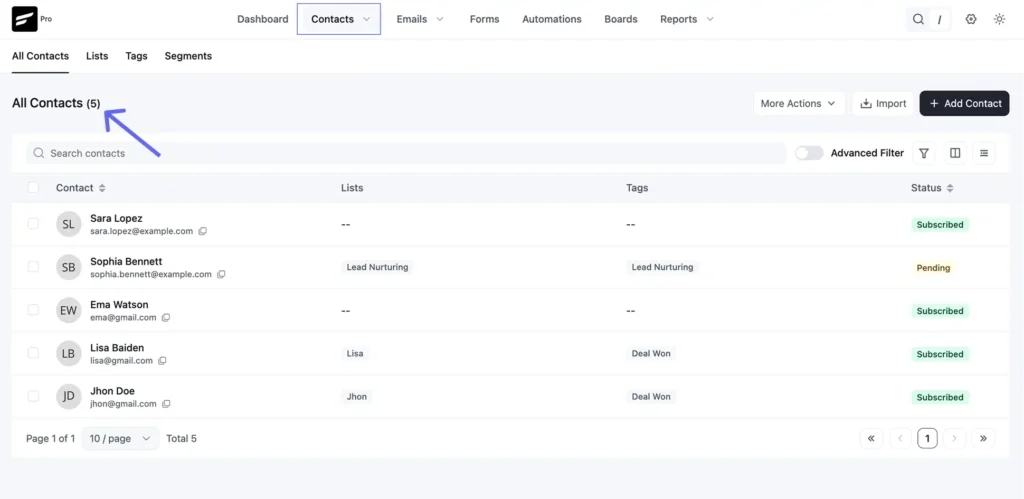
Step 1: Go to Contacts → All Contacts and open the contact you want to check.
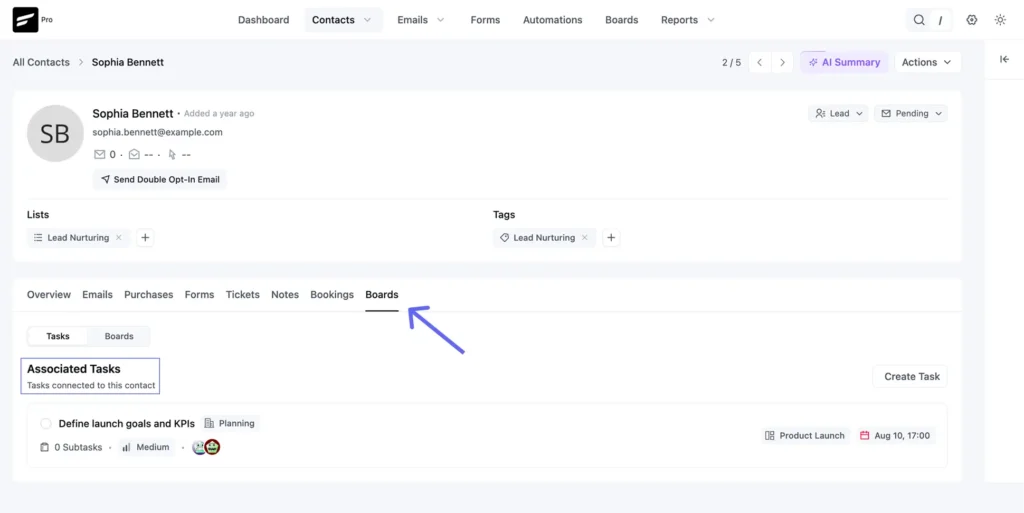
Step 2: On their profile, click the Boards tab, then switch to the Tasks sub-tab, that’s where their linked tasks show up.
Step 3: Click any task in the list to open its Task Quick Details panel, board, stage, dates, priority, status, assignees, and labels, all visible without leaving FluentCRM. You can also add a subtask directly from this panel.
Need to actually work on it?
Click Open in the top right to jump straight into the task in FluentBoards.
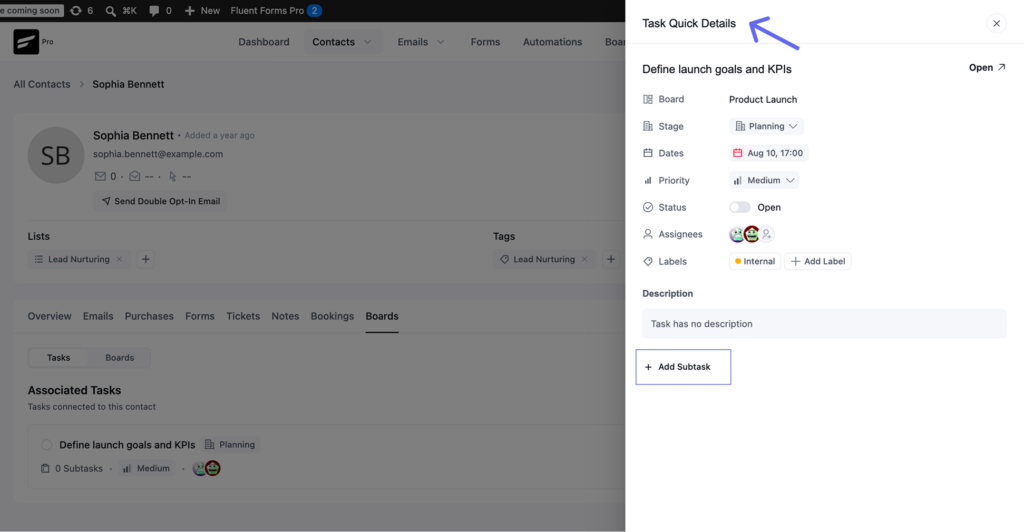
A manager gets the full status of a contact’s work without ever switching tools, and only jumps into FluentBoards when there’s something to actually do.
Use Case Two: Build the Board Automatically When a Deal Closes
Every new client project starts the same way: a board, a template, a name typed in, done by hand, every single time.
Let the CRM event do it instead. Tag a deal “won” in FluentCRM, and FluentBoards builds the board automatically, structure and all, no manual setup.
Step 1: In FluentCRM, go to Automations → New Automation.
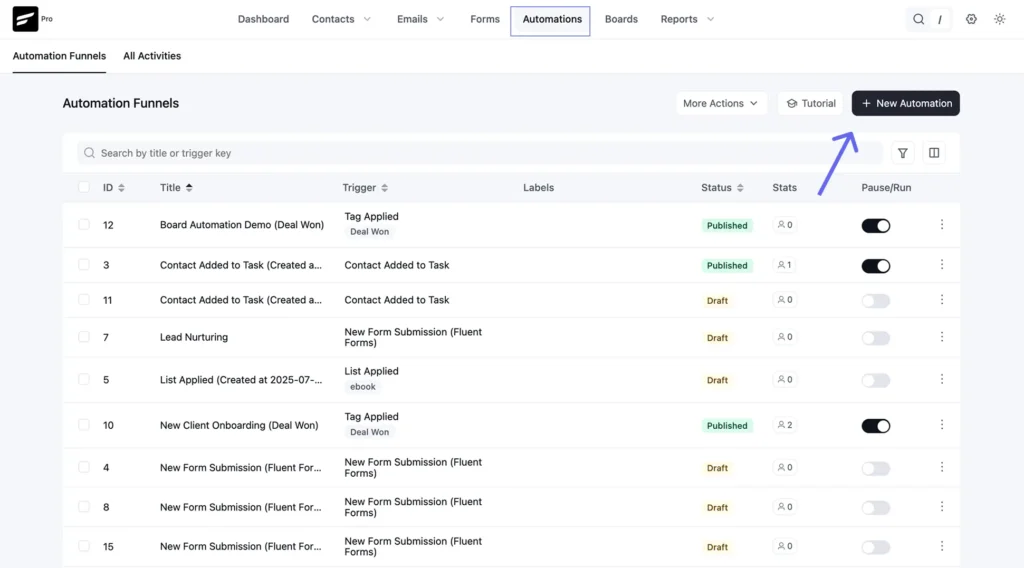
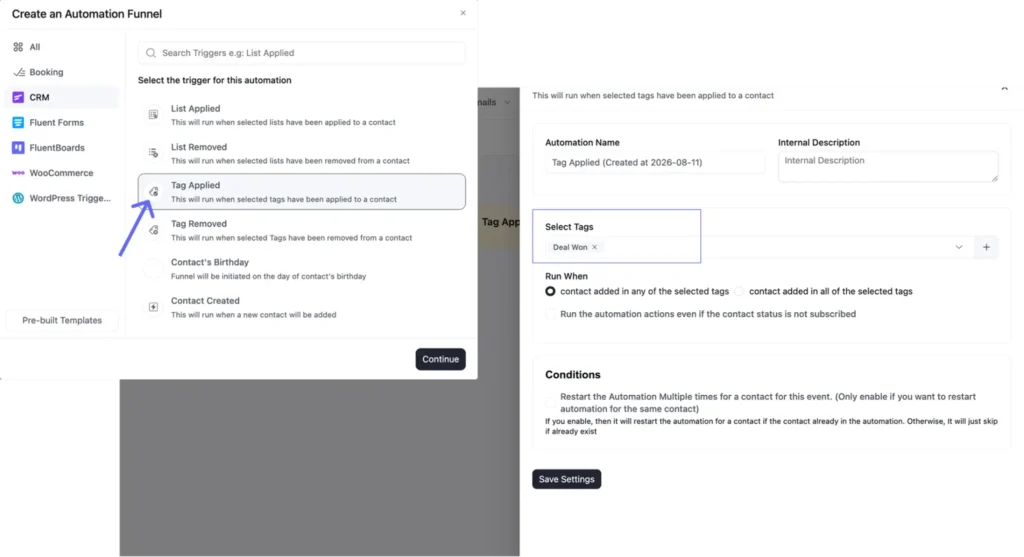
Step 2: Choose a trigger. Click Tag Applied under the CRM category, then in the panel that opens, select the tag that should fire this automation, a “Deal Won” tag, for example, and click Save Settings.
Note: “Create Board from Template” isn’t limited to a specific trigger category, so any trigger you pick will show it in the next step’s action picker.
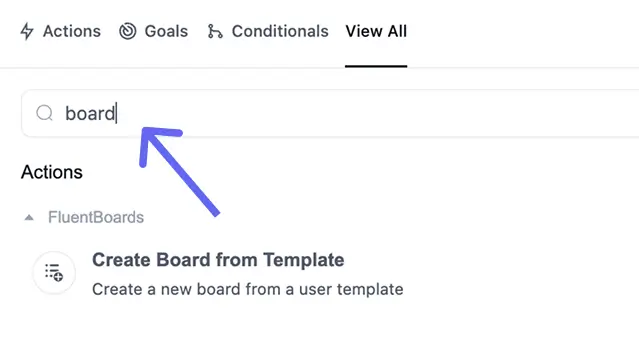
Step 3: Then click the + below your trigger to add an action. Search “board,” you’ll find Create Board from Template under the FluentBoards category.
Step 4: Click it to configure. Select the board template, and set a Board Title using a smartcode like {{contact.first_name}}, so every board gets named for its client.
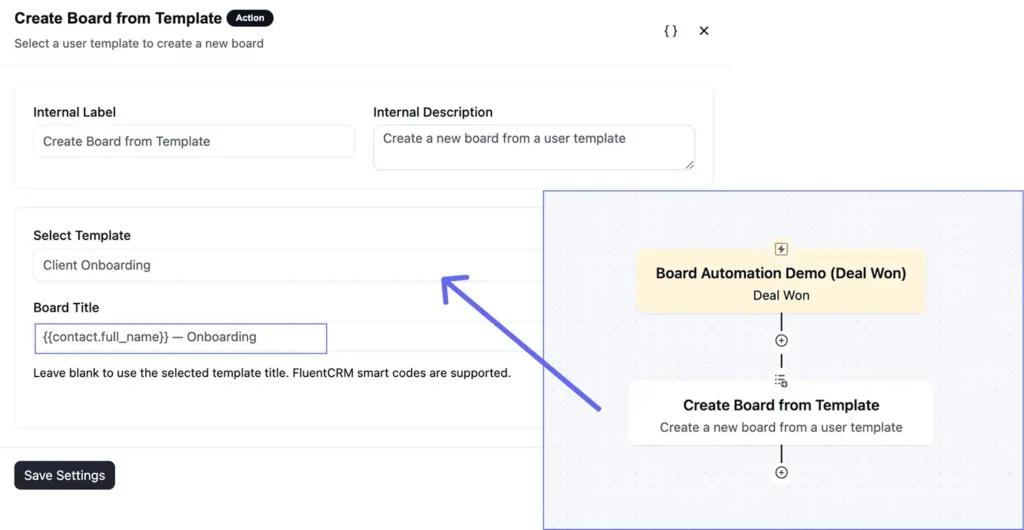
What this step actually builds:
- Stages, labels, and custom fields, copied from the template.
- If the template has tasks saved on it, those come over too, subtasks, priority, and attachments included.
- Assignees and CRM contacts do not carry over, every copied task stays unassigned.
So the finished board can already be full of work, it just won’t be staffed yet.
For the full picture of what board, stage, and task templates can each carry, see FluentBoards Templates
Step 5: Click Save Settings, then toggle the automation from Draft to Published.
Tag a contact “Deal Won,” and their board appears in FluentBoards on its own, built from whatever your template has on it.
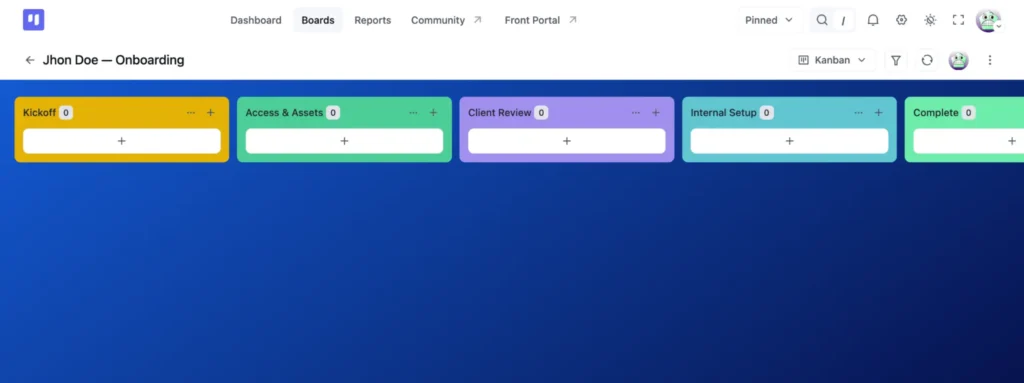
Two quick things to know: the tag is the trigger, so only tag the client you actually want a board for right now, not everyone with a won deal. And each contact only runs through the automation once by default, if someone’s already been through it, tagging them again gets silently skipped, no board, no error.
Use Case Three: Add a Task to an Existing Board Automatically
Not every CRM event should build a whole new board.
Sometimes a returning client triggers one more piece of work on a board that already exists, an upsell, a renewal, a follow-up task. Building a second board for that would be overkill.
This is where Create Task comes in, a separate, standalone action meant for dropping a standardized task onto a board that’s already running
Step 1: In your automation, click the + to add an action, search “task,” and select Create Task, listed under the FluentBoards category.
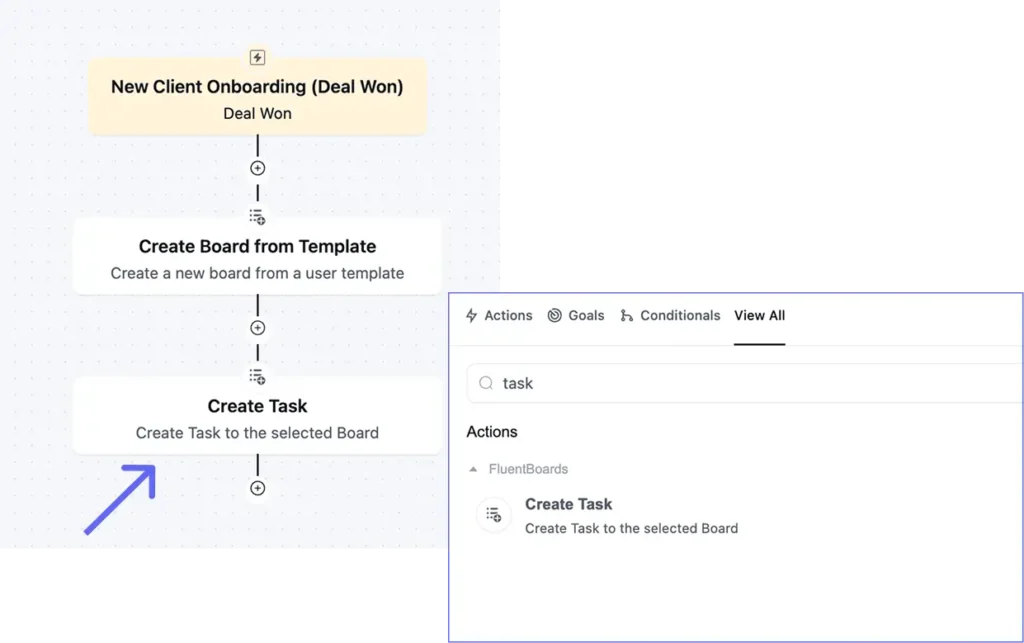
Step 2: Set Select Board & It’s stage to the board and stage you want this task to land on. Then pick a Task Create Type:
- Create from scratch (shown in the product’s UI as “Create from stratch,” a typo on FluentBoards’ end, not yours): you write the title and description yourself.
- Create from template: pulls in a saved task template, checklist items, labels, assignees, watchers, attachments, comments, custom fields, and recurring settings all carry over.
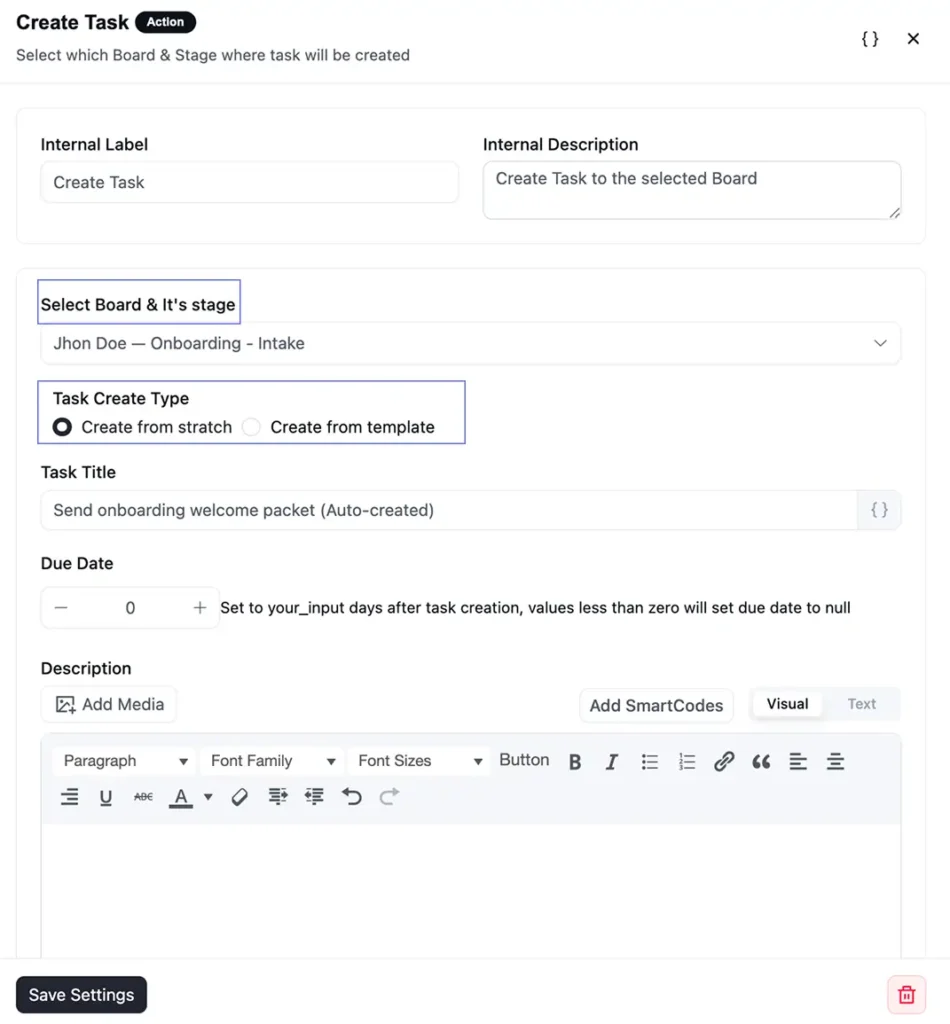
Step 3: Click Save Settings, then publish the automation.
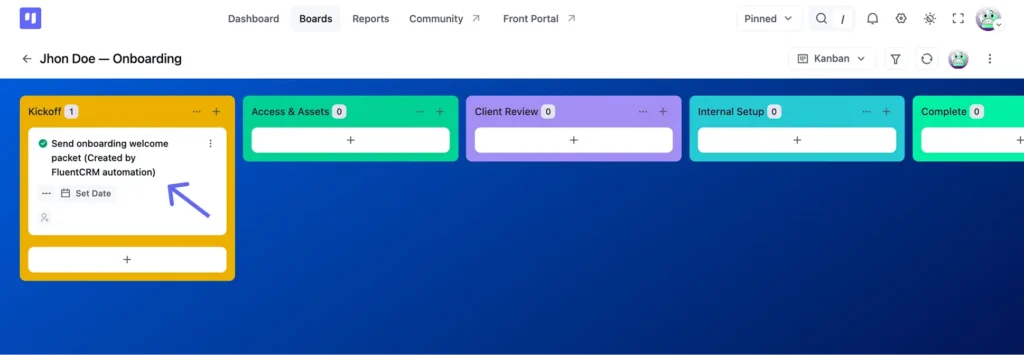
A working example: a client already has an onboarding board from months ago. Tag them “Renewal,” and a standardized renewal-checklist task, pulled from a task template, lands straight on their existing board, no new board, no manual setup.
Use Case Four: Start the Same Chain From a Form Instead of a Tag
Most new clients start with a lead filling out a form, not a manager applying a tag by hand.
Trigger the board build straight off that submission, and there’s no gap where a lead sits untouched, the board’s already built by the time you see the notification.
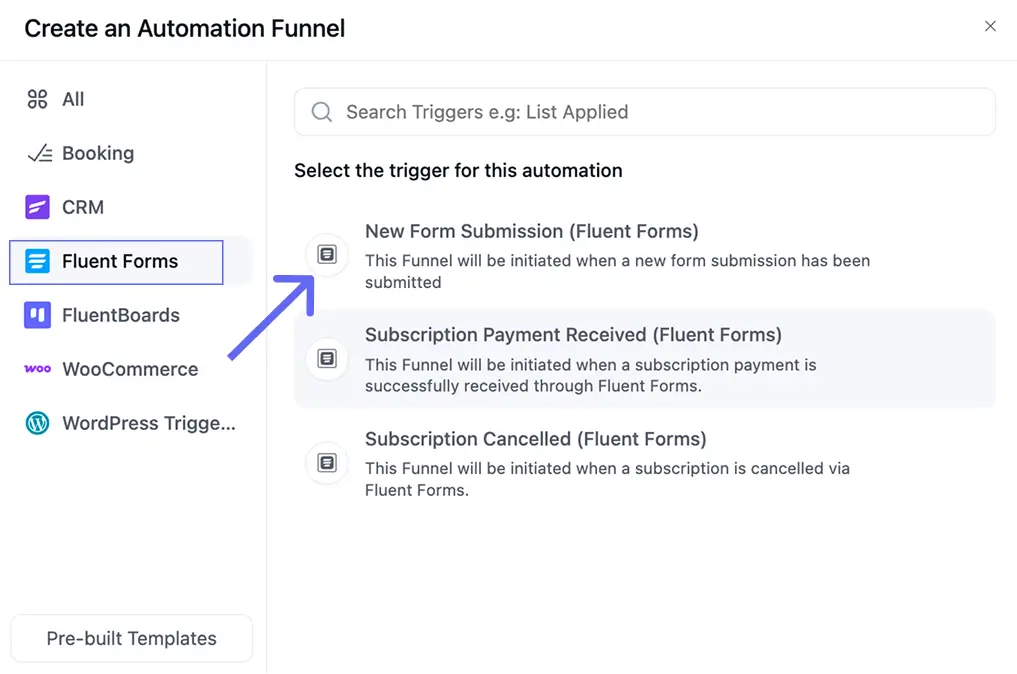
Step 1: Create a new automation. Set the trigger to New Form Submission (Fluent Forms), then pick the form.
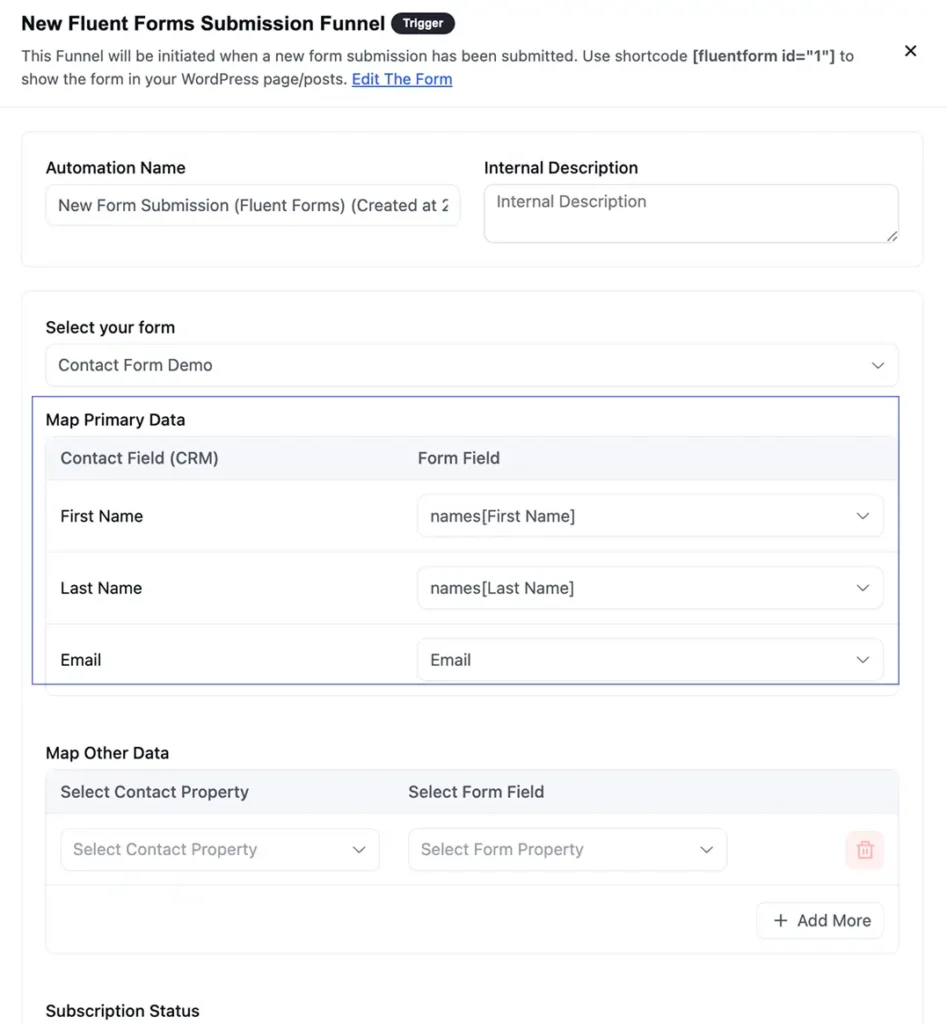
Step 2: Map the form’s fields to the contact’s First Name, Last Name, and Email.
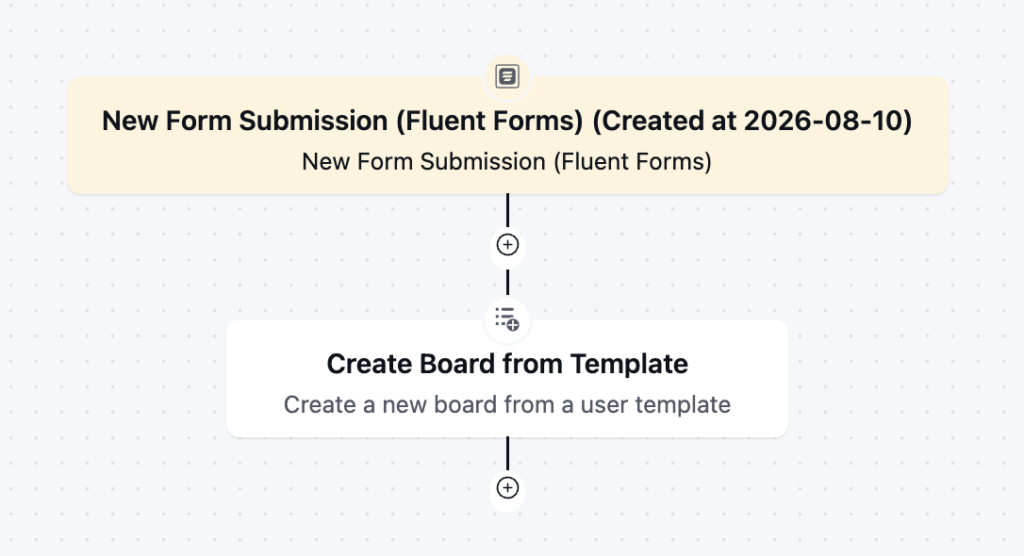
Step 3: Add Create Board from Template, same as Use Case Two. Save, publish.
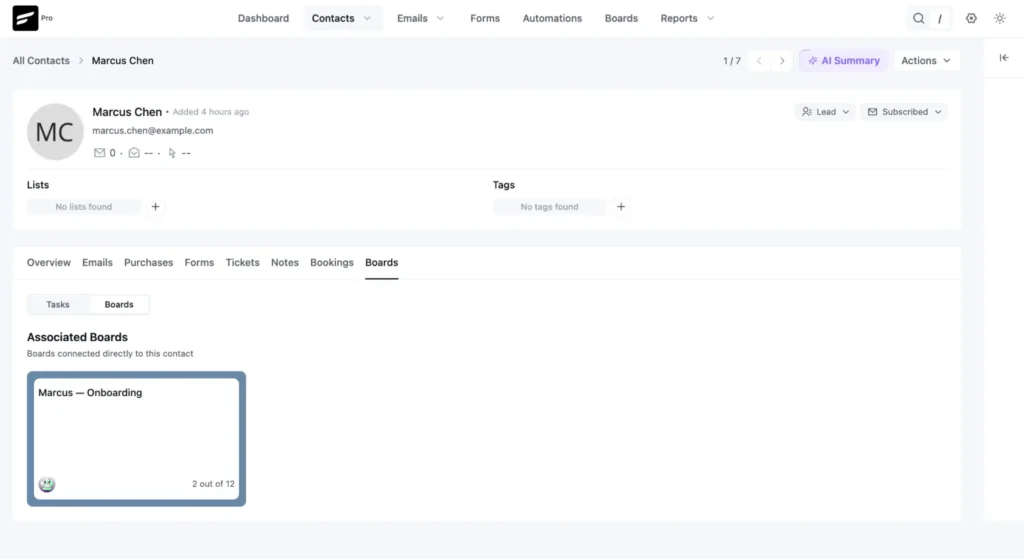
Here’s the contact FluentCRM created automatically from that submission, no manual entry.
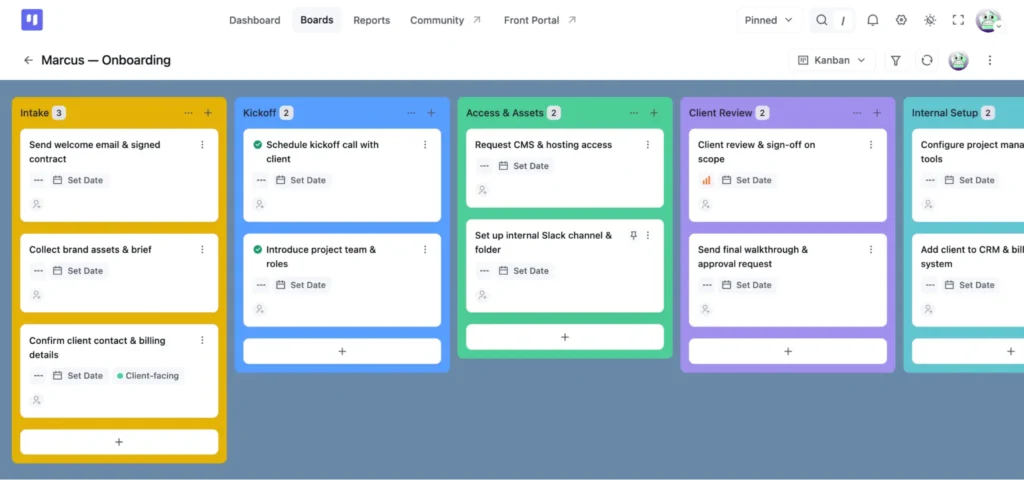
And here’s the board that was waiting on the other side, built the moment the form came in.
Before pointing this at a public form: a tag only fires when you decide it should, a form fires for anyone who clicks submit. Gate it behind a qualifying step, or lean on folders and archiving in FluentBoards to keep the board list manageable as it grows.
Use Case Five: Trigger a CRM Action From What Happens on a Board
Everything so far has flowed one direction: CRM event happens, board reacts. This one runs the other way, something happens on a board, and that fires a FluentCRM automation instead.
Sometimes the CRM should react to the project, not the other way around.
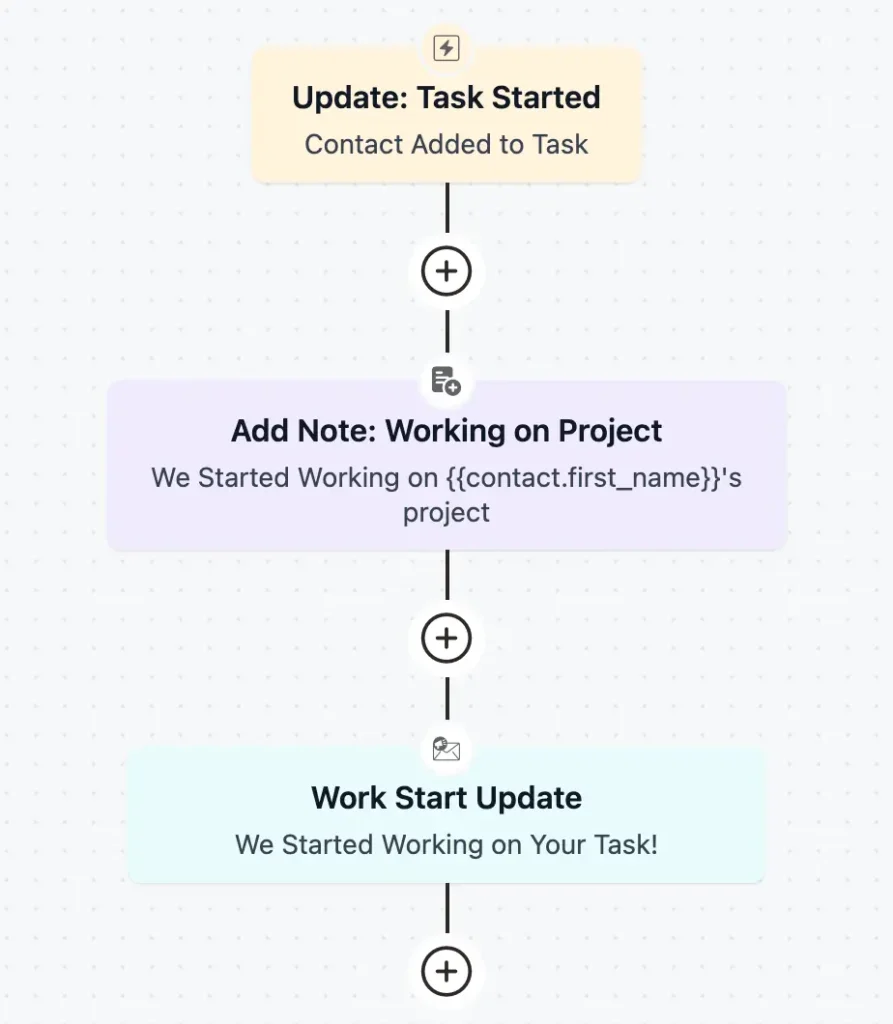
Example: a task moves into your “Client Review” stage, and that should fire an automated email letting the client know their work is ready to look at, no one has to remember to send it manually. FluentBoards contributes two triggers built for exactly this:
- Contact Added to Task
- Stage Changed
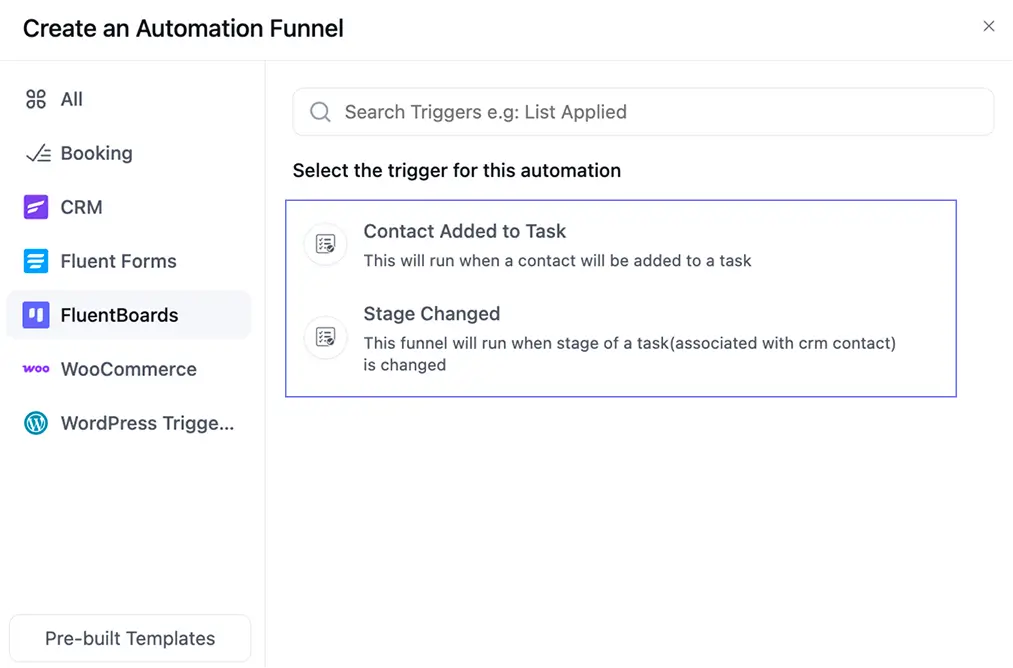
Here are some quick automation examples for your convenience:
- Automate Task Creation: Ease your client management burden and prioritize interaction. Automatically generate tasks for your new leads or past clients whenever necessary!
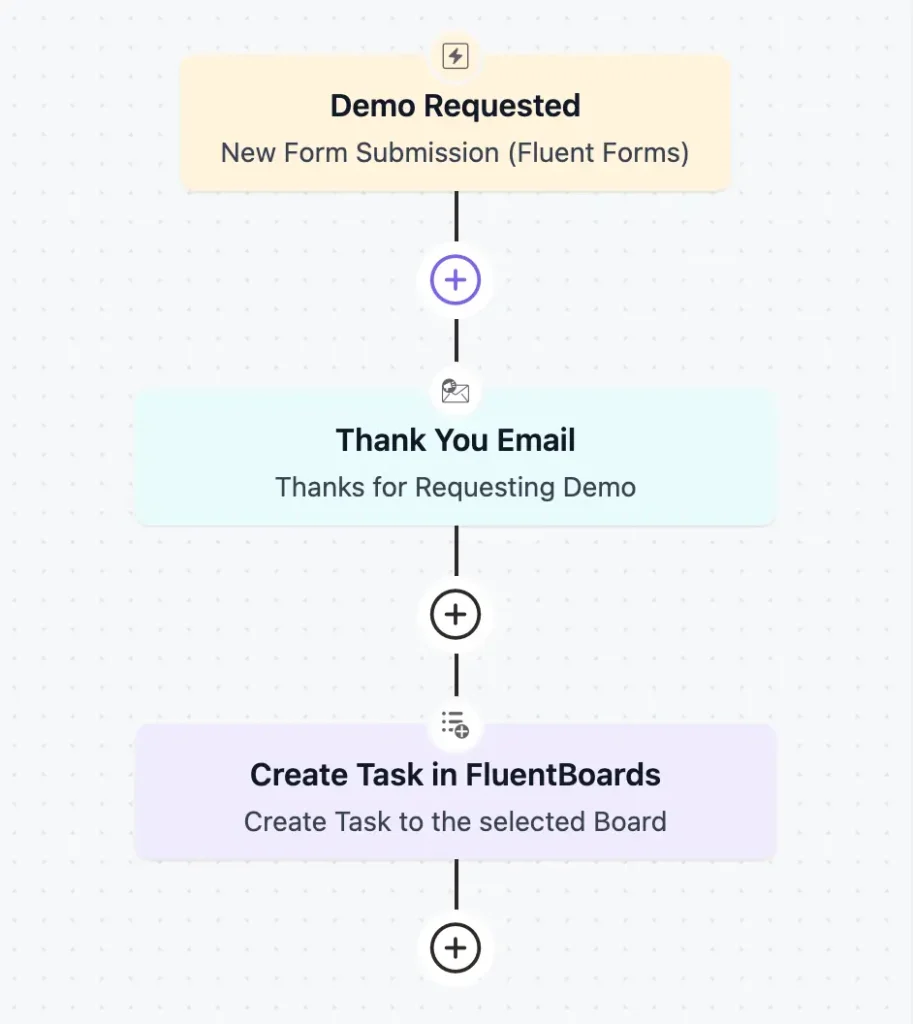
- Keep Your Clients Informed: Maintain clear communication throughout your client projects. Keep them updated on project progress through automated emails, allowing you to focus on the project itself.
Change the way you work!
At the end of this blog, we hope you now understand how magnificently this duo works together and what magic they can bring!
However, summarizing all the possibilities this combo opens for your businesses in one blog is hard. There are lots of more limitless opportunities waiting for your discovery! So, go ahead and embrace this powerful duo to simplify your operations and propel your business forward!
A seamless business management experience awaits you!
Let’s redefine project management with FluentBoards!

Follow:


Get Tips, Tricks, & Updates
We won’t send you spam.



Add your first comment to this post