

How to Manage Team Roles and Permissions in FluentBoards


Three things break when everyone on your site has the same level of access in FluentBoards:
- A contractor archives a live project board instead of a completed task.
- A new hire can see client budget data across three active projects on day one.
- A client-facing team member accidentally reassigns a task they were supposed to only view.
None of these are edge cases. They’re what happens without role management, and all three are preventable with a quick setup.
Let’s put everyone in the right role.
How FluentBoards Structures Access: Two Levels
Before you touch any settings, get the structure straight. FluentBoards controls access at two levels, global and board-level, and mixing them up is how teams end up configuring things wrong the first time.
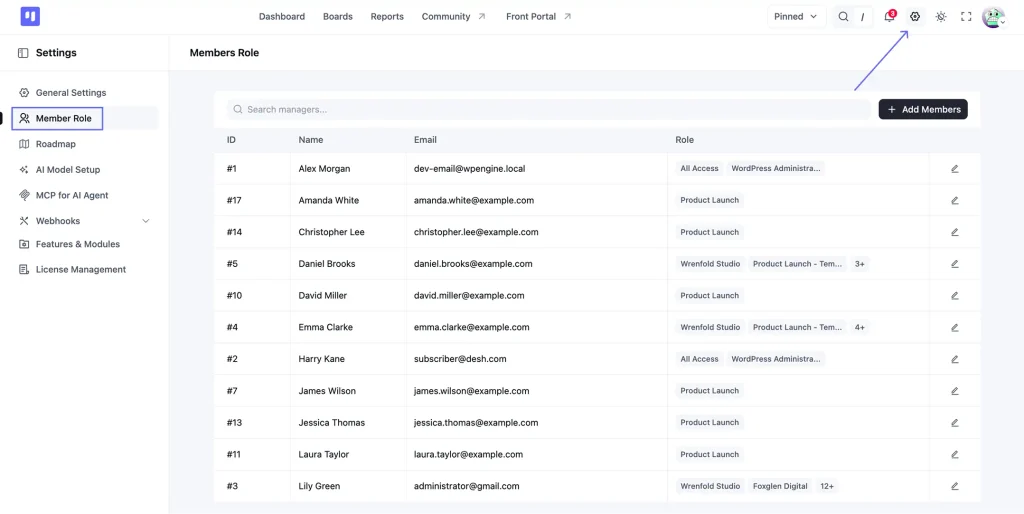
Global access: FluentBoards → Settings → Member Role
This screen controls who gets full, unrestricted access to every board and every setting on your site. Two types of users get it.
The first is any WordPress Administrator: anyone on your site with the manage options capability gets complete FluentBoards access automatically, with nothing to configure, since it comes straight from WordPress.
The second is a FluentBoards Admin: a user you manually elevate to that same full access without making them a WordPress admin. It’s the right fit for upper-level leadership who oversee every board but shouldn’t have WordPress admin rights.
A FluentBoards Admin can:
- See every board
- Manage every setting
- Add or remove any team member
WordPress core settings stay with your WordPress Administrators.
Good to know: If a project manager runs several boards on your site, or all of them, you can make them a FluentBoards Admin instead of a Board Manager on each. On top of everything a Board Manager does, they’ll get every board at once, global Settings, and the ability to archive boards.
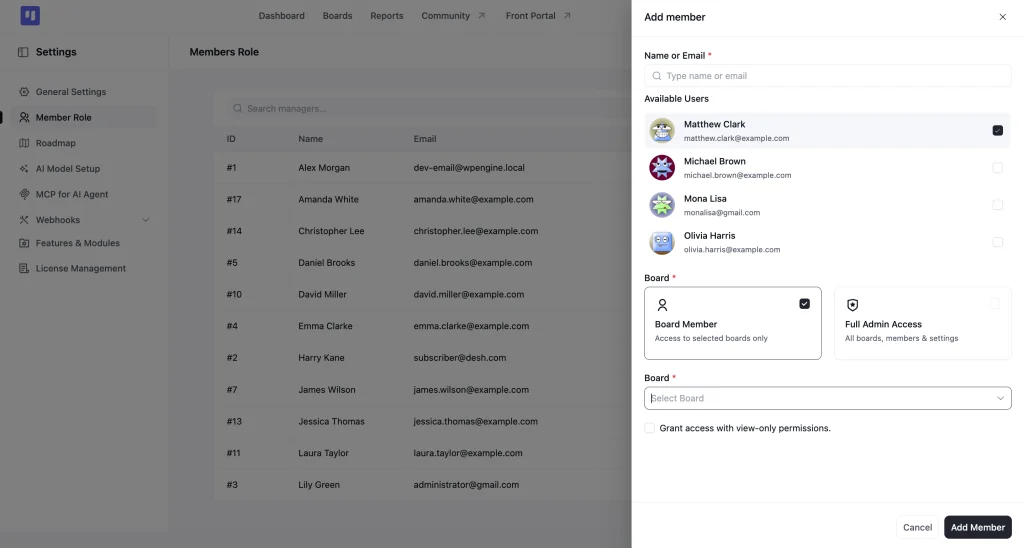
To add someone, click + Add Members on this screen and search for them. You’ll get two options:
- Board Member, for one board, with a view-only checkbox
- Full Admin Access, which makes them a FluentBoards Admin
Worth knowing: The search only finds people who already have a WordPress account on your site. If they’re not a WP user yet, create them first under Users → Add User, then come back and they’ll show up.
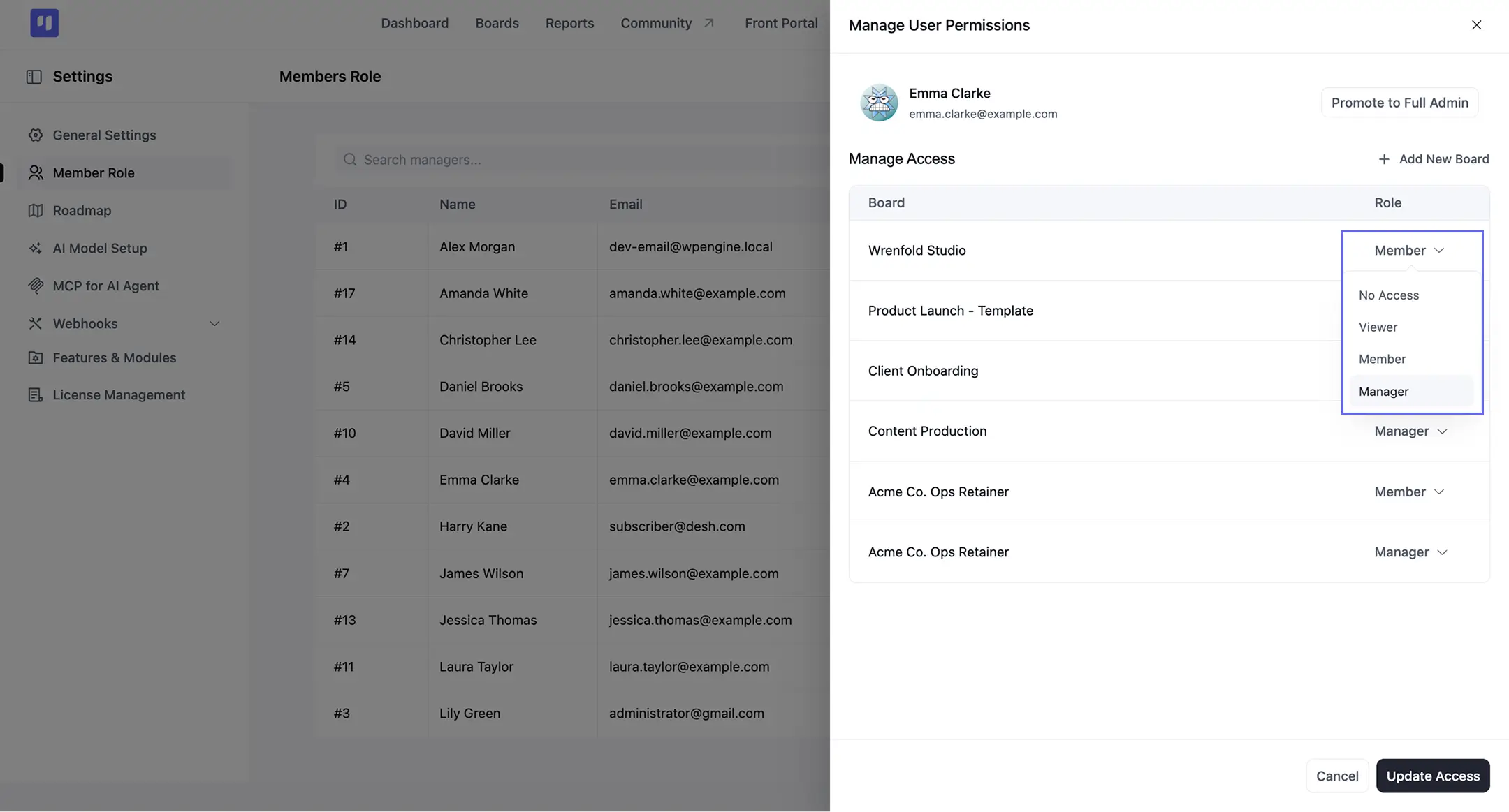
You can also adjust someone’s role on every board without leaving this screen. Click the edit pencil next to their name to open Manage User Permissions, which lists each board with its own Role dropdown:
- Manager, to run that board
- Member, to work on its tasks
- Viewer, to follow along
- No Access, to take that board away while they keep everything else in FluentBoards
Board-level access: what someone can do inside a specific board
Once a user has been added to a board, they carry one of three roles:
Board Manager: The person who runs the board. Managers shape the board itself: they manage its members, create and delete stages, change its background, set up webhooks, duplicate it, save it as a template, and export it.
On top of that, they can do all the day-to-day task work a Member does. Their control is focused on the board they manage, while archiving boards and site-wide settings stay with Admins. Give it to the project manager responsible for that board.
Member: The person who keeps tasks moving. Members can create, edit, assign, move, and delete tasks, along with everything that goes into them: comments, attachments, subtasks, custom fields, time logs, and a linked CRM contact. The board’s structure stays with its Manager, so Members can focus entirely on getting the work done. This is the right default for most of your team.
Viewer: The person who follows along. Viewers see every task on the board and can track its progress at a glance, move from one task to the next, and copy a task link to share with someone else, while the board stays exactly as your team left it. It’s the right fit for leadership, stakeholders, or a client who wants to see where things stand. If someone needs to ask questions or sign off on work, make them a Member instead.
Getting these three right is most of what managing a project team inside FluentBoards comes down to
How to Set Up Role-Based Access Control in FluentBoards
Five steps take you from your first Admin to a fully onboarded team, with everyone in the right role.
Step 1: Add a FluentBoards admin (if you need one)
If your team has a project manager or operations lead who needs to manage boards and invite team members (but who doesn’t have WordPress admin access), this is where you start.
There are two ways in, depending on where they’re starting from.
If they’re new to FluentBoards
- Go to Settings → Member Role and click + Add Members.
- Search for them by name or email.
- Select Full Admin Access instead of Board Member.
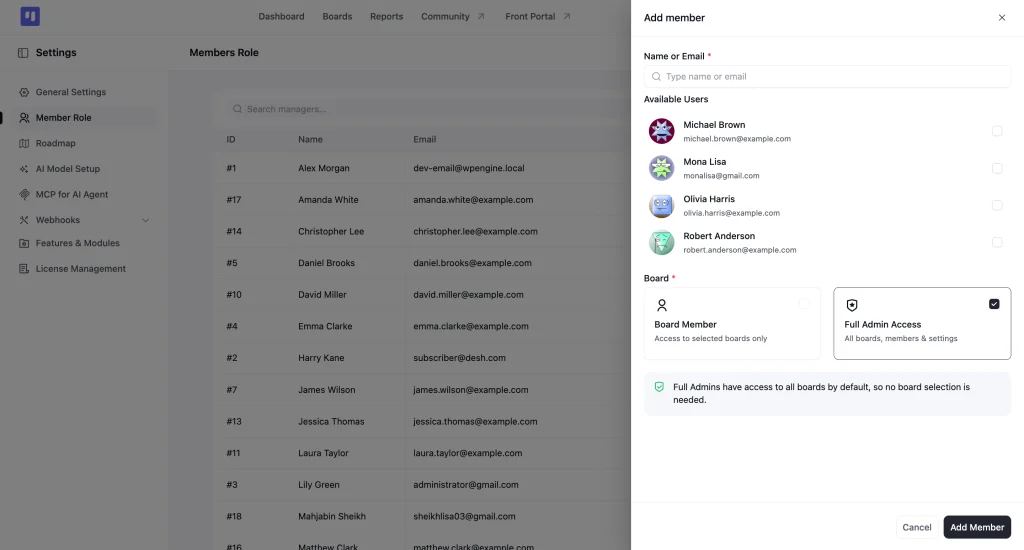
They now have full FluentBoards access across every board, with no board selection needed.
Heads up: The search here only finds people who already have a WordPress account on your site. To bring in someone new, either create their account first under Users → Add User, or invite them by email from inside the board.
If they’re already working in FluentBoards
- Go to Settings → Member Role and click the edit pencil next to their name.
- In the Manage User Permissions panel, click Promote to Full Admin.
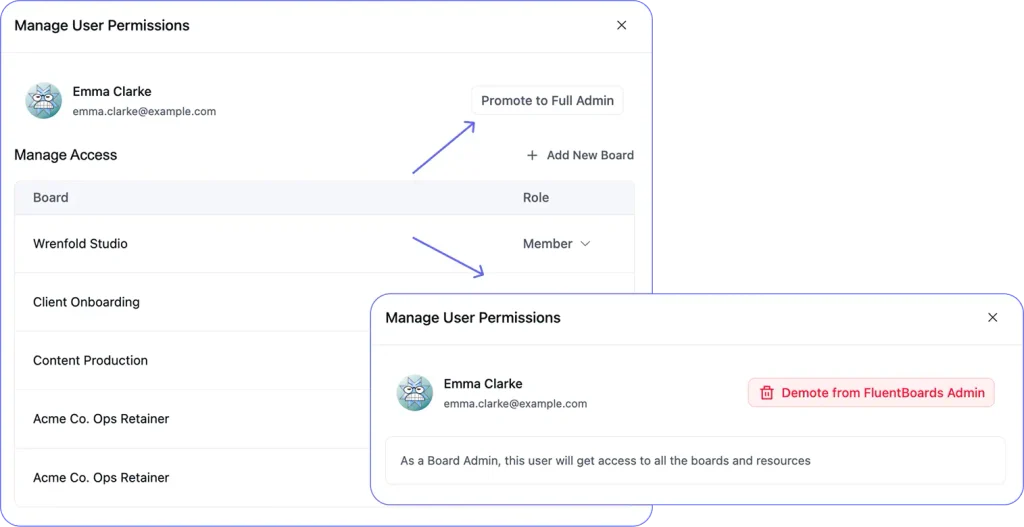
That’s one click to full access, and their existing board assignments stay exactly as they were.
Need to take Admin access away later? The same panel lets you demote them in one click.
Step 2: Invite a team member to a board
Individual board access is managed from inside the board itself, though the global Member Role screen can set it too.
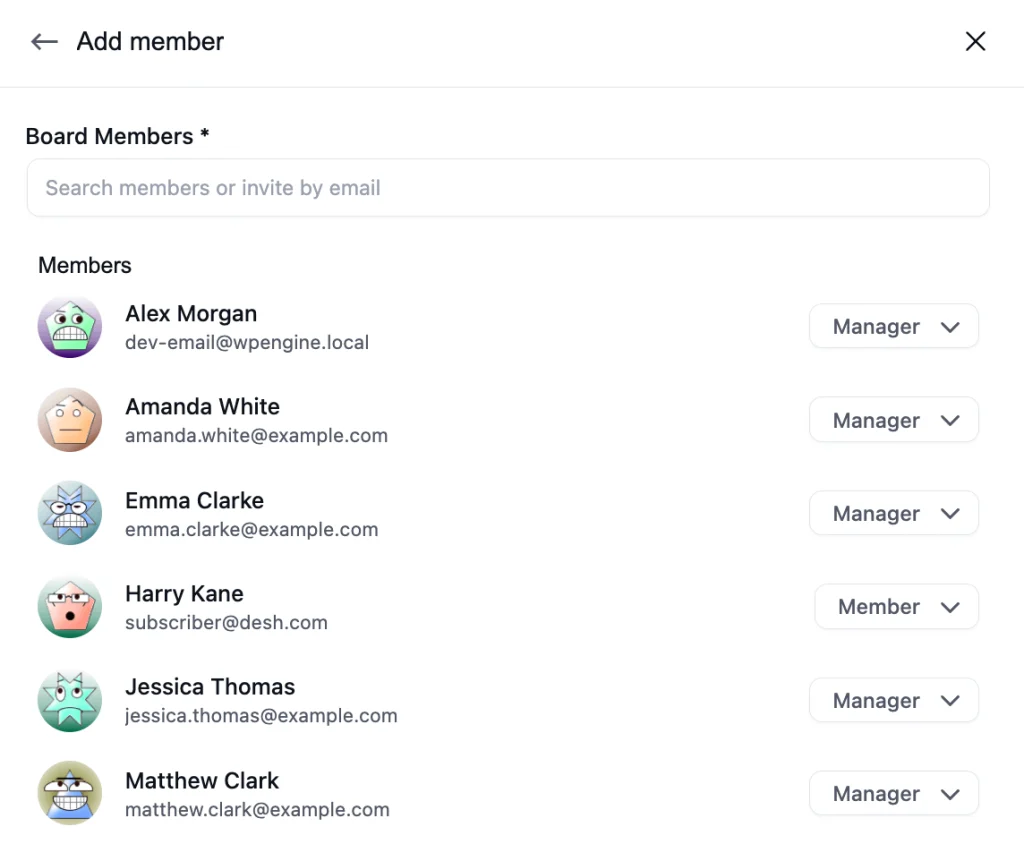
- Open the board and go to Board Menu → Board Members.
- Invite the person by name or email.
- Pick their role.
If they already have a WordPress account on your site, they’ll appear in the user list and get added immediately.
If they don’t have a WordPress account (a freelancer, a client, an external collaborator), FluentBoards sends them an email invitation. They click Join Board (or the backup link below it), create a simple account on your site, and land on that board with exactly what their role allows, while your WordPress dashboard stays out of view.
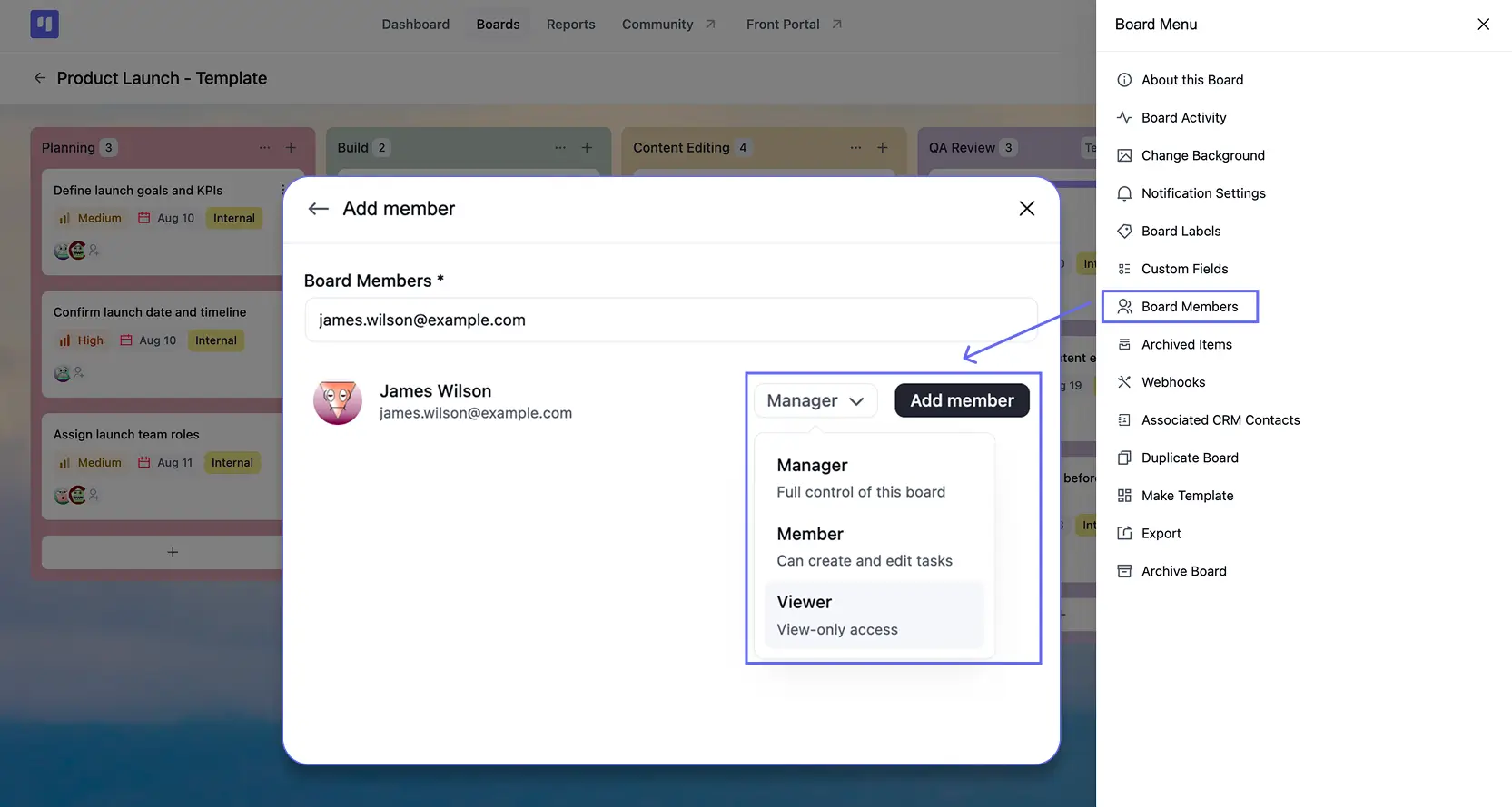
The invite panel describes each role right next to it:
- Manager: full control of this board
- Member: can create and edit tasks
- Viewer: view-only access
Choose based on what they’ll actually be doing on the board.
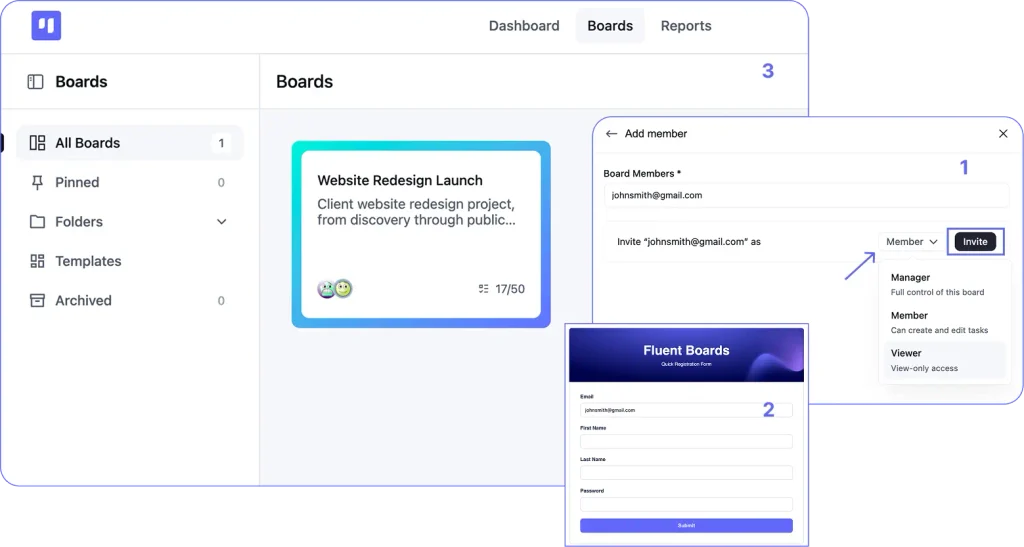
Changing someone’s role later happens in the same panel. Click the dropdown next to their name:
- Demote from Manager
- Make Member
- Make Viewer
- Leave board, on your own row
Managing roles from the global screen
When someone works across several boards, updating them one board at a time gets slow. The global screen puts one person’s access to every board in a single panel.
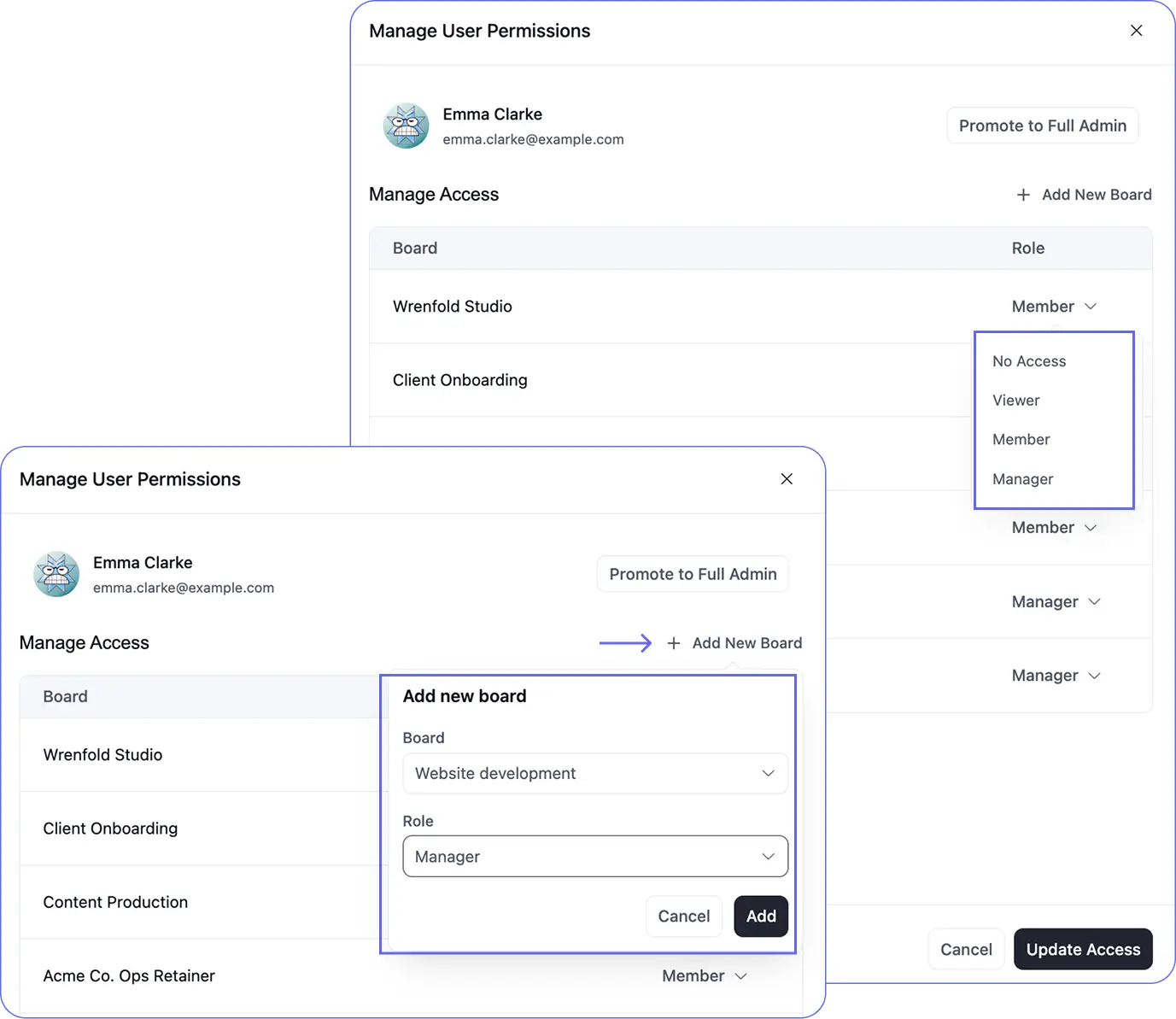
Say a designer is moving off one client’s project and onto a new launch. Instead of opening both boards, go to Settings → Member Role and click the edit pencil next to their name. Manage User Permissions shows every board they’re on, each with its own Role dropdown, so you can:
- Switch their role on any board to Manager, Member, or Viewer
- Set the finished project to No Access so it drops off their list
Need to add them to a board they’re not on yet?
The same panel has a “+ Add New Board” link for that. with a role dropdown offering Viewer, Member, or Manager.
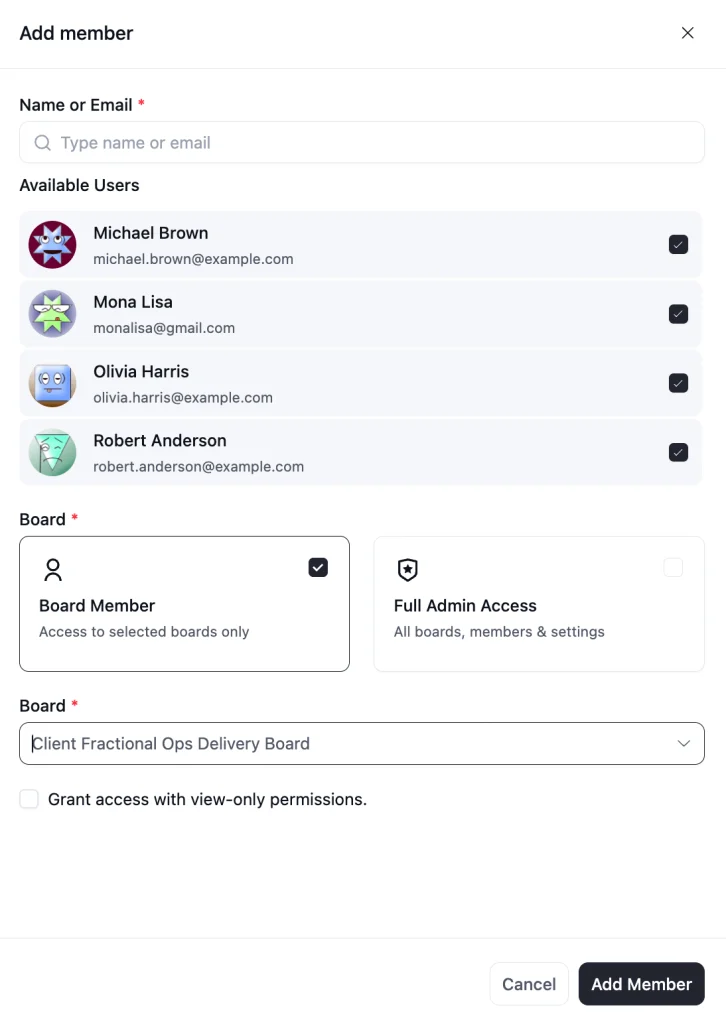
Pro Tip: Starting a new project and bringing the whole team in at once? Go to Settings → Member Role → + Add Members, check off several people in the Available Users list, choose Board Member, then pick the board to add them all to in one go.
Step 3: Use the Viewer role for clients and contractors
This is the role most teams underuse. The Viewer role solves two problems cleanly.
The client visibility problem: Your client wants to see project status. Giving them a Member role means they can accidentally move tasks, change assignees, or add noise to a board your team is actively working in. The Viewer role gives them exactly what they need: task status and stage progress, without any ability to change anything.
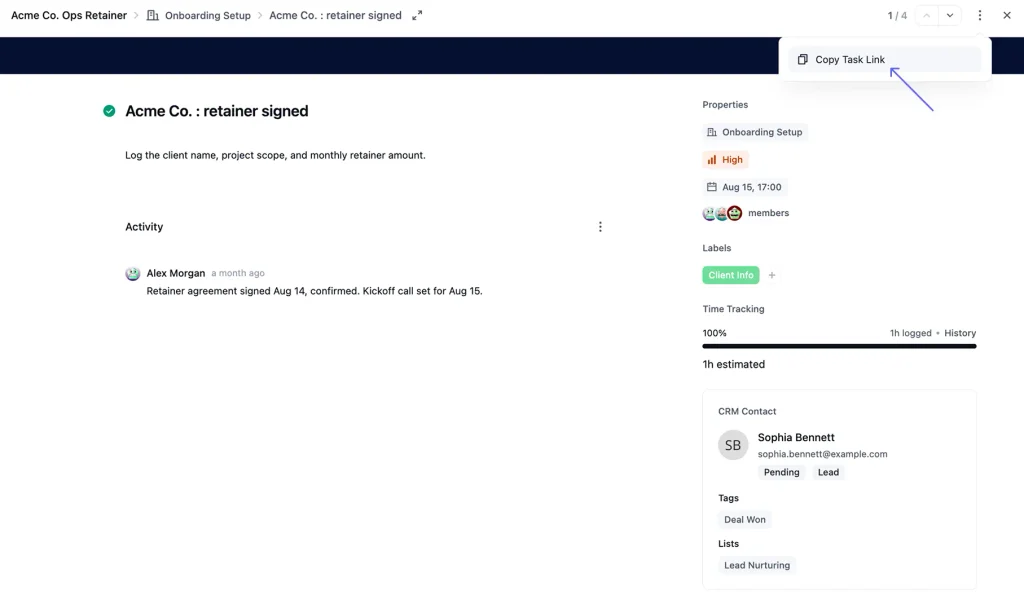
When a Viewer opens a task, they see everything on it. From there, they can:
- Move to the next task
- Copy the task link to share it
Everything else stays read-only.
Good to know: Viewers don’t get a comment box, which keeps your team’s task thread clean. If your client needs to ask questions or sign off on work, add them as a Member instead.
If you want a client-facing experience that goes further, combining Viewer access with the Frontend Portal gives clients a clean branded interface without them ever touching the WordPress backend.
For more on giving clients meaningful visibility into project progress, see project handoff to client
The contractor problem: A contractor brought in for one sprint should see one board. They shouldn’t see your other active client projects, internal roadmaps, or anything beyond their scope. Add them to only the relevant board as a Viewer or Member (depending on whether they’ll be creating tasks or just monitoring). They will see nothing outside what they were explicitly added to.
For managing external stakeholders in general, the Viewer role is almost always the right default. Ask yourself: does this person need to do work on the board, or do they need to see the work being done? If it’s the latter, it’s a Viewer.
Pro tip: You can add someone as a Viewer without opening the board at all. In Settings → Member Role → + Add Members, choose Board Member, pick the board, and tick Grant access with view-only permissions.
Step 4: Control who can create boards
By default, only FluentBoards Admins and WordPress Administrators can create new boards. This matters more than it sounds.
A junior team member who can create boards can create an unstructured board with no stages, no naming convention, and no integration with your existing workflow. Multiply that by a team of eight and your workspace becomes chaotic fast.
In FluentBoards → Settings → General Settings, there’s a toggle to allow members to create boards. It’s off by default.
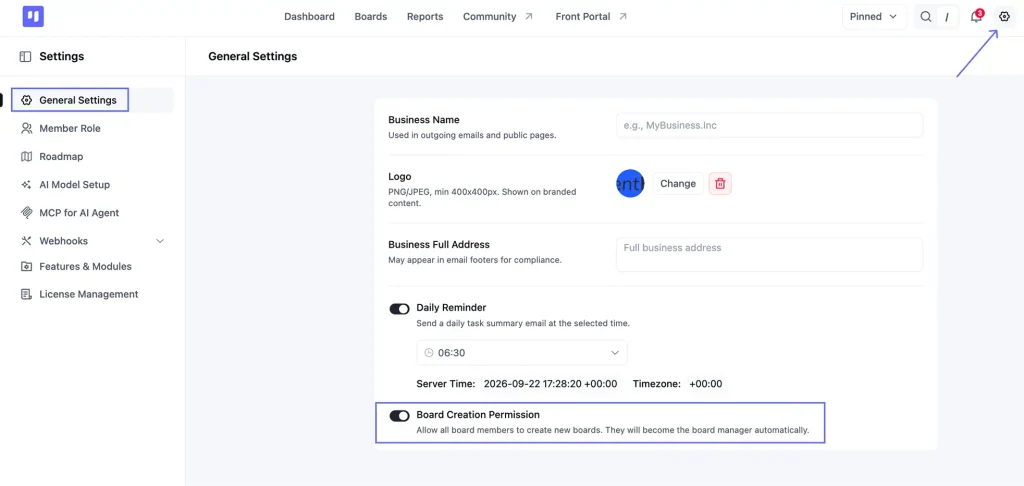
Turn it on only if you have a team mature enough to self-manage board structure (typically senior individual contributors or team leads). For most teams, keeping board creation in Admin hands is the right call.
This is what managing projects within WordPress at team scale actually requires: one person controlling the structure, everyone else working within it.
Step 5: Walk a new team member through onboarding
Here’s the full sequence-
- Decide their global role: Do they need full FluentBoards access to manage boards and settings? Make them a FluentBoards Admin. Do they just need access to specific boards? Skip global settings entirely and go straight to the board.
- Add them to the relevant boards: Open each board they’ll work in. Invite them by name (existing WP user) or email (new user), and select their role: Manager, Member, or Viewer.
- Confirm what they can see: Ask them to open FluentBoards. A Member should see only the boards they were added to. A Viewer should see those boards with no edit controls on any task.
- Adjust if needed: For a quick change, open the board’s member list and use the dropdown next to their name. No re-inviting, no new setup.
This process applies whether you’re setting up your first board or onboarding a tenth team member.
Who Can Manage Roles and Permissions?
Each level manages its own scope:
- WordPress Administrators and FluentBoards Admins handle everything
- Board Managers manage the members of their own board
- Members and Viewers work within the boards they’ve been added to
This chain matters. Your team structure is controlled by the people you choose to control it, not by whoever happens to be logged into the site.
These global Settings stay with Admins:
- General Settings, including daily reminders and board creation permissions
- Member Role
- Roadmap
- AI Model Setup, along with MCP setup for AI agents
- Webhooks
Worth knowing: Board Managers can still set up webhooks and save a template for their own board, right from its Board Menu.
Role Management: Free vs. Pro
| Capability | Free | Pro |
|---|---|---|
| WordPress Admins have full FluentBoards access | Included | Included |
| Invite non-admin users to specific boards | No | Included |
| Assign Manager / Member / Viewer roles per board | No | Included |
| Add FluentBoards Admins (non-WP-admin) | No | Included |
| Email invitations for new WordPress accounts | No | Included |
| Control board creation for members | No | Included |
| Remove a user from all boards at once | No | Included |
The single most important Pro capability here is the Viewer role. Without it, every person on a board has the same level of write access as everyone else. For any team working with external clients or contractors, that’s the gap that matters.
See what else Pro unlocks: free vs Pro comparison
FAQ & Troubleshooting
A few quick answers to what comes up once roles are actually in use.
Can a Viewer leave comments on tasks?
No. Viewers can read every task, but they can’t comment, edit task details, move tasks between stages, change assignees, or touch anything in board settings. If someone needs to comment, add them as a Member instead.
Can I give someone access to two boards but not a third?
Yes. Board access is per-board. You add someone to exactly the boards they need. They won’t see any board they weren’t explicitly added to, even if it exists on the same WordPress site. To take one board away from someone who stays on others, set it to No Access from the global Member Role screen.
What happens if I remove someone from a board?
They lose access immediately. Tasks they were assigned to remain assigned to them (the assignment isn’t automatically cleared), but they can no longer open or interact with the board. If you want to clean up their assignments, do that manually before removing them.
Can a Board Manager add new members to their board?
Yes. A Board Manager can invite and manage members within their specific board. They cannot create new FluentBoards Admins and cannot access boards they weren’t added to.
Can I change someone’s role after they’ve joined?
Yes, at any time. Open the board, go to the member list, and change their role from the dropdown, or use the edit pencil next to their name on the global Member Role screen. The change takes effect immediately.
Set Up Your Team Structure Before the Next Project Starts
The hardest time to implement role management is mid-project. When everyone already has full access and work is actively happening, changing roles creates friction. The right time to set this up is before your next board goes live.
Audit the people currently in FluentBoards:
- Who has more access than they need?
- Who is a Viewer candidate?
- Are there Board Managers who are currently just Members?
That audit takes fifteen minutes and tells you exactly what to fix.
Then set a default process: every new team member gets the right role during their first week. Every contractor or client gets Viewer by default unless there’s a specific reason they need write access.
That default eliminates the three failure scenarios from the opening of this post before they have a chance to happen.
Thanks for reading. Open the member list on your busiest board and see who has more access than their work needs.
Let’s redefine project management with FluentBoards!

Follow:


Get Tips, Tricks, & Updates
We won’t send you spam.




Leave a Reply