

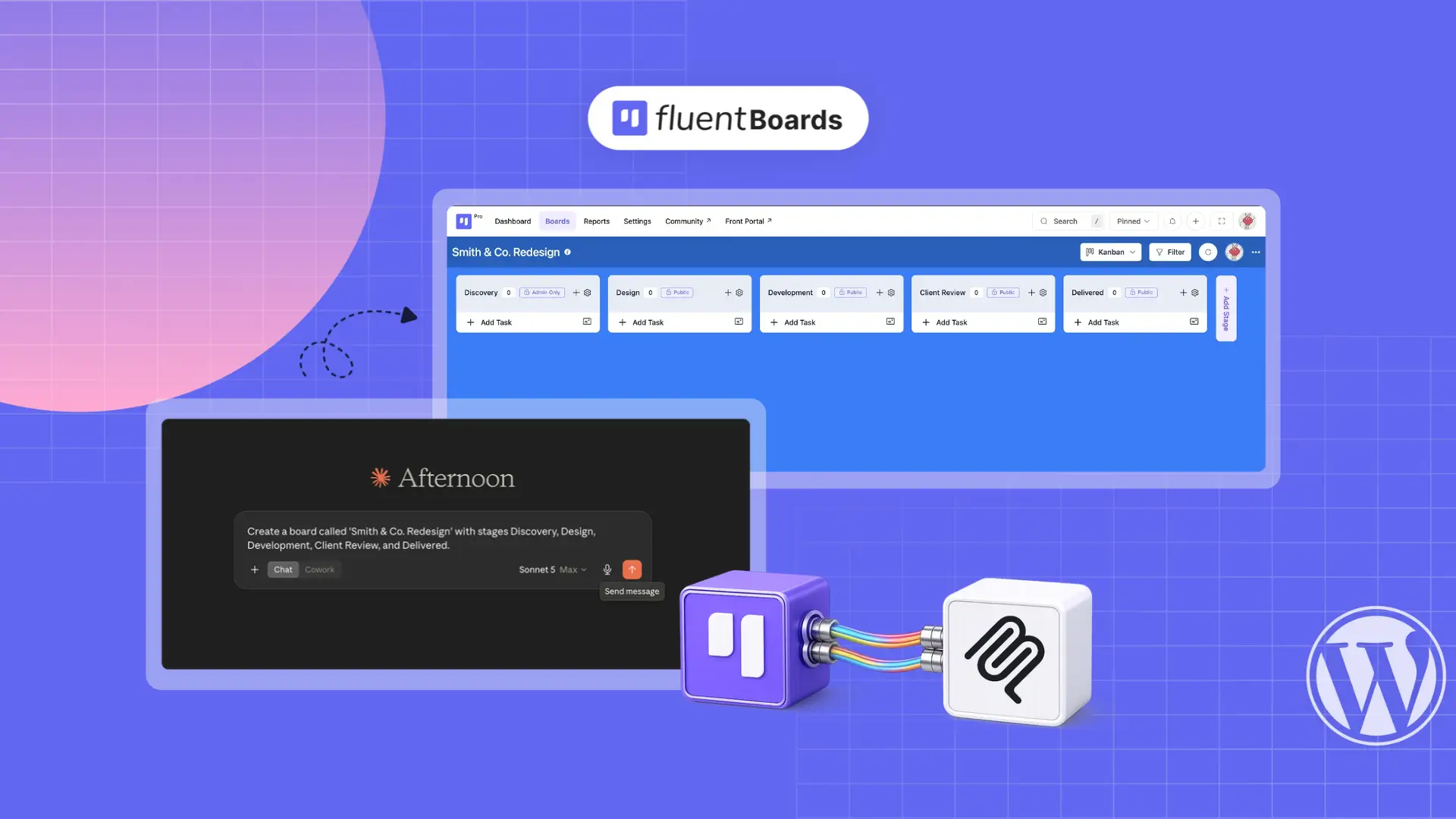
Ready-Made Prompts for FluentBoards MCP: What to Actually Type


If you use MCP, you already know the idea. You connect your AI assistant to your tools, and it can act inside them instead of only answering questions.
With MCP connected in FluentBoards, you’re not just getting suggestions. Tell your assistant what you want, and it can take action on your boards in real time. What you need now is the right thing to ask.
These ready-made prompts are made to be pasted in as they are. Swap in your own board and client names, run one on a real board, and watch it work.
Let’s dive in.
Not connected yet? It only takes these simple steps
Who Can Run These Prompts
Your AI works with your access, nothing more. FluentBoards MCP gives it 29 tools to work with, and every prompt here runs against your role on each board, the same way FluentBoards checks it when you click around yourself.
- Admins: can use MCP as soon as it’s set up.
- Team members: can connect once an admin turns on Allow board members to use MCP in Settings.
- Viewers: can run the status and search prompts, but anything that edits a board gets refused.
If you’re not sure what each role allows, the guide to team roles and permissions in FluentBoards breaks it down. One more thing before you start: the AI uses your real board, stage, and label names, so write prompts the way your boards are actually set up.
Heads up: Roles other than administrator are part of FluentBoards Pro, so on the free version, MCP is for site administrators. 21 of the 29 tools work on the free version. The other 8, for subtasks and adding or removing individual assignees, need Pro.
FluentBoards MCP Prompts for 10 Everyday Project Tasks
Each section below covers one kind of work, with prompts you can copy straight into your AI assistant.
1. Checking status without opening a board
The first thing most people ask for, and the one that pays off immediately, is a status check that doesn’t involve clicking into anything.
Try:
- “What’s on my plate today?”
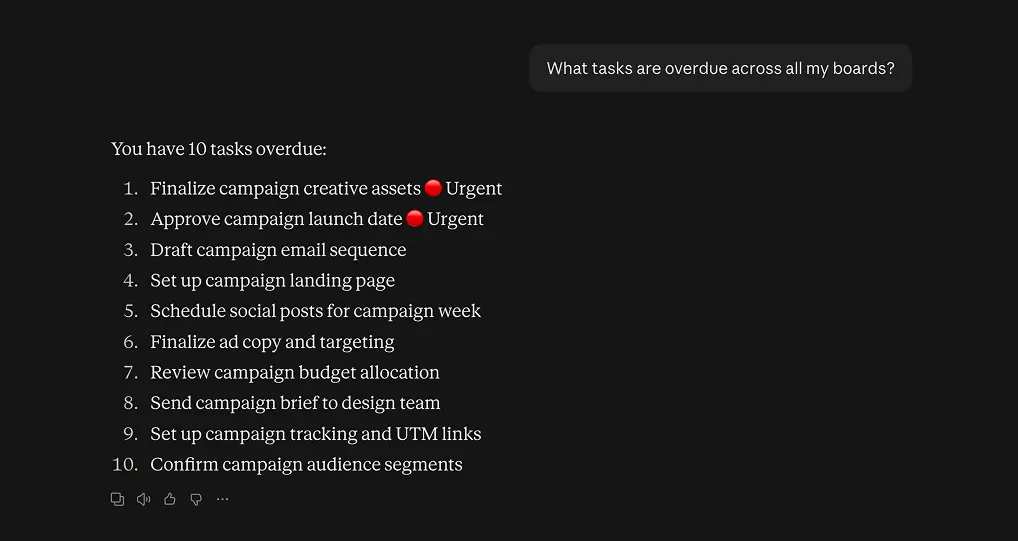
- “What tasks are overdue across all my boards?”
- “Check my FluentBoards and show me the top 3 high-priority tasks due this week.”
- “Show me every task still sitting in the To Do stage on the Q3 Launch board, and who owns each one.”
- “Find the task about the homepage redesign.”
- “Summarize the Smith & Co. Redesign board: what’s done, what’s in progress, and what’s stuck.”
None of these require you to know which board something lives on, which is the actual time sink most mornings.
2. Setting up new work
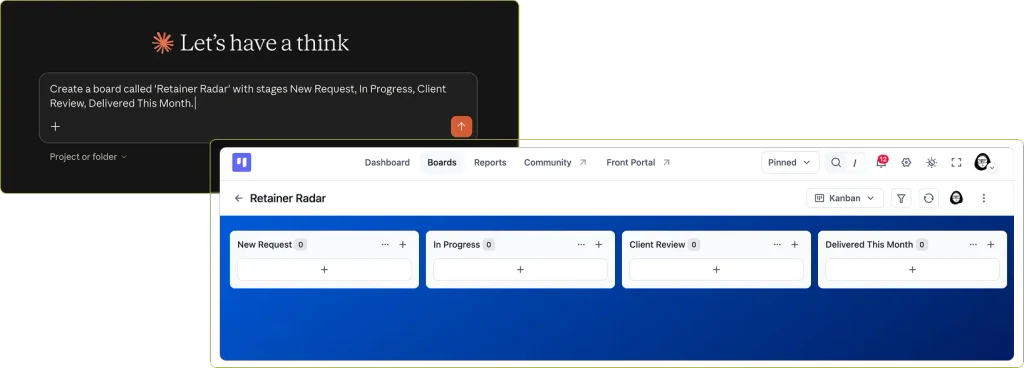
A new board usually means rebuilding the same stage structure you’ve already built a dozen times. This skips that part.
Try:
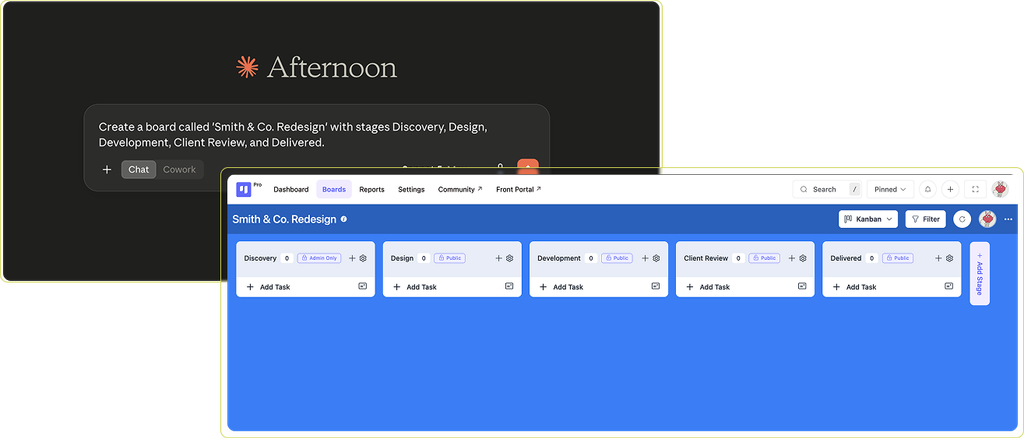
- “Create a board called ‘Retainer Radar’ with stages New Request, In Progress, Client Review, Delivered This Month.”
- “Set up a board for Acme’s onboarding project with stages Kickoff, In Progress, Review, Done.”
- “Create a board called ‘FluentBoards Campaigns’ with stages Planning, Drafting, Ready to Send, Sent.”
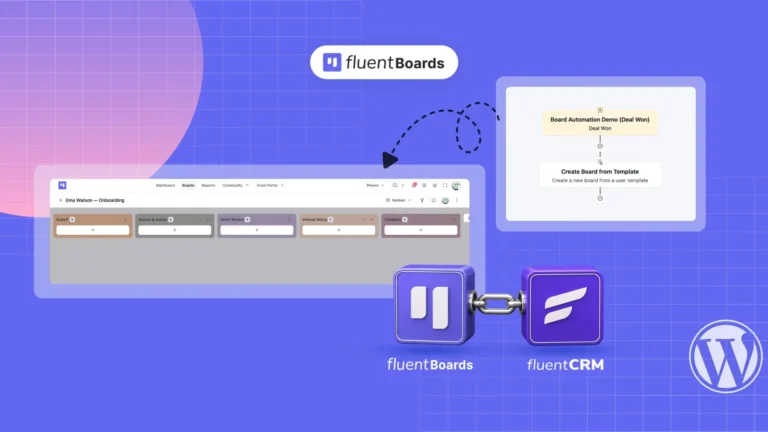
If a board should appear on its own when something happens in your CRM, you can automate board creation and still use every prompt on this page once it exists.
3. Creating and updating tasks
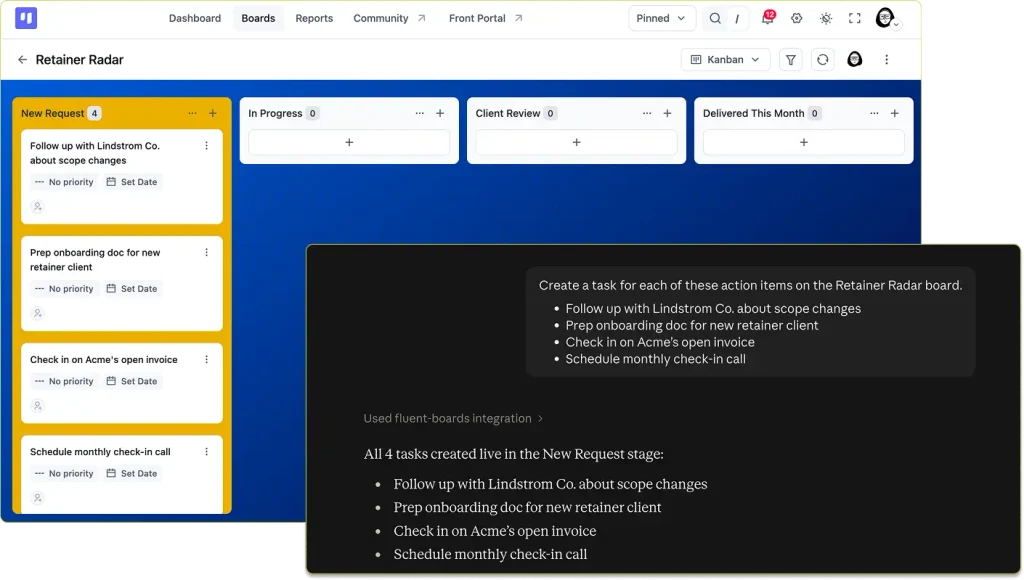
This is the part that actually writes to the board, not just reads from it.
Try:
- “Create a task for each of these action items on the Q4 Launch board.” (Paste the raw notes right after.)
- “Move the homepage redesign task to Client Review and bump its priority to High.”
- “Change the due date on ‘Fix checkout bug’ to next Friday.”
- “Update the description on the onboarding task to include the new contract terms.”
- “Turn these meeting notes into tasks on the Q4 Launch board: [add your meeting notes here]”
The AI fills in the same fields you would by hand. If you want a refresher on what each one does, here’s what a FluentBoards task can actually do.
4. Catching overdue or undated work
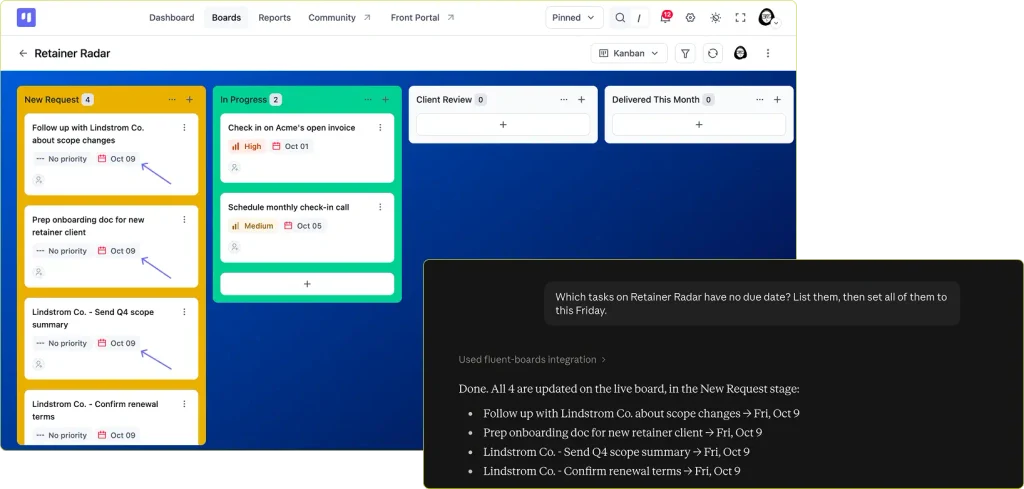
Overdue tasks at least show up somewhere on a dashboard. Tasks with no due date at all usually don’t, which means they sit untouched until a client asks about them.
Try:
- “What’s overdue? Push it all to Friday.”
- “Which of my tasks have no due date?”
- “Give the Foxglen Digital tasks due dates this week.”
5. Priorities and Labels
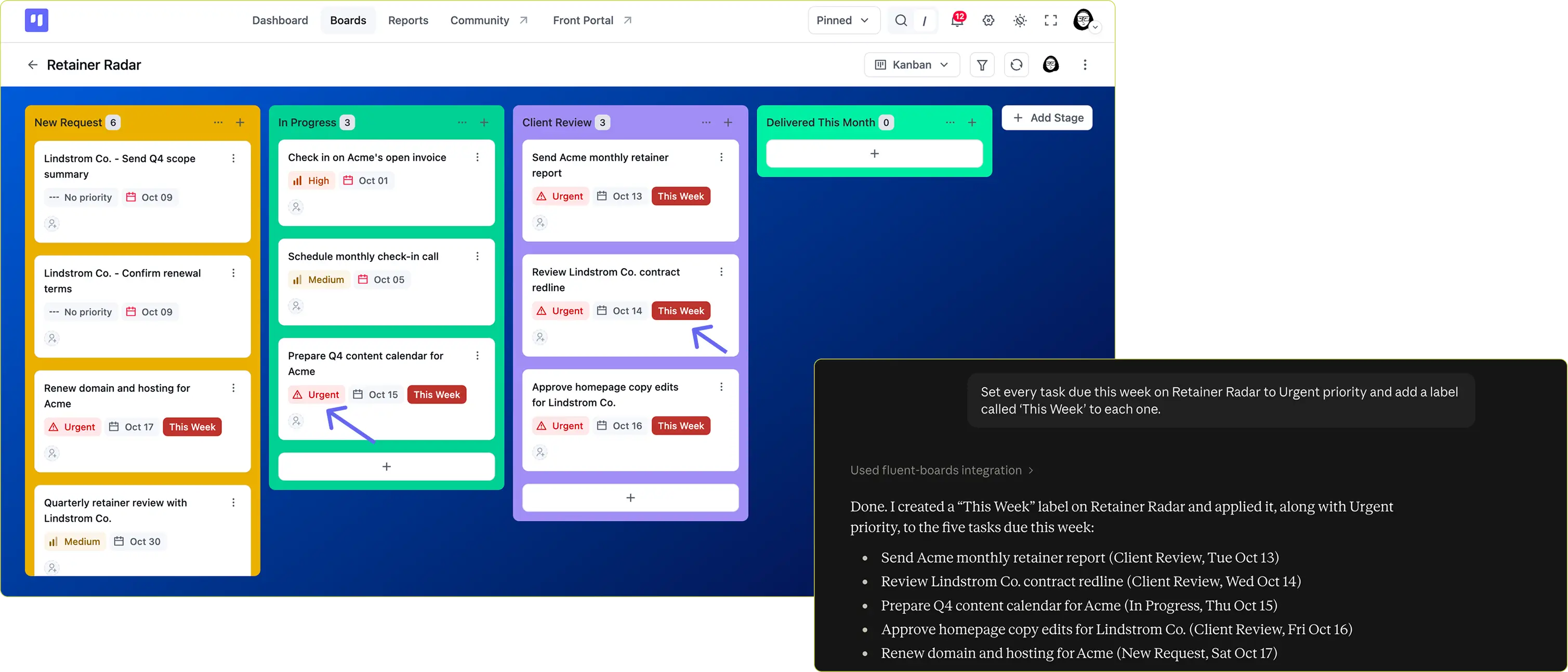
Priorities and labels are the kind of thing you set up once with good intentions and then stop maintaining by hand within a month.
Try:
- “Set every task due this week on the Launch board to Urgent priority.”
- “Create a label called ‘Client Review Needed’ on the Acme board.”
- “Remove the ‘Blocked’ label from anything that’s already moved to In Progress.”
6. Comments and Communication
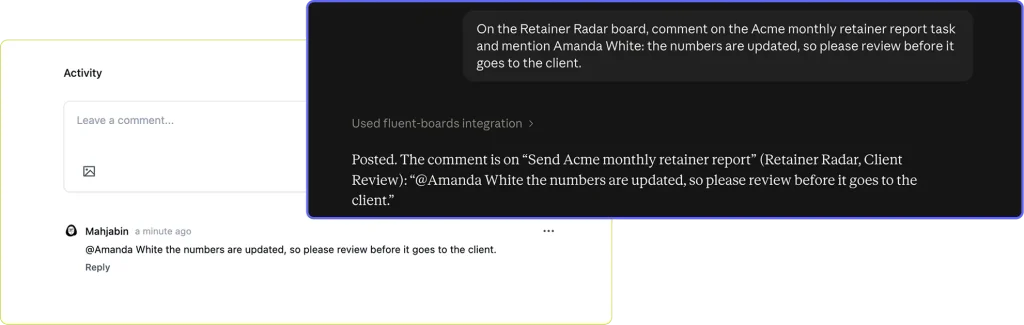
A comment left on the task beats a Slack message that gets buried three weeks later, assuming anyone bothers to write it in the first place.
Try:
- “Add a comment to every unfinished task on the Product Lunch board explaining that the launch date moved two weeks.”
- “Leave a note on the checkout bug task summarizing what we’ve tried so far.”
- “Comment on the checkout bug task and mention Sarah so she sees it.”
Mentions trigger FluentBoards’ normal notifications, so the person actually hears about it.
7. Assigning and Reassigning Work
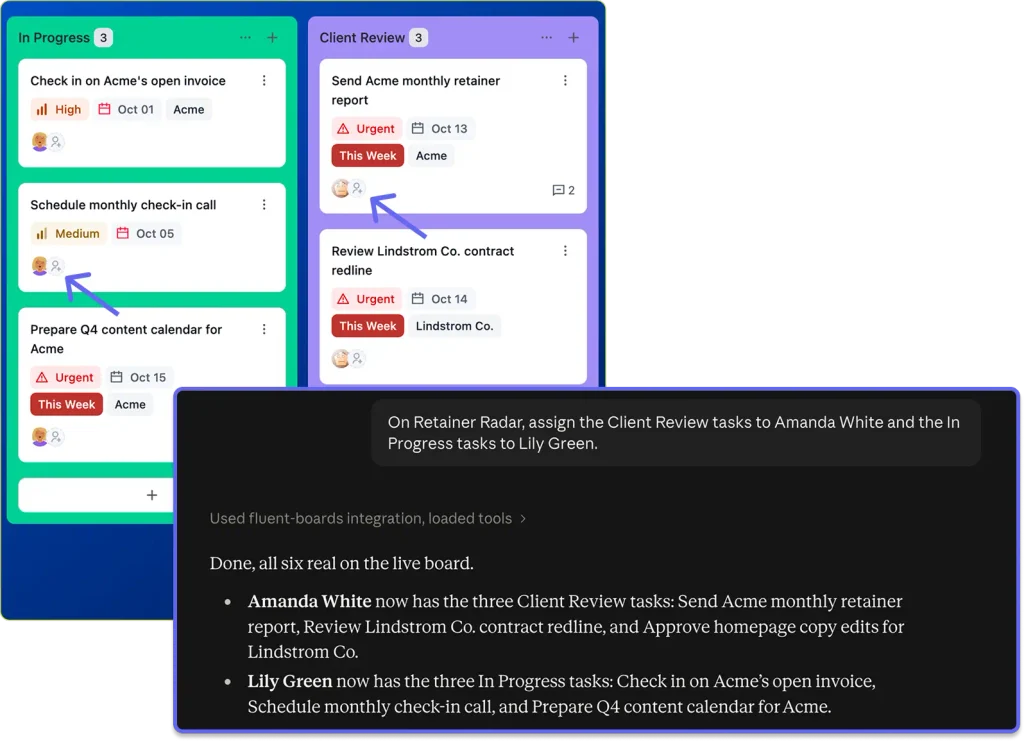
Useful whenever work shifts between people mid-project, or someone’s out and their tasks need temporary coverage.
Try:
- “Reassign everything unassigned on the Launch board to me.”
- “Add Sarah as an assignee on the homepage redesign task without removing anyone already on it.”
- “Show me task counts per assignee on the Q3 board. Who’s overloaded right now?”
8. Subtasks and Checklists
Big tasks hide small steps, and the small steps are what slip. Subtasks split a task into pieces that each have an owner.
Try:
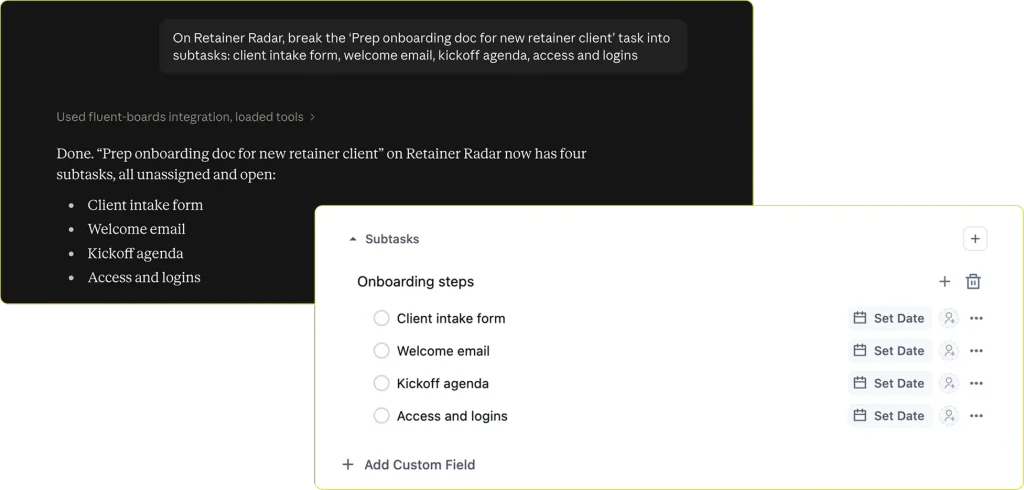
- “On Retainer Radar, break the ‘Prep onboarding doc for new retainer client’ task into subtasks: client intake form, welcome email, kickoff agenda, access and logins.”
- “Show me every subtask on the redesign task and who’s assigned to each one.”
- “Assign the QA subtask to Marcus.”
9. Cleaning Up and Archiving
Boards accumulate finished work the same way an inbox accumulates read emails nobody deletes. These are the routine jobs worth handing off, and you can bundle several steps into one message so a whole weekly cleanup becomes a single prompt.
Try:
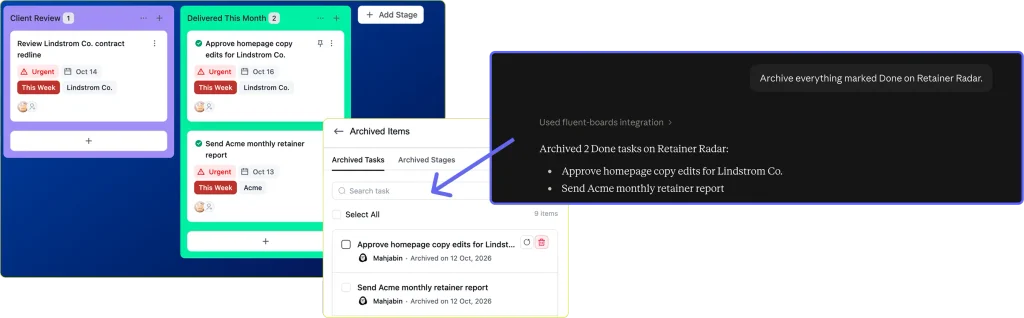
- “Archive everything marked Done on Retainer Radar.”
- “Go through all my boards. Bump any overdue task to High priority, reassign anything unassigned to me, and archive everything marked Done.”
- “Restore the task I archived by mistake yesterday. It was called ‘Update pricing page.’”
Archiving tasks is reversible, so this is a safe one to experiment with. There’s no MCP tool that permanently deletes a task at all, only one that archives it, and archived tasks can always come back.
10. Stages and Workflow
Less frequent than everything above, but worth knowing for whenever a workflow changes shape.
Try:
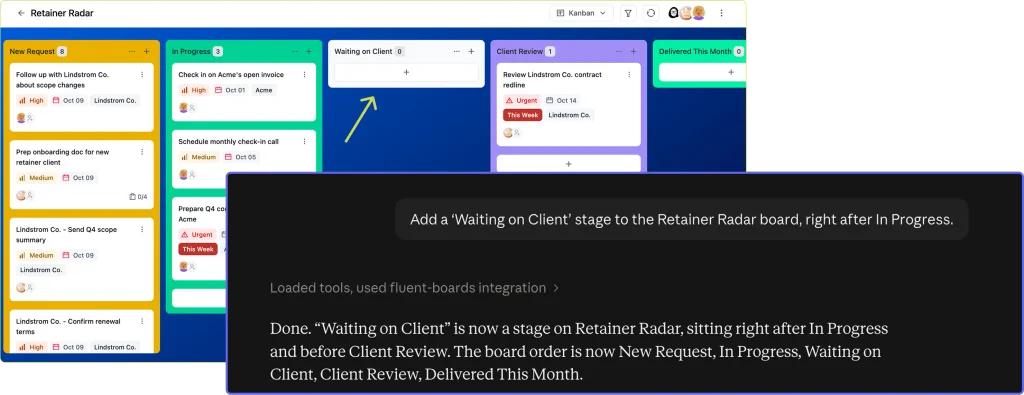
- “Add a ‘Client Review’ stage to the Retainer Radar board, right after In Progress.”
- “Archive the ‘Backlog’ stage on the old project board. Keep the tasks, just hide the column.”
Your Boards Are One Prompt Away
Every FluentBoards MCP Tool: Free vs. Pro
Most prompts in this post work on the free version. A few need Pro, and the table below shows which.
| Tool | Tier |
| Get FluentBoards Context | Free |
| List Boards | Free |
| Get Board | Free |
| Create Board | Free (folder placement: ★ PRO) |
| List Tasks | Free |
| Get Task | Free |
| Create Task | Free |
| Update Task | Free |
| Move Task | Free |
| Archive or Restore Task | Free |
| Add Comment | Free |
| List Labels | Free |
| Create or Update Label | Free |
| Delete Label | Free |
| Add Task Label | Free |
| Remove Task Label | Free |
| List My Tasks | Free |
| Search Tasks | Free |
| Create or Update Stage | Free |
| Archive Stage | Free |
| Assign Task | Free |
| Create Subtask Group | ★ PRO |
| Create Subtask | ★ PRO |
| Get Subtasks | ★ PRO |
| Update Subtask | ★ PRO |
| Delete Subtask | ★ PRO |
| Assign Subtask | ★ PRO |
| Add Task Assignee | ★ PRO |
| Remove Task Assignee | ★ PRO |
See what else Pro unlocks: free vs Pro comparison
Frequently Asked Questions About FluentBoards MCP Prompts
A few quick answers to what comes up once you start running these prompts on real boards.
Do these prompts need to be worded exactly like this?
No. These are examples, not commands with a fixed syntax. Describing what you want in your own words works the same way a well-written Slack message to a coworker would.
Can I combine more than one of these in a single prompt?
Yes, and it’s often the more useful version. “What’s overdue on the Acme board? Push it all a week and leave a comment explaining why” is two actions in one sentence, and FluentBoards MCP handles both parts of it.
What happens if I run one of these and it does something I didn’t want?
Ask it to undo the change in the same conversation. Most edits are as easy to reverse as they were to make, and archiving a task is never permanent. Deleting a label or a subtask can’t be undone, so double-check before approving those.
Will it just run these without asking me first?
Usually not. Most AI apps ask you to approve a tool before using it, so you see what’s about to happen before it happens. If you’ve set your app to always allow, it won’t ask.
Why does my AI refuse to change a board?
It’s following your role. If you’re a Viewer on that board, your AI can read it but not edit it. Ask a board manager or admin to change your role if you need to make changes.
Can the AI do everything I can do in FluentBoards?
Not everything. It can only use the actions FluentBoards’ MCP tools support. Uploading attachments, logging time, filling in custom fields, and replying to comments still happen inside FluentBoards itself.
Is MCP the same as the AI writing assistant inside FluentBoards?
No. The built-in AI assistant helps you write task descriptions inside FluentBoards. MCP lets an outside AI tool, like Claude or Codex, read and act on your boards from its own chat window.
Where to Start
That empty chat box isn’t empty anymore. You have a list now, and every prompt on it does real work on a real board.
Start with whatever annoyed you this morning, whether that’s the overdue pile, the board nobody cleaned up, or the task you couldn’t find. Copy that prompt, swap in your own board name, and send it.
“What’s overdue across all my boards?” is a good first one. The answer is already waiting.
Thanks for reading. Pick one prompt, run it on a real board today, and see what your boards tell you.
Let’s redefine project management with FluentBoards!

Follow:


Get Tips, Tricks, & Updates
We won’t send you spam.



Add your first comment to this post