

How WordPress Teams Can Handle Project Management Automation Without Leaving WordPress


Imagine a four-person WordPress studio called Brinova Digital. Every Monday, someone at Brinova spent forty minutes doing the same things.
Create three tasks across two client boards. Paste the client’s new brief from email into a task comment. Remind the developer that Staging Review had started. Forward the project update to the account manager.
None of it was hard. All of it was repetitive. The four-person studio had looked at plenty of project management plugins for WordPress before choosing FluentBoards.
What the team hadn’t figured out yet was that the tool they’d already installed could run every one of those Monday tasks automatically.
Here is how to set it up.
Why Automating Outside WordPress Creates More Problems Than It Saves
Most automation advice for WordPress teams points toward a third-party platform: a Zapier flow, a Make scenario, an external API tying it all together. That fixes the surface problem while creating a new one underneath it, another tool to keep in sync.
And that’s usually where the challenges in project management actually start, not from too few tools, but from too many that don’t talk to each other.
The external tool problem
A Zapier connection between a WordPress form and a project board needs two subscriptions, two working API connections, and a third service watching both of them. When that breaks, and eventually it does, it usually breaks quietly, mid-project. Nobody notices until a task is missing and a deadline has already passed.
There’s a privacy cost too. Every form submission, task update, and project notification flows through a platform you don’t control, under a privacy policy that isn’t yours.
So if you run your agency on WordPress specifically to own your environment, adding an external automation layer works against that. The whole point of staying in WordPress is that everything lives in one place.
What WordPress-native automation changes
When automation lives in the same install as your projects, there’s no external connection to break. One platform, one dashboard, one place to look when something goes wrong. That’s what FluentBoards automation does: the rules fire from inside your WordPress install, and the data never leaves it.
Step into the Future of Project Management!
What FluentBoards Automates on Your Board
FluentBoards handles four points in a project management workflow where manual work tends to pile up. At each one, a decision that normally needs a human, who owns this, what happens next, does the client know, gets replaced with a rule that runs on its own.
Intake: forms that create tasks
When a client submits an intake form, a task appears in FluentBoards with the project name, deadline, scope summary, and approval contact already filled in, so the developer never has to open the form, copy anything, or create the task themselves.
Routing: work that assigns itself
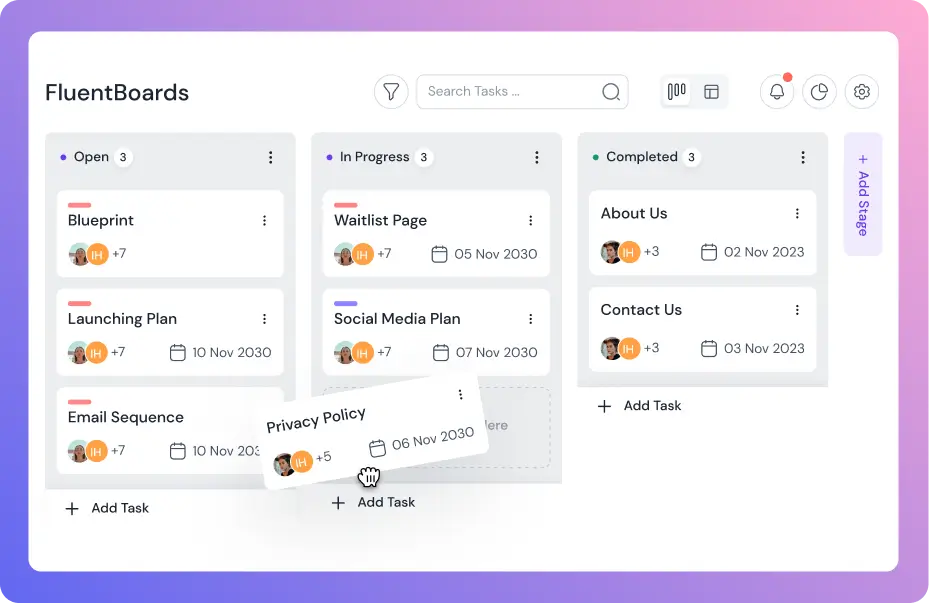
When a task moves from one stage to the next, the right person is added automatically. Every task entering In Progress goes to your lead developer. Every task entering Staging Review goes to your account manager. No task sits without an owner while the team figures out whose job it is next.
Execution: notifications that fire without you
When a task reaches a specific stage, FluentBoards can fire the event to a Slack or Discord channel, a Zapier or Make hook, or any endpoint that accepts a POST request, all without leaving WordPress. The trigger lives on the board; where it goes next is up to whatever you’ve connected it to.
Handoff: closing the loop on delivery
When a CRM contact hits a stage change or gets added to a board, FluentBoards can create the next task automatically, so nothing waits on someone remembering to set it up. And when a project reaches handoff, your client can review and approve directly through a portal on your WordPress site.
How to Set Up FluentBoards Automation, Step by Step
Now for the setup. Each layer takes five to fifteen minutes to configure, and once it’s on, it runs for every project after. Go in order, each step builds on the last.
Step 1: Connect Fluent Forms to auto-create project tasks
In your Fluent Forms dashboard, open the form you use for client intake. Go to Integrations and find FluentBoards. Map each form field to the corresponding task field: project name, client name, deadline, and approval contact. Save the integration.
From that point forward, every form submission creates a new task in your designated board with those fields already populated. Brinova Digital maps their intake form to a “New Enquiries” stage, so every new client lands there within seconds of submitting, full brief attached.
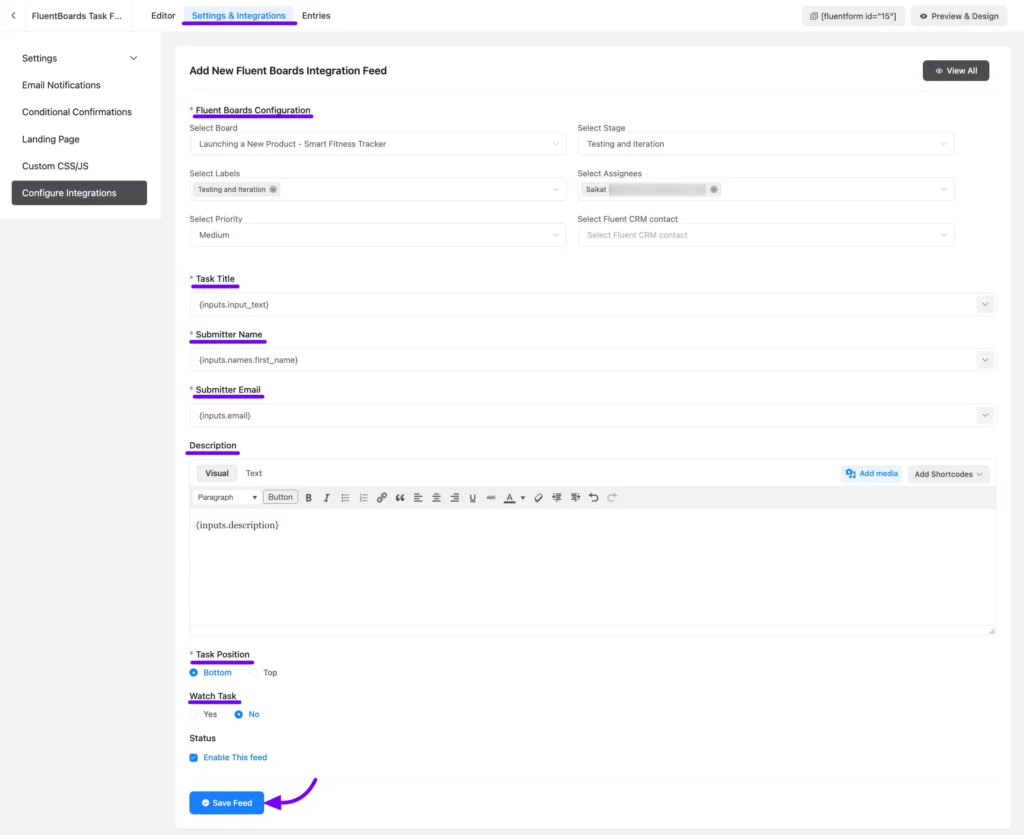
Tip: Test with one dummy submission before going live, so you can confirm every field lands in the right place on the task
Read: The Fluent Forms integration guide for complete field mapping options
Step 2: Set default stage assignees
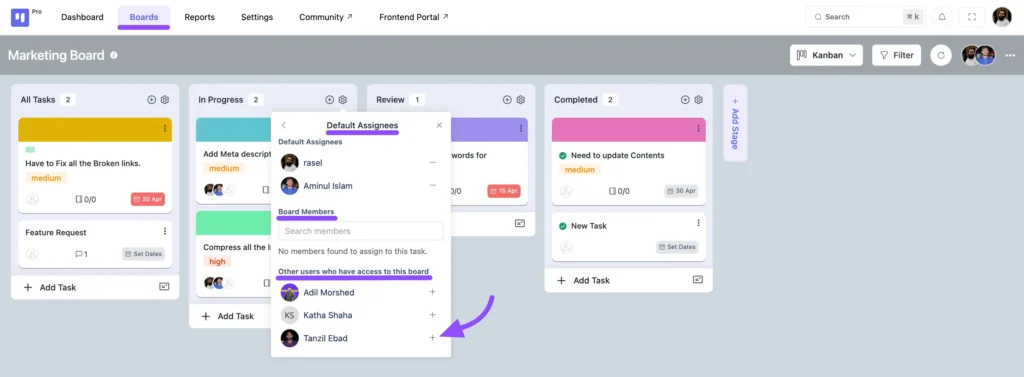
In board settings, find Stage Default Assignee. For each stage on your board, select the team member who owns it: your developer for In Progress, your account manager for Staging Review and Final Approval.
When a task moves into any of these stages, the right person is automatically added as an assignee. The same rule quietly handles onboarding new members, since their tasks start routing to them from day one without anyone assigning things stage by stage.
Step 3: Add recurring tasks for scheduled work
For any task that repeats on a regular schedule, a weekly internal review, a monthly retainer check-in, a quarterly audit, open the task and set a recurrence of daily, weekly, or monthly. The task reappears automatically without anyone needing to remember to create it.
Brinova Digital sets their weekly project review task to recur every Monday on every active client board. It is the first task the team sees when they log in each week, and nobody has to create it.
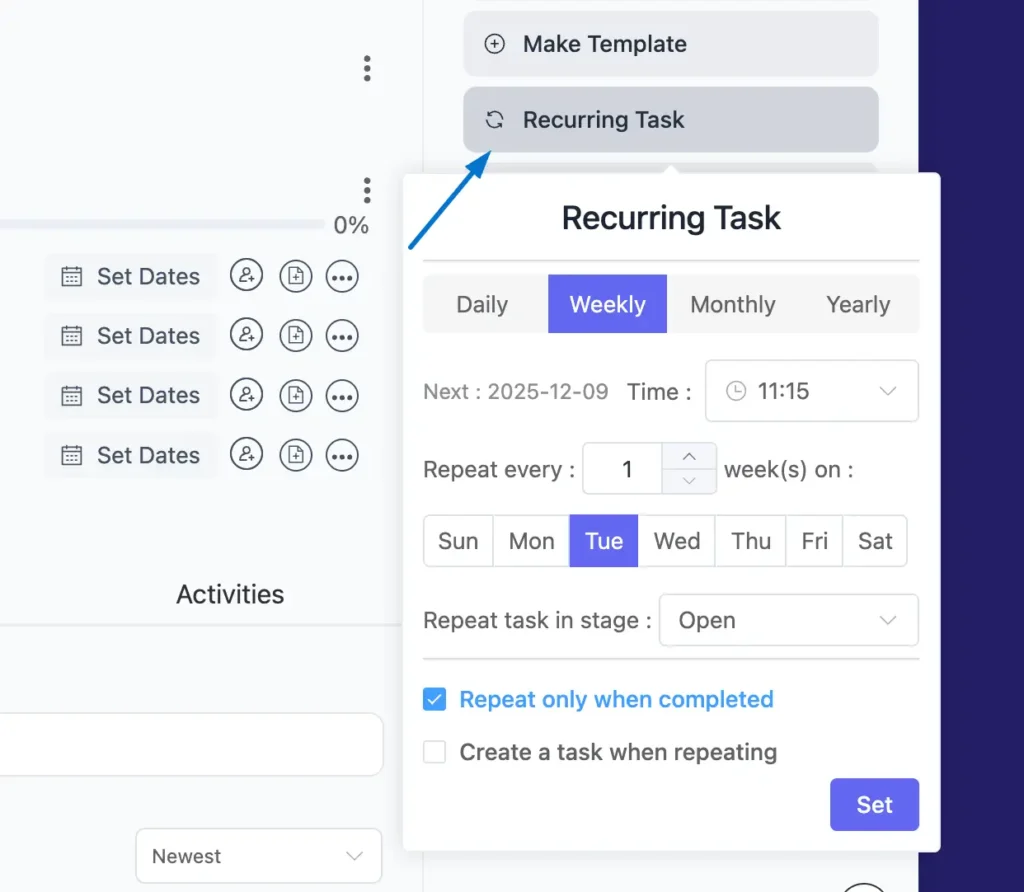
Note: Recurring tasks work per task, so set the recurrence on the task you want repeated rather than on the board.
Step 4: Configure outgoing webhooks
Go to FluentBoards, open Settings, and select the Outgoing Webhooks tab. Add a new webhook, choose the events that should fire it, such as a task moving into a specific stage, and enter the destination URL: a Slack incoming webhook address, a Zapier catch URL, or any endpoint that accepts a POST request.
When the event happens, FluentBoards fires the payload. Brinova Digital points theirs at a Slack incoming webhook, so the moment a project enters Staging Review, a message lands in whichever channel that webhook is connected to, no drafting required, and the notification comes from a WordPress trigger, not a third-party automation tool.
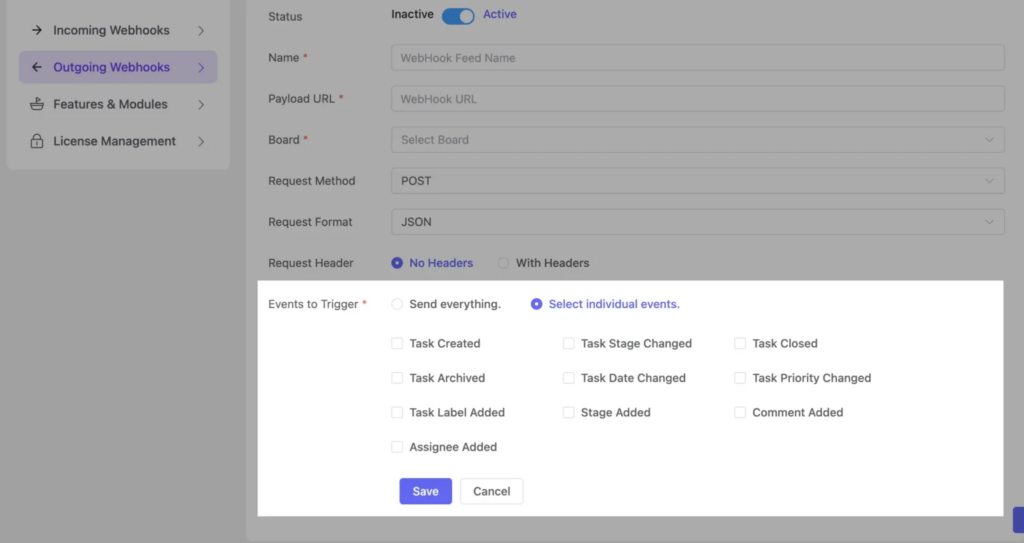
Note: Test the webhook on one small board first and enable only the events you actually need. It keeps the noise down and confirms the connection works before you roll it out across every client board.
Step 5: Create tasks automatically from FluentCRM activity
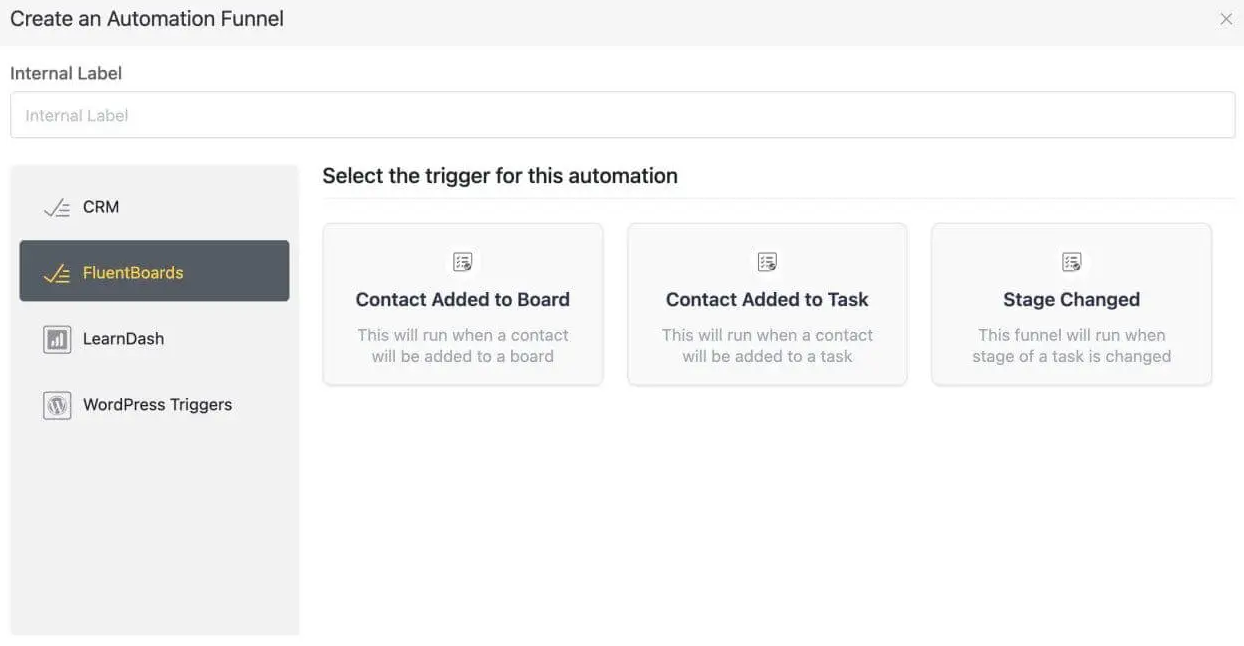
In FluentCRM, open Automations and choose a trigger built for FluentBoards: Contact Added to Board, Contact Added to Task, or Stage Changed. Set the condition, a contact hitting a certain tag or list works well for client work, and add the Create Task action.
Want the full walkthrough? See FluentBoards X FluentCRM for the complete setup
When the trigger fires, a task appears on the board you chose, with the contact already linked so your team has the client’s context without looking it up. Brinova Digital uses a Stage Changed trigger to notify their CRM the moment a project reaches Final Approval, so client records and project status never drift apart.
One Dashboard, Zero Follow-Ups
The tasks that fill Brinova’s Monday mornings don’t stop because the team hires better people or works harder. They stop because every one of those tasks is replaced by a rule running inside WordPress.
Client submissions create tasks without anyone logging in. Tasks route to the right person without manual assignment. Clients receive updates without anyone drafting a message. New projects start without anyone building a board. All of it runs in the same place where the work happens.
If you’re starting from scratch on the board structure these automation layers run on top of, this guide to creating an agency board in WordPress is the right starting point.
Thank you for reading. Now go set up that first automation and give your Mondays back.
Let’s redefine project management with FluentBoards!

Follow:


Get Tips, Tricks, & Updates
We won’t send you spam.




Add your first comment to this post