

How to Build a Course Roadmap in WordPress (Step-by-Step)


You launched your course, sales are coming in, and your students are happy. Brilliant.
But then the messages start.
One learner wants a module on something your course skipped. Another needs a topic their job now requires. A third has a small fix that would make a lesson finally click.
Good stuff, right?
The trouble is, it shows up everywhere. A comment here, a chat there, an email you meant to flag. And a week later, you can’t find any of it.
So you end up guessing what to build next, when your students already told you.
A course roadmap fixes that. It gives every idea one place to land, lets your learners vote on what matters most, and shows them where the course is headed next, all on your own WordPress site.
In this guide, you’ll build a course roadmap in FluentBoards, connect it to the community where your students already learn, and let them shape what you create next, right out in the open.
Let’s build it.
Why Your Online Course Needs a Roadmap
Your learners are often your best source of course improvement ideas. They’re the ones actively using your content, applying it in real situations, and spotting gaps you might never notice from the course creator’s side.
When a learner says, “I wish this course covered X,” that’s more than feedback. It’s insight from someone experiencing your course firsthand. And successful course creators pay attention to those insights.
In Thinkific’s study of online course businesses,
top course creators were 2x more likely to track student engagement and 1.4x more likely to collect student feedback than the rest, then used that data to improve their courses.
They use learner input to improve existing courses and make better decisions about what to build next.
The challenge is what happens to that feedback afterward.
Without a system, suggestions become scattered across comments, community discussions, chats, and emails. Before long, valuable ideas become difficult to track, and you’re left guessing which update should come next.
A roadmap solves that problem.
It creates a central place where feedback can be collected, organized, and prioritized while giving learners visibility into upcoming updates and improvements.
For Learners
A roadmap helps learners:
- See what updates and improvements are being considered
- Support ideas they care about through voting
- Follow progress as requests move from consideration to release
- Feel involved in the growth of the course
For Course Creators
A roadmap helps you:
- Collect feedback in one place instead of multiple channels
- Identify the most requested improvements
- Validate whether an idea is worth building
- Prioritize updates based on actual learner demand
- Discover opportunities for future courses and learning paths
Most importantly, it creates transparency. Learners can see that their feedback matters and understand where future updates are heading.
How Do You Set Up the Roadmap and Connect It?
Good news: the FluentBoards side is quick. A few short moves is all it takes to build the roadmap and put it right where your students will find it.
Note: FluentBoards is a project management plugin that lives right inside your WordPress dashboard, and its public roadmap feature, FluentRoadmap, comes free with FluentBoards Pro. That’s exactly what you’ll use here, no extra tools required.
Step 1: Create your roadmap board
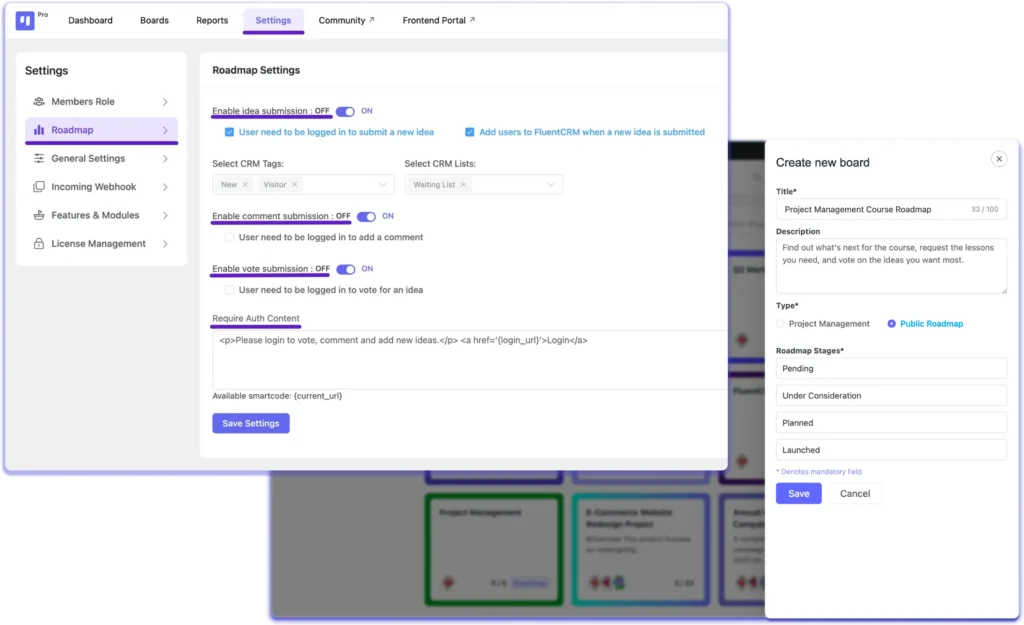
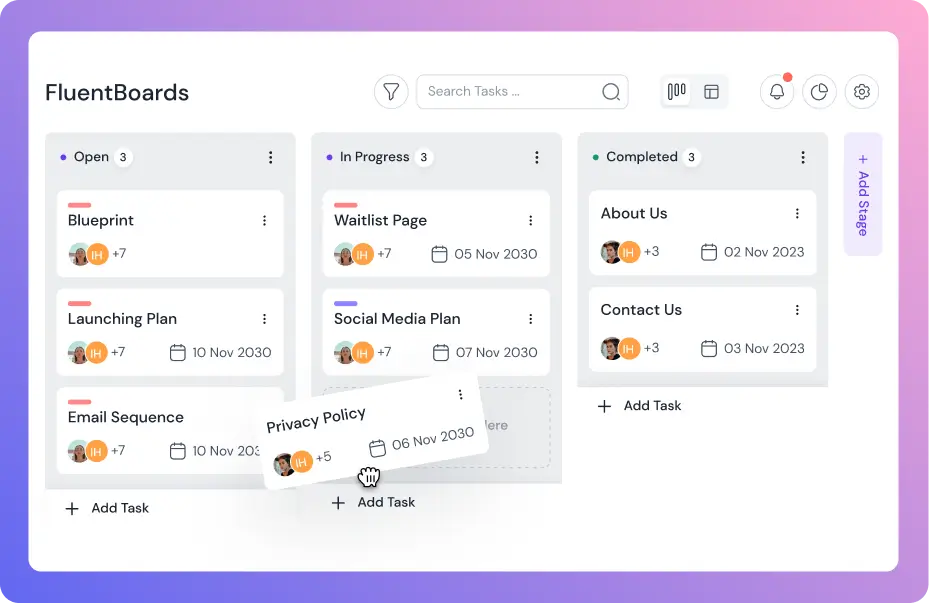
In your WordPress dashboard, open FluentBoards and install the FluentRoadmap add-on from Settings → Feature and Module. Then click Add Board, give it a clear name like “Course Roadmap,” and choose the Public Roadmap type.
Step 2: Set your stages and who sees them
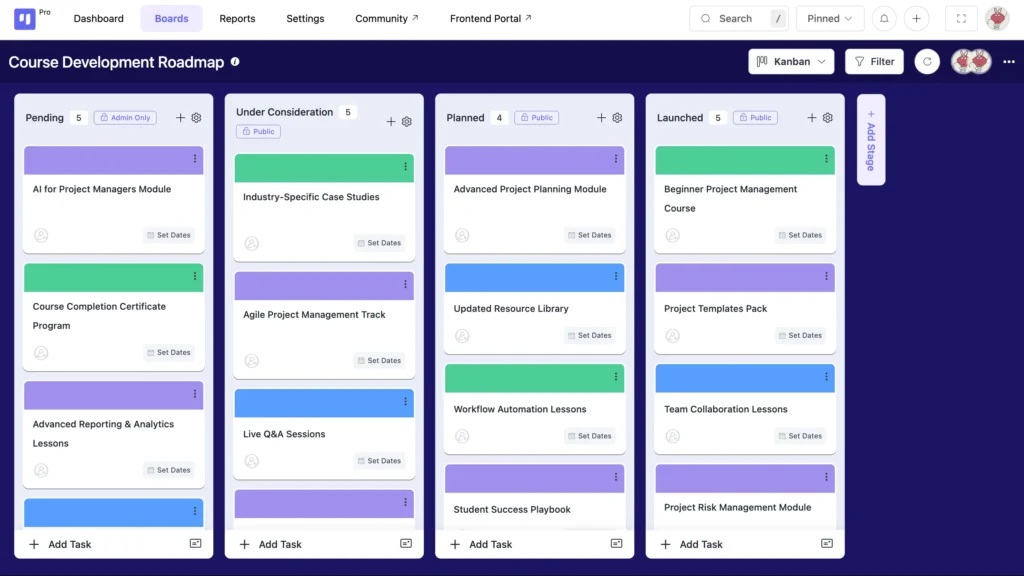
Add stages your learners understand at a glance, and mark each one Public or Admin Only:
Keep private (Admin Only):
- Pending — your inbox for new, unsorted requests
Make public:
- Under Consideration — ideas you’re weighing
- Planned — what’s coming next
- Launched — what you’ve already shipped
Your learners only ever see the public stages, while everything in Pending stays private on your side.
Step 3: Publish your roadmap for learners
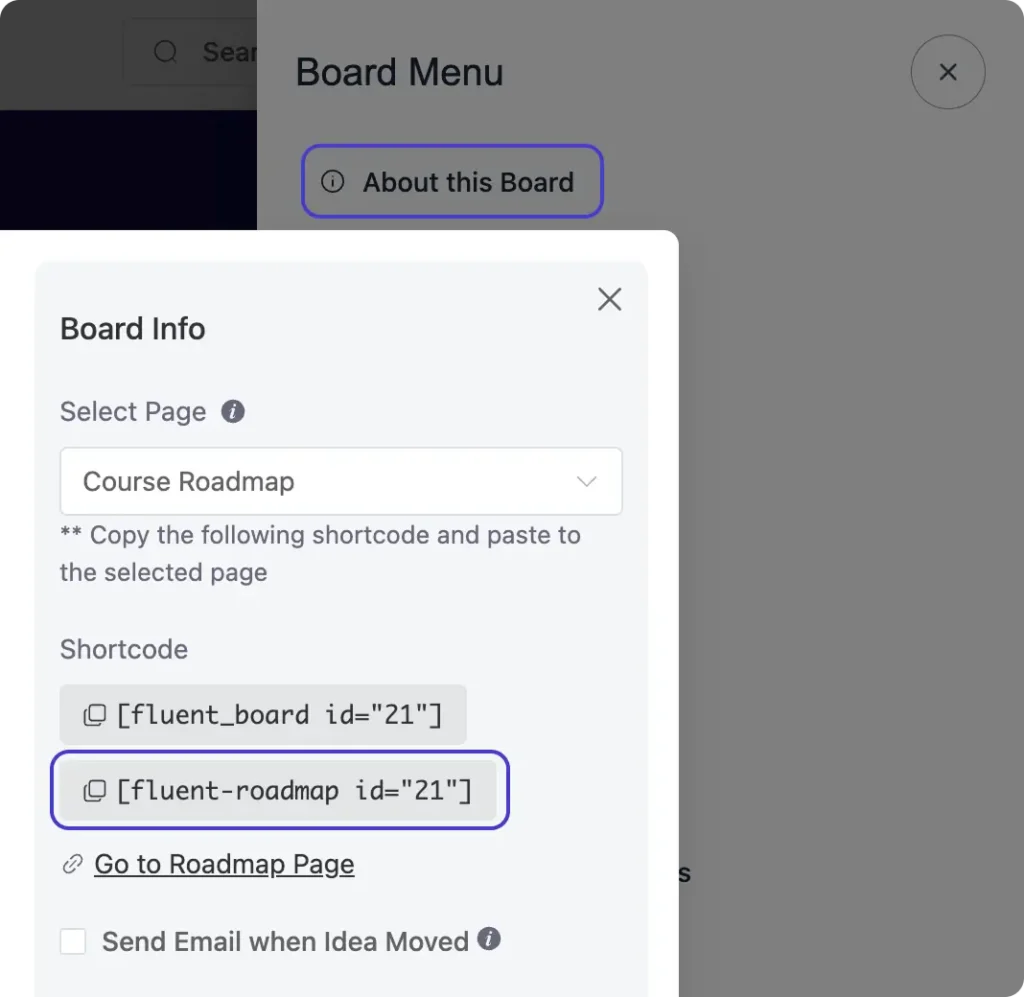
Open the board’s three-dot menu, go to About This Board, pick the page where your roadmap will live, and copy that page’s URL.
Keep it handy, you’ll need it in the next step.
Your roadmap is now live on your site, so it helps to see it the way your students will. The moment they open it, they can do two things.
First, they can upvote any idea that matters to them. As the votes add up, you get a clear signal of what students actually want, so you build by demand instead of a guess.
And when someone has a fresh idea, they can click + Submit Idea, give it a title and a short description, say, “Add a module on the certification exam”, and send it in. That request drops straight into your private Pending stage, ready for you to review whenever you are.
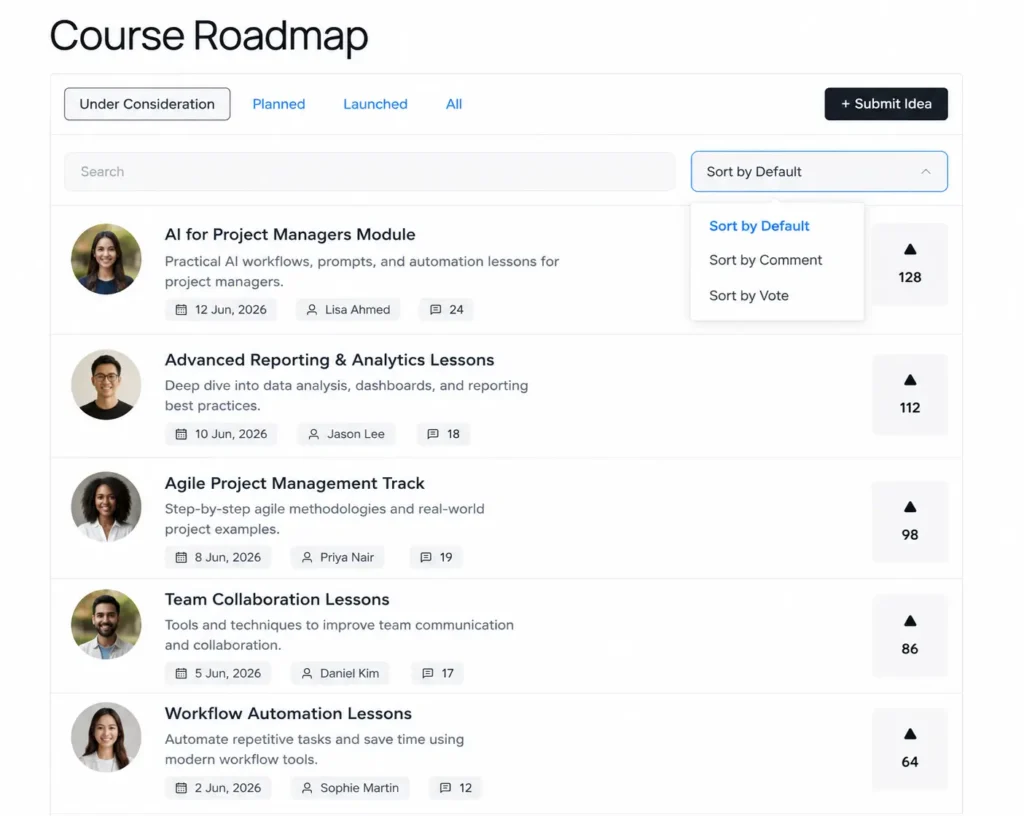
On your side, reading that demand is easy: sort the board by upvotes to see what’s most wanted, or by comments to find the ideas sparking the most discussion.
💡 Pro tip: Before sharing the link, open your roadmap URL in a logged-out browser tab. You’ll see exactly what your students see, public stages only, with Pending safely hidden.
Step 4: Add the roadmap to your course community
A roadmap only stays useful if ideas keep flowing into it, and that flow comes from a community. Instead of chasing suggestions across emails, comments, and DMs, your students get one place to discuss lessons and share ideas, and those conversations feed straight into your roadmap.
That’s the job FluentCommunity handles.
Meet FluentCommunity: a WordPress plugin from the same team at WPManageNinja that brings your course, community, and member activity together on your own site. Because FluentCommunity and FluentBoards run on the same WordPress install, your roadmap connects to your course in minutes. No third-party bridge, no integration to maintain.
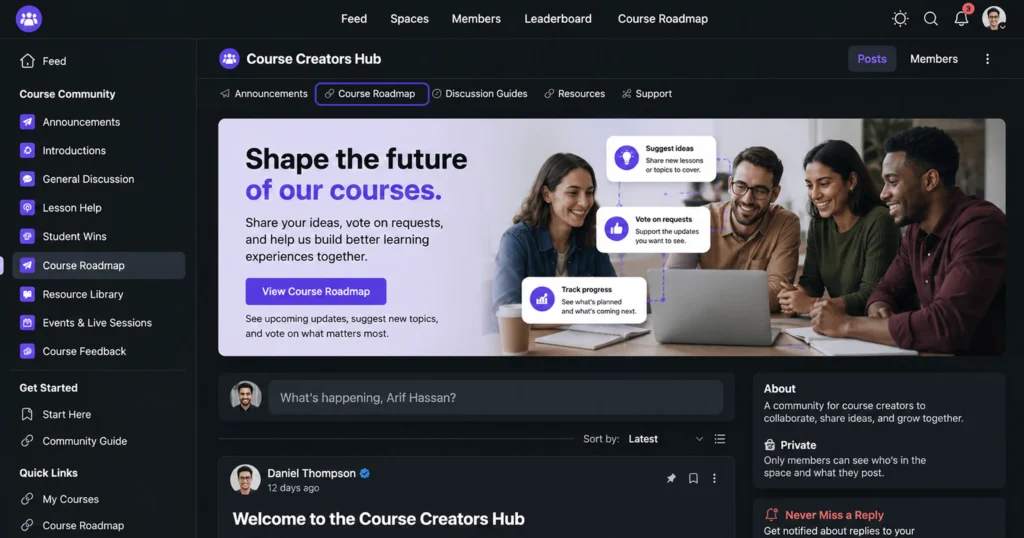
Connecting them takes one step. Using FluentCommunity’s Space Links feature, open your course space, go to Space Settings → Space Links → Add New Link, name it “Roadmap,” and paste your roadmap’s URL. Save, and a Roadmap tab appears right in your course navigation, one click from every lesson.
Now your students can check what’s coming, submit a suggestion, or vote on an idea without ever leaving the course. Your roadmap becomes the destination for ideas; your community is where those ideas begin.
If you want the roadmap link scoped specifically to a course rather than the whole Space, Course Links gives you that control — with an added visibility setting.
Go to your course → Edit Lessons → Edit → Course Links → Add New Link. Paste the roadmap URL, name it, and set visibility:
- Everyone — anyone can see it
- Logged-in users only — members only
- By Space or Course Membership — enrolled learners only
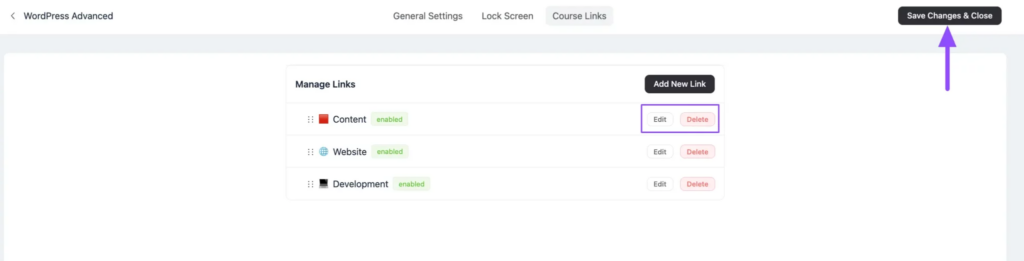
This is the right choice when you are running multiple courses and want each roadmap link to appear only for learners in that specific course.
Why Connect Your Roadmap to a Community?
A roadmap helps organize ideas. But those ideas have to come from somewhere.
The feedback is already happening
As your course grows, students share on their own, asking for extra resources, suggesting new topics, working through the problems they hit applying your lessons. That stream of conversation is the clearest read you’ll ever get on what to build next.
The problem is where it lands
Scattered across emails, chats, and comment threads, those insights get harder to track by the week. Run your community on a separate platform and it’s worse, now you’re exporting feedback from one tool and pasting it into another, hoping nothing slips through.
A connected community fixes both
Keep the community on your own site, beside the course, and the feedback stops scattering. With FluentCommunity and FluentBoards, built by the same team, a student raises an idea in a discussion and it moves to your roadmap in one unbroken step. No exporting, no switching, no second platform to manage.
And keeping both under one roof pays off every day after that:
- One team to ask: single support that knows both tools, not two vendors pointing fingers
- Updates in sync: both plugins ship together, so one never quietly breaks the other
- One login: course, community, and roadmap from the same WordPress dashboard
- Less to maintain: one stack to update and back up, not several that each break differently
FluentRoadmap Comes Free with FluentBoards Pro!
Why Build Your Community on FluentCommunity?
So a community should be the engine behind your roadmap. The question is where to build it, and that choice matters more than it first appears.
Build it on a social platform and you’re only renting the space, which brings two problems:
- Not everyone gathers there: Some students don’t use that platform, others followed once and never came back, so your audience is split before you even begin.
- Even the ones who are there might not see you: Organic reach keeps shrinking, and a single algorithm change you have no say over can quietly cut who sees your posts overnight.
FluentCommunity removes both problems. Every student sits in one space you control and can reach directly, with no algorithm deciding who hears from you and no outside platform holding your audience.
And because it’s a WordPress plugin from the same team as FluentBoards, your course, community, and roadmap all connect on one site, so a student moves from a lesson, to a discussion, to voting on what’s next without ever leaving a place that’s yours.
That’s the difference between renting an audience and owning one.
How Can FluentCommunity Support Your Course Roadmap?
The roadmap helps you organize feedback and prioritize ideas.
FluentCommunity helps those ideas surface naturally through discussions, polls, and learner interactions.
Together, they create a connected system where conversations lead to suggestions, suggestions lead to updates, and updates lead to better learning experiences.
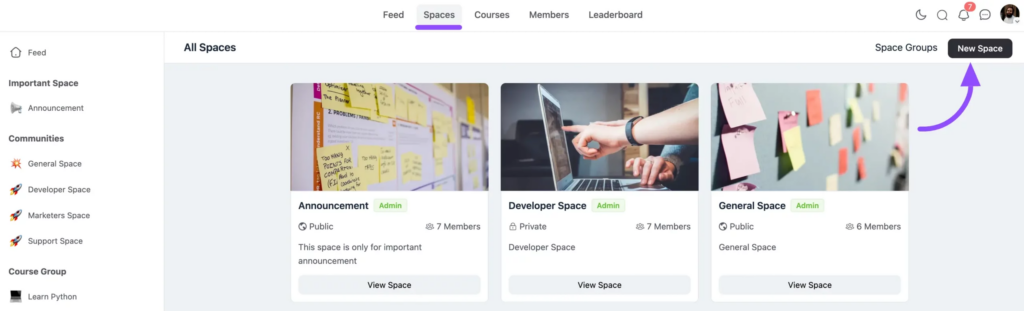
Create a space for your students
Create a space tied to your course, a place where students ask questions, share wins, and help each other along. This is the room your roadmap feedback is born in, where every discussion is a possible idea for your next lesson.
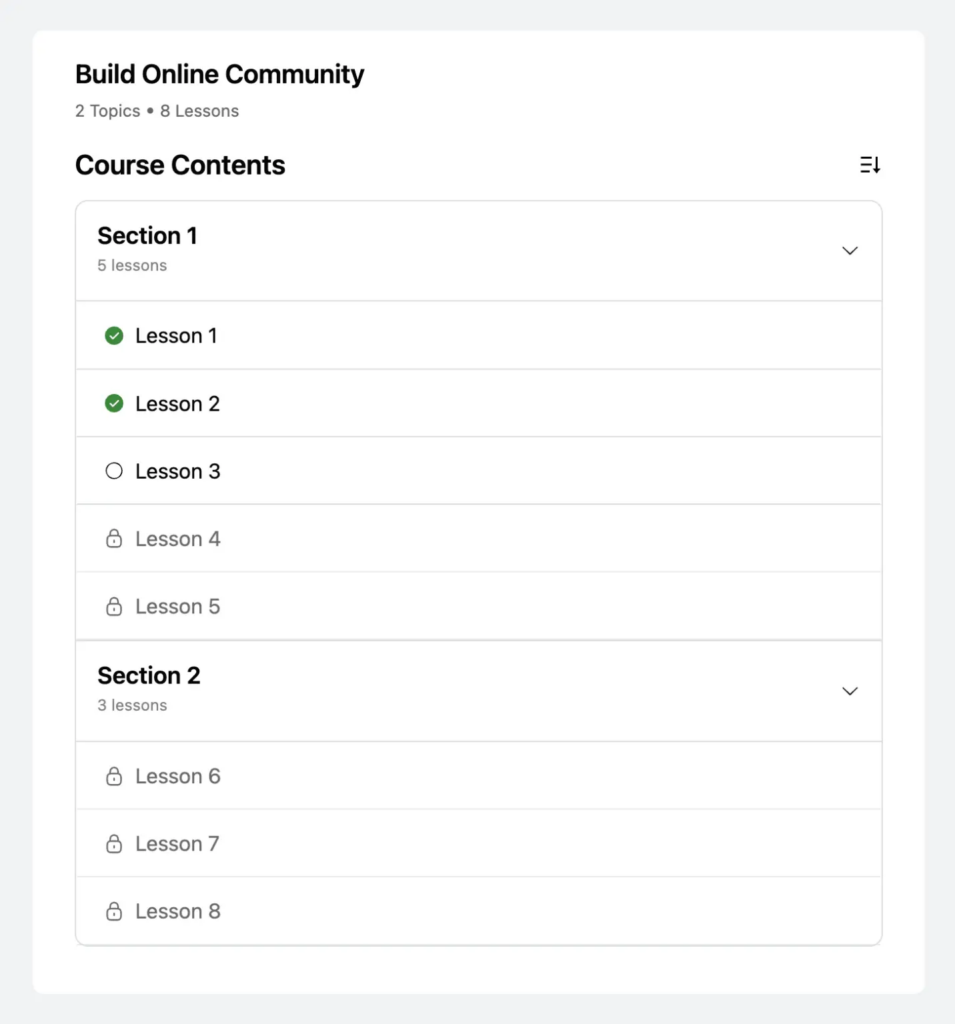
Build the course itself
Your lessons live here too, not in a separate LMS. Open Courses, click New Course, then add sections and lessons with the familiar Gutenberg editor, text, video, images, and downloads, the same way you’d write a WordPress post.
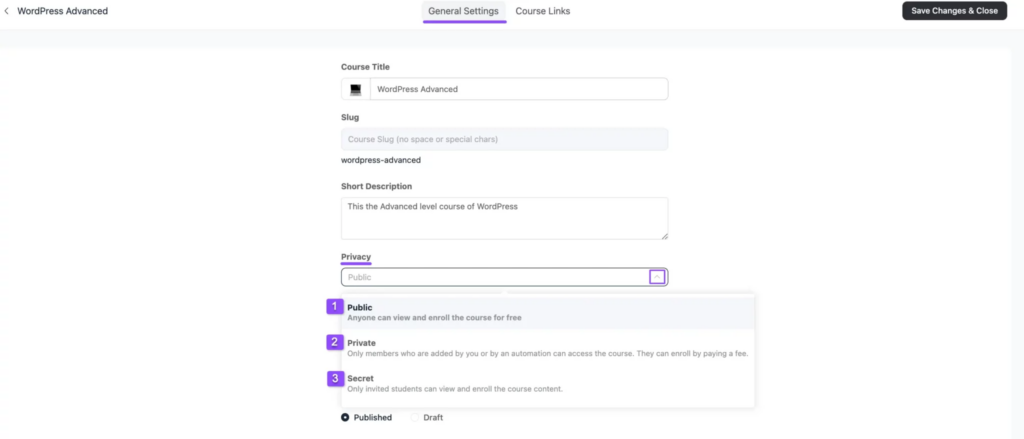
Set privacy and enrollment
Decide who gets in and how they move through it. A course can be public, private, or secret, and lessons can unlock all at once (self-paced), drip after enrollment (structured), or release on fixed dates (scheduled).
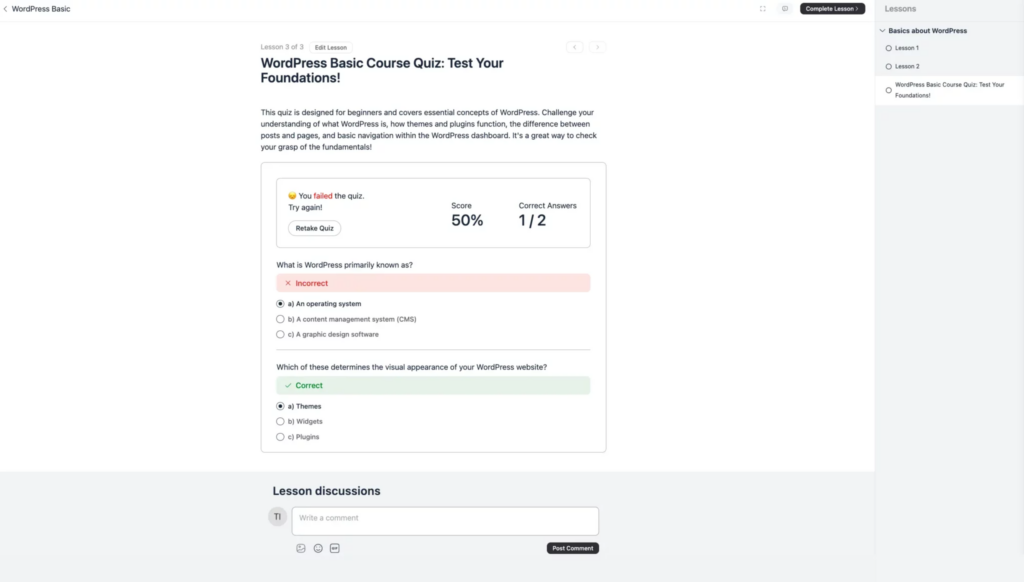
Track Progress and Check Understanding
Progress indicators show you who’s moving and who’s stalled, so you can step in before someone drifts away. The built-in quiz module lets you confirm a lesson actually landed.
Ask directly with polls and surveys
You don’t have to wait for students to speak up. Run a poll or survey to ask what’s confusing or what they want next, then move the best answers straight onto your roadmap.
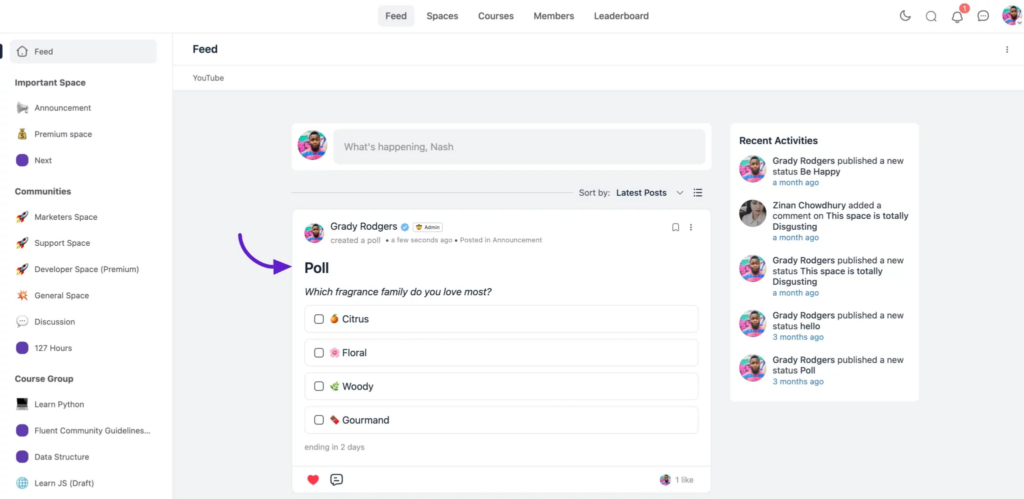
And that closes the loop: a question in the community becomes a request on your roadmap, the request becomes a card in FluentBoards, and the card becomes the next lesson you build, right back here in the course. Every part of that circle lives on your own site.
Prefer a quick look first? Here’s a peek inside FluentCommunity:
Build a Connected Course Ecosystem on WordPress
The real advantage isn’t any single feature, it’s that everything sits in one connected place. That’s what keeps the whole loop running, and it’s the part that quietly saves you the most trouble.
The usual setup is fragile
Most course operations are stitched together from separate tools: an LMS for the lessons, a plugin for the community, another service for feedback, and a connector in the middle holding them together. The problem is that the connector is the weakest link, the first thing to break when any one tool ships an update, and the hardest to fix when it does.
Note: If you’re a LearnDash user who’s been side-eyeing your setup since it changed hands, this is exactly the friction a connected ecosystem solves.
A connected ecosystem removes that weak link
FluentBoards and FluentCommunity work differently, because there’s no bridge between them to break in the first place. And that single fact shows up in three ways that matter day to day:
- Built to fit: Since they share the same team, the same WordPress install, and the same database, an update to one is built to work with the other, never against it.
- One team to fix it: So when something does go wrong, you’re not stuck between two vendors pointing fingers while your course sits broken, one team supports both, which means you report an issue once and it actually gets solved.
- Yours to keep: And because it all lives on your own WordPress site, everything that matters stays with you, your roadmap, course, community, and students, with no per-student fees and nothing on a server you don’t control.
Want to see all of this working together? Take a look at how the WPManageNinja team puts it into practice in their own community.
Frequently Asked Questions
Still have questions? Here are the answers.
Build Once, Then Let Your Students Guide What’s Next
A course that ships and goes quiet slowly fades. The one that keeps selling is the one that keeps moving, shaped by the people taking it.
That’s the whole point of a roadmap. You build the course in FluentCommunity, open it to a community that talks, and let a public roadmap turn those conversations into your build list. Students watch their ideas become real lessons, so they stay for what’s next, and you always know what to make, because they told you.
So start with one step: set up your roadmap, link it to your course community, and see what your students ask for first.
Thanks for reading, now it’s your turn to build. We can’t wait to see what you create together.
Let’s redefine project management with FluentBoards!

Follow:


Get Tips, Tricks, & Updates
We won’t send you spam.


Add your first comment to this post