

How to Automate Project Status Updates in WordPress Projects Once and for All


Picture a small agency, call it Foxglen Studio. Every Friday afternoon, the studio lead blocked off forty minutes to do the same thing: write project status emails. One for each active client, covering:
- What moved that week
- What was stuck
- What was coming next
The clients replied. Their questions were almost always answered by information already sitting on the project board. The problem was not the information. The problem was that the clients could not see it.
Well, most advice about project status updates teaches you how to write a better status email. This article takes a different approach: how to stop needing to write them at all.
Because manual follow-ups are almost always a symptom of an invisible project. Once clients can see real-time status on their own, they stop asking. The same goes for your team: automatic notifications the moment tasks move mean nobody has to chase anyone.
That points to something simpler than a better email template. It is visibility built into the workflow itself.
Let’s look at how to set that up.
Why Manual Follow-Ups Keep Piling Up
The follow-up loop is rarely anyone’s fault. It is a structural problem: the project is moving forward on a board that only the agency can see, while the client is waiting for news in their inbox. Once that gap exists, the “just checking in” emails are inevitable.
Every team that has tried solving this with better templates or more disciplined sending schedules finds the same thing: the emails still pile up, just with better formatting.
The cost of a status request email
Every status request email costs time twice. Once when someone has to write it, and again when someone has to answer it.
The deeper cost is what it signals. The client has no other way to find out what is happening. A client who emails to ask about their project is a client who does not feel the project is visible. And that is where miscommunication between project members quietly begins: not with a misunderstanding, but with a blank screen where project information should be.
What starts the follow-up loop
Clients follow up when they cannot see the project. Team members follow up when they do not know who owns a task or what stage it has reached. Both are among the most common project management challenges that compound over time. Minor each week, but across a full client relationship they add up to hours of avoidable back-and-forth.
So the solution is not faster responses. It is building a project environment where most of those questions never need to be asked.
Step into the Future of Project Management!
Three Features That Replace the Follow-Up Habit
FluentBoards closes the follow-up loop at three specific points:
- What the client can see
- What happens automatically when tasks move
- Where project conversations happen
All three remove a specific reason people send follow-up emails. Together, they replace most of that workload with information that’s already sitting in the system.
Board visibility: When clients can see the project, they stop asking
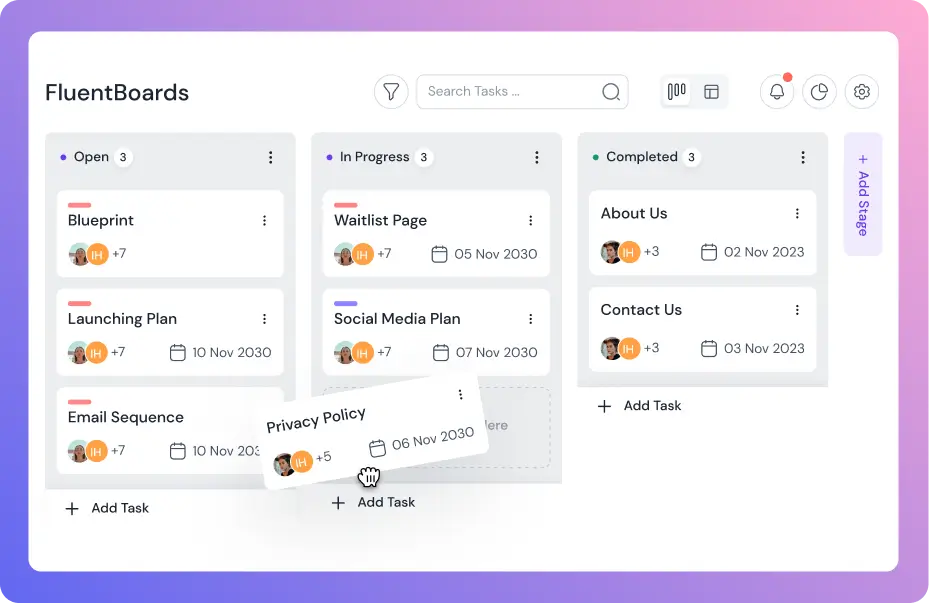
The Frontend Portal shares a live view of the project board directly with the client. Task stages, due dates, and assigned team members are all visible in real time, so the answer to almost every status question is already on the board before anyone thinks to ask.
This also changes the dynamic of the client relationship. When clients can see progress without asking, they raise fewer concerns, not because problems are hidden, but because they can see things are moving.
50% of project managers do not have access to real-time project KPIs, and spend one day or more each month manually generating status reports.
— Wellingtone, The State of Project Management Report
That said, how much to share is worth thinking about deliberately. What the client needs is live project status, not every internal note the team has ever left.
Read: Transparency vs. oversharing for where that line sits on a client-facing board
For teams that want a more structured approach alongside the portal, a project communication plan defines which updates clients receive, in what format, and at what intervals. The portal handles the passive, always-available layer. A communication plan handles the deliberate touchpoints that still make sense, like milestone updates and handoff calls.
Outgoing webhooks: when stages change, people are told automatically
The second piece is automatic notification. When a task moves to a defined stage, FluentBoards fires a notification to wherever it’s needed: a Slack channel, a client email endpoint, or any service that accepts a POST request. The notification goes out the moment the task moves, with no email to draft, no message to compose, and no one who has to remember to tell the client.
Foxglen Studio uses this for their Staging Review stage. The moment a task enters Staging Review, the client receives a Slack message in their shared channel and sees it within minutes. The next message Foxglen receives is approval or feedback, not a request for a status update.
For the full range of trigger types and the payload structure for each, see the FluentBoards outgoing webhooks guide
Task comments: when updates live on the task, nothing slips
The third piece is where project conversations happen. When all communication about a task lives on the task itself, two things stop: the reconstructed email thread and the dropped update.
Rather than forwarding a client email to a developer, paste it into the task comment and @mention them directly. In practice, it looks something like: “@james, client’s note on the header. Can you action before Thursday?” James gets notified instantly, sees the feedback in context, and replies on the same thread.
Instead of asking a team member where something stands, open the task. The answer is already there.
So every decision, every piece of feedback, and every status note stays attached to the task it belongs to, visible to anyone who needs it. That is how teams collaborate with project members without the constant interruption of status requests.
How to Set This Up in FluentBoards Step by Step
Here is how to put all three pieces in place. Set them up in order: visibility first, notifications second, communication hygiene third, and note that the first two steps require Pro while task comments are available on Free and Pro alike.
Step 1: Share the board with clients via the Frontend Portal
Go to FluentBoards Settings and open Features and Modules. Click Settings next to Frontend Portal and check the Enable Frontend Portal box.
You have two options for how clients access it:
- A standalone URL: enter a URL slug and the portal becomes available at that address on your site
- A shortcode: add [fluent_boards] to any existing WordPress page and the portal loads there
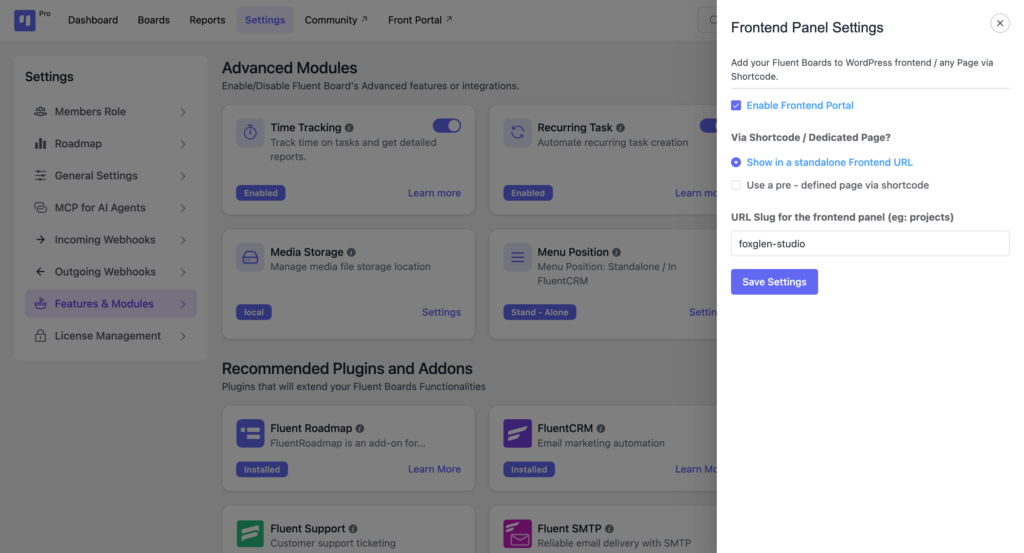
Note: Both methods load the full portal across all boards that person has access to. To share a single board only, use Please provide a valid board id with that board’s actual ID on a dedicated client page instead.
Clients sign in with their WordPress account when they open the link, so make sure each one has a user account on your site before you share it.
Once it is live, share the URL during onboarding. At Foxglen Studio, the portal link goes out in the welcome email before the first task is created. By the time the client thinks to ask how the project is going, they already know where to look.
Need a visual to go with these steps? Here is the full frontend portal setup inside FluentBoards:
Step 2: Configure outgoing webhooks for automatic stage alerts
Go to FluentBoards Settings and select the Outgoing Webhooks tab. Then click Add Webhook and fill in the following:
- Name and Payload URL fields.
- The board you want this webhook to watch.
- Under Events to Trigger, select individual events and check Task Stage Changed.
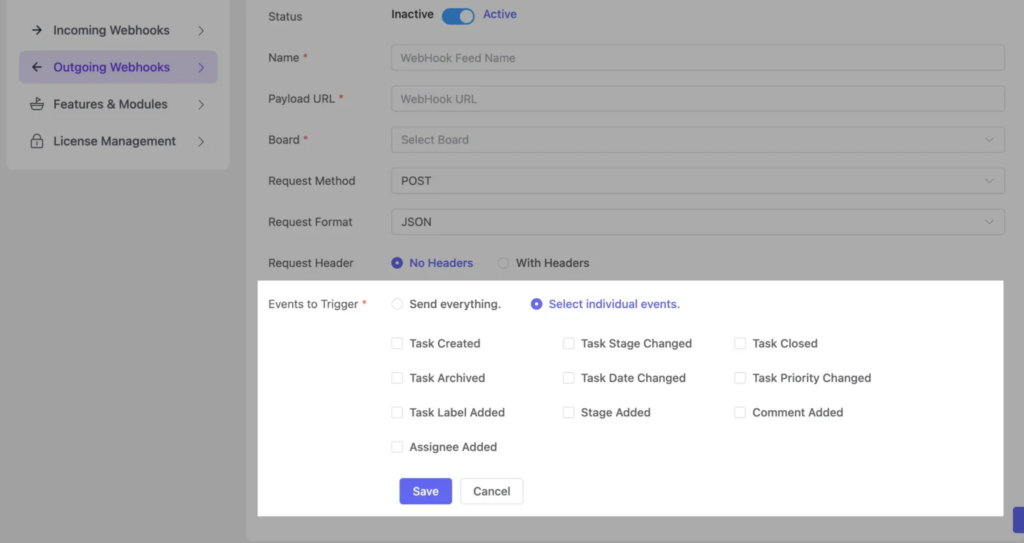
This fires the webhook whenever any task moves to a new stage on that board. Therefore, there is no way to scope it to one specific stage such as “Staging Review” only; it fires on every stage move across the whole board.
If you are connecting to Slack, follow these steps:
- Create an incoming webhook in your Slack workspace settings.
- Copy the URL.
- Paste it into the Payload URL field and save.
Since no automation platform is needed, the whole setup takes about five minutes.
See how to connect FluentBoards to any app using outgoing webhooks:
Step 3: Move all client communication into task comments
For every task that involves client input or approval, post a comment when the task is created: “Leave feedback here.” This gives clients and team members a clear place to respond without hunting for the right thread.
When a client emails feedback, paste it into the task comment and reply there. When a team member has a question, @mention the right person inside the task. They get notified instantly, see the context, and reply in the same thread. That way, every decision, every piece of feedback, and every status note stays attached to the task it belongs to, visible to anyone who needs it.
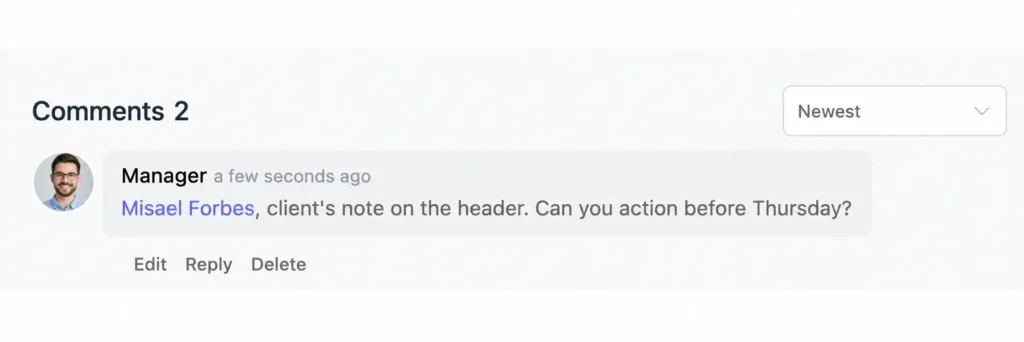
On the client side, clients added as Members to a board can comment directly on tasks through the Frontend Portal. If you want them to view progress without contributing, set them as Viewers instead and their access becomes read-only.
This is less a technical step and more a habit shift. What makes it stick is not a policy announcement but the fact that the task becomes the most natural place to have the conversation once the structure is there. Over time, the inbox empties out on its own.
Frequently Asked Questions About Eliminating Manual Follow-Ups
Got questions about setting this up? Here are the ones that come up most often.
Can I control what clients see on the shared board?
Yes. You can add clients as Viewers so they cannot move cards, delete tasks, or rename stages, though a Viewer still sees the whole board rather than just select stages. You can also add a client as a Watcher on individual tasks, but that only sends them notifications for that task and is not access control.
Do clients need a WordPress login to use the Frontend Portal?
Yes. Clients log in with a WordPress username and password, so make sure each client has an account before sharing the link.
What if a client keeps emailing even after receiving the portal link?
Reply once with the portal link and a short note that all project updates are visible there. Including the link in your onboarding email helps clients find it before they even ask.
What if a client has a specific question that is not covered by the board view?
Direct them to the task comment. Ask them to leave their question there and tag the relevant team member. One reply in context is faster than an email thread, and the answer stays attached to the task for anyone who needs it later.
What the First Week Looks Like
After Foxglen Studio ran through these three steps, the Friday status email block came off the calendar. Not because anyone decided to stop sending emails. Because the emails stopped coming in.
Clients who could see the board did not need to ask. Team members who left notes on the task stopped getting follow-up questions about what they had meant.
The follow-up loop did not slow down. It stopped.
If you want to see how visible project management changes the broader client relationship, how FluentBoards helps agencies covers the full workflow picture.
Thanks for reading. Now set it up and see what Friday afternoon looks like.
Let’s redefine project management with FluentBoards!

Follow:


Get Tips, Tricks, & Updates
We won’t send you spam.


Add your first comment to this post