


List View for Project Management: How to Keep Campaign Tasks Organized (Step-by-Step Guide)


Your campaign has a brief, a deadline, and five people working on it.
But three days in:
- The copywriter is waiting on the designer
- The designer never got the brief
- The email that was supposed to go live yesterday is still sitting in draft
This is not a team problem. This is an organization problem.
When campaign tasks live across chat threads, shared docs, and scattered boards, nobody knows what is next. Work exists. But the order does not.
Well, an organized campaign does not run on luck. It runs on structure.
So let us walk through how to build that structure and keep your campaigns on track from brief to launch.
Why Campaign Tasks Feel Disorganized in Project Management
A campaign rarely falls apart all at once, it unravels quietly, one missed detail at a time, until launch week hits and everything is already on fire.
Here is where it starts to crack:
Tasks live in too many places:
The board has some. Slack has others. A shared doc has the rest, and nothing ever tells you which one is actually up to date.
Ownership sounds clear but is not:
“The content team handles the copy” sounds like ownership. But when a task belongs to everyone, nobody is actually watching it.
According to PMI, 38% of organizations say vagueness around roles and responsibilities is their single biggest obstacle to project success.
Priorities shift, but the board never catches up
A stakeholder changes the launch date, the brief gets revised, but the board still shows last week’s order. So the team works confidently on the wrong things while the urgent items wait in the same column, invisible.
Progress is buried inside individual cards
When you need the full campaign picture at once, you end up opening cards one by one, and by the time you have the answer, twenty minutes are already gone.
Wellingtone’s State of Project Management Report found that 50% of project managers spend one full day or more every month just manually pulling project status together.
For a campaign on a tight deadline, that time simply does not exist.
Pre-launch checks turn into emergency meetings
When there is no way to sort or filter by urgency, the only way to audit what is done and what is not is to pull everyone into a room. That meeting was never necessary. It exists because the board was not readable.
Level up your project management game inside WordPress – where limitless possibilities come at an unbeatable price!
What Is List View in Project Management
List view organizes your campaign tasks into a structured, readable flow where everything sits in one place. You are not jumping between cards or guessing what is happening.
Instead of moving cards across columns, you read tasks across rows. Every campaign task gets one row. Every row answers one question you ask yourself every single day:
| Column | What it tells you |
|---|---|
| Title | What is the task? |
| Stage | Where does it sit right now? |
| Priority | How urgent is it? |
| Assignee | Who owns it? |
| Due Date | Is it on track or already late? |
| Labels | What phase or category does it belong to? |
Think of it like reading a well-arranged checklist where nothing is hidden. Each task tells you where it stands and what needs to happen next.
That simplicity is what makes it powerful.
How to Organize Your Campaign Using List View [Step by Step]
Now let’s move from understanding to execution. Each step here solves a real problem you face while managing campaigns.
To walk you through the process, we are using FluentBoards, a WordPress-native project management plugin that lets you manage your entire project directly inside your WordPress dashboard.
Alright, let’s get into it.
Step 1: Switch to list view on your campaign board
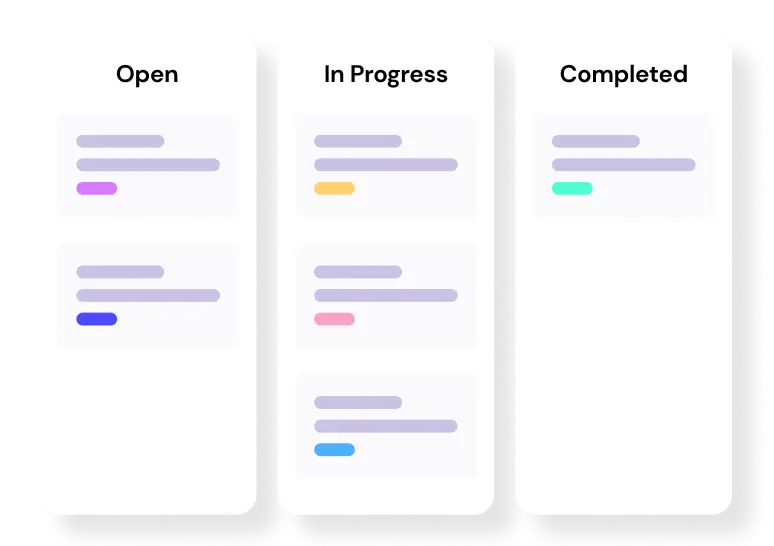
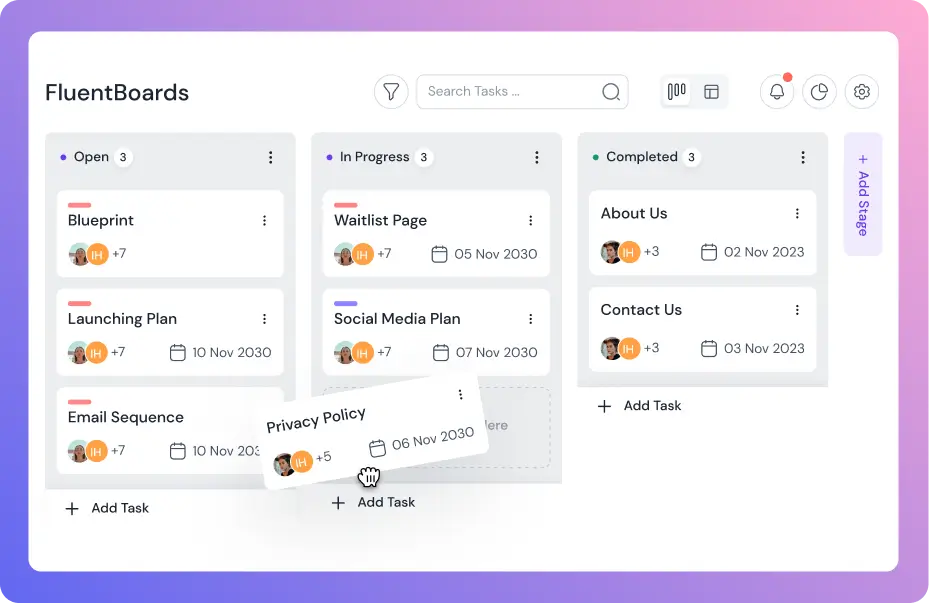
Your board is open. Tasks are spread across Kanban stages, each sitting in its column like a card in a deck you cannot read from the outside.
Click the view toggle at the top right and select List.
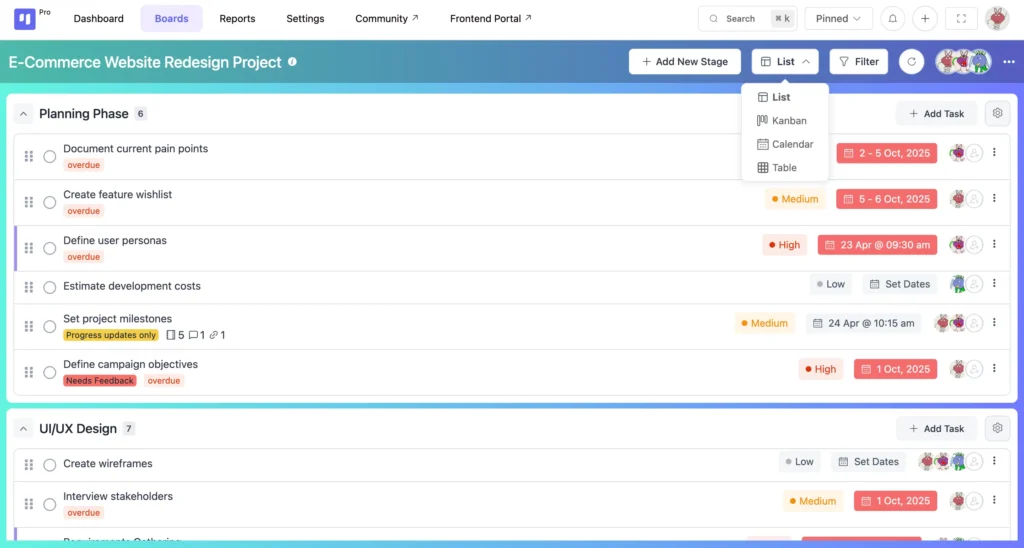
One click. That is it.
Your tasks instantly reorganize into rows. Nothing about your project changes, only how you are reading it. Every campaign task is now on one screen, in one place, no hunting required.
What this solves: The “tasks scattered everywhere” problem. Everything is pulled into one linear, readable view.
Step 2: Audit ownership before a single task moves
Look at the Assignee column running down your list.
Any empty row is a task with no owner. And an ownerless task is not just a to-do nobody ticked, it is a deadline waiting to be missed.
Click on the empty assignee field in that row and add a name. One click.
Do this before the campaign kicks off, not after something slips through.
What this solves: The “group ownership” problem. Every task now has one name, one person, one responsibility.
Pro Tip: If you find more than three unassigned tasks during this audit, hold the kickoff. Assign first, launch second. An unowned task at the start of a campaign is a fire drill at the end of one.
Step 3: Set priority on every task, then sort
Not every campaign task carries equal weight. Some are load-bearing walls. Others are finishing touches.
Set a priority level on each task, Low, Medium, or High, directly from the list row.
Then click the Priority column header to sort the entire list.
High-priority tasks rise to the top immediately. Your team sees exactly what needs attention first without a Slack message or a team huddle.
And when priorities shift mid-campaign, as they always do, update the label on the row. The sort adjusts everywhere, instantly, no card-by-card editing required.
What this solves: The “priorities shift but nobody sees it” problem. One update ripples through the whole view.
Step 4: Sort by due date to see what is actually pressing
Click the Due Date column header.
Your most urgent tasks surface first. Overdue items become immediately visible. Tasks due this week naturally group together.
Before your team’s day starts, the list already tells everyone what is pressing, without a morning message, without a standup, without asking anyone to manually report back.
What this solves: The “progress buried in 40 cards” problem. Every deadline is now readable in one scroll.
Step 5: Filter by assignee to check workload before adding more
Before piling new tasks onto someone’s plate, check what they are already carrying.
Open the filter panel and select a specific team member.
The list narrows instantly to that person’s tasks only. You can see how many open tasks they have, which stage each one sits in, and whether anything is already overdue or still sitting without a priority.
Switch to the next person. Same view, different filter. Whole team checked in two minutes.
No meeting. No Slack thread. No awkward “are you okay to take on more?” without knowing the real answer.
What this solves: Prevents the silent overflow nobody sees coming until it is too late.
Step 6: Filter by stage for a clean pre-launch audit
Three days before launch, you need to know exactly what is done and what is still moving.
Filter by Stage.
Every in-progress task is now isolated in one clean view, with its owner, priority, and due date all visible in the same row. No card-opening. No hunting.
This is your pre-launch audit. The old version of this check used to take 20 minutes and a meeting. The list view version takes two minutes and a filter click.
What this solves: The “emergency all-hands before launch” problem. The audit is built right into the view.
Step 7: Customise which columns appear
Not every campaign needs every column staring back at you.
In FluentBoards, you choose which task details appear in list view. If your campaign does not use labels, remove that column. If start dates are not part of your workflow, hide them. Keep only what your campaign actually needs.
A cleaner list means faster reading. Faster reading means faster decisions. Less clutter on the screen means less noise in your head.
Note: Column customisation in list view was added in FluentBoards v1.80. Make sure your plugin is up to date before looking for this setting.
Step 8: Expand subtasks for complex campaign work
Some campaign tasks are not single actions. They are small projects wearing the costume of one task.
“Prepare launch assets,” for instance, might contain: brief, first draft, design review, revision round, final approval. Each of those is its own piece of work with its own owner and its own deadline.
In FluentBoards Pro, subtasks nest inside list view. Click the expand arrow on a parent task and all its subtasks appear underneath, each with a separate assignee and due date.
The main list stays clean and scannable. The detail is there exactly when you need it, and out of the way when you do not.
Note: Subtask groups are a FluentBoards Pro feature. On the free plan, you can break down complex work using checklist items inside individual task cards.
How a Structured Campaign List Improves Team Clarity
When every campaign task has a phase, an owner, and a deadline, three things change immediately.
Everyone knows what is next: Your team stops waiting for instructions. They open the list, find their tasks, and start working. The sequence does the communicating so you do not have to send a single follow up message.
No more chasing updates: Research suggests teams using a single structured task view reduce status check meetings significantly. That is real time your team gets back every week to do actual campaign work instead of reporting on it.
Campaign milestones stay on track: When tasks are visible and ordered by phase, delays surface early. You see a bottleneck in the Review stage before it breaks your launch date.
Step into the Future of Project Management!
Plus, built in notifications keep every team member updated the moment a task is assigned, commented on, or changed. Nobody has to check the board manually to know something moved.
Naturally, the result is a campaign project monitoring system that runs itself. You set it up once. It keeps everyone aligned without you having to hold it together.
List View vs Table View vs Kanban: Which One Fits Your Campaign?
All three views show the same tasks. But each one answers a different question for your campaign.
| Aspect | List View | Table View | Kanban View |
|---|---|---|---|
| Best for | Campaign execution and task sequence | Data analysis and project tracking | Workflow visualization |
| Shows | Tasks grouped by phase in a linear flow | All task details in a structured grid | Tasks moving across stages |
| Use when | You need clarity on what comes next | You need to filter, sort, and analyze | You need to see work in progress |
| Strength | Sequential clarity and phase organization | Data control and bulk actions | Visual flow and bottleneck spotting |
Use list view when your campaign is in execution and your team needs to know what comes next.
Switch to table view when you need to analyze campaign data across multiple fields. Switch to Kanban when you want to see how work is moving through stages visually.
Neither replaces the other. Together they give your campaign complete visibility from every angle.
Also Read:
Table view for project management
Kanban board for project management
Best Practices to Keep Your Campaign List Clean and Effective
A well structured list only stays useful if you maintain it. Here are the habits that keep campaign lists working from brief to launch:
- Review the list every Monday morning because two minutes at the start of the week prevents a crisis at the end of it
- Create tasks in the order they need to happen, not in the order they come to mind
- Assign every task before the campaign starts because an unassigned task is an invisible task
- Set due dates on every task, not just the launch date, so intermediate deadlines keep the sequence honest
- Use priority labels consistently across your team because if everything is High priority, nothing is
- Break complex deliverables into subtasks so each piece has its own owner and deadline
- Use labels to categorize tasks by channel or type so email, design, and copy tasks are instantly distinguishable
- Archive completed tasks regularly so your active list stays clean and readable
Scan. Act. Launch. Repeat.
Your campaign does not need a complete overhaul.
Most of the time, the work is already there. The tasks exist, the team is in place, the deadline is set.
What is missing is a clear read on all of it, in one place, without the card-clicking and the status meetings.
That is exactly what list view gives you.
So open the board, switch the view, and see your campaign the way it was always meant to be seen.
Thank you for reading this far. Wishing you clarity in every campaign you run.
Let’s redefine project management with FluentBoards!

Follow:


Get Tips, Tricks, & Updates
We won’t send you spam.




Leave a Reply